
How to Take a Long Screenshot of a Text Conversation on iPhone
You want a whole conversation in one place, and your iPhone gives you one screen at a time. Apple's guide describes the Full Page screenshot with a webpage in Safari as its example, and it never mentions chats. For a few screens of messages, take overlapping screenshots and stitch them into one picture. For a whole conversation, record one slow scroll and let TextPort turn it into text you can save as a PDF.
For iMessage and WhatsApp you can skip the screenshots altogether. TextPort reads a Messages chat through its Shortcut on iOS 26.4 or later, and WhatsApp hands over the whole chat through its own Export Chat.
Why doesn't Full Page show up when I screenshot a text conversation?
Apple's iPhone User Guide says you can take a Full Page screenshot of "content that exceeds the length of your iPhone screen, such as an entire webpage in Safari." It doesn't name Messages, WhatsApp or any other chat app. On Reddit's r/ios forum, users say it works mainly in browsers, Notes and Mail. So if the option isn't there when you screenshot a chat, you're not doing it wrong.
Where Full Page does work, take a screenshot, then tap Full Page in the preview. Drag the strip on the right to scroll through it. Save to Photos keeps it as an image, and Save PDF to Files saves a PDF.
What's the best way to capture a whole text conversation?
Pick by what you need at the end. A friend can read a picture. A long chat you have to search, print or hand to someone needs to be text. And you're not the only one saving proof: in TextPort's 2026 survey of 1,081 U.S. adults, 81.5% said they had screenshotted a message they thought they might need later.
| What you end up with | How you make it | Works in | Best for |
|---|---|---|---|
| Separate screenshots | Overlapping screenshots | Any app | A few screens you want to send now |
| One tall picture | Overlapping screenshots, stitched in an app like Picsew or Tailor | Any app | A short exchange to share as one image |
| A video | A screen recording from Control Center | Most apps | Showing the chat the way it looked on screen |
| Text with names and dates, as a PDF | A screen recording or screenshots, read by TextPort | Instagram, Messenger, Signal, Telegram, Snapchat and any chat you can record | A long chat you need to search, print or send |
| The chat's exact text | TextPort's Shortcut for Messages (iOS 26.4 or later), or WhatsApp's Export Chat opened in TextPort | iMessage and SMS, WhatsApp | A whole iMessage or WhatsApp conversation |
How do I take overlapping screenshots of a text conversation?
- Open the chat and scroll to the first message you want.
- Show the time of each message. In Messages, drag any bubble to the left. In other apps, try tapping a message. A screenshot only shows times that are on the screen.
- Take a screenshot: press the side button and volume up together (the side button and Home on an iPhone with a Home button).
- Scroll until the last message you captured sits at the top of the screen, then take the next one.
- Keep going to the end of the chat.
To turn them into one tall picture, open the screenshots in a stitching app. Picsew and Tailor are both free on the App Store with in-app purchases, and both find where your screenshots overlap and join them. For a short exchange, that's all you need.
More tips for clean screenshots are in how to take good screenshots for TextPort.
How do I screen record a long text conversation?
- Swipe down from the top-right corner of the screen to open Control Center. If you don't see the Screen Recording button, add it to Control Center.
- Tap the record button and wait for the 3-second countdown.
- Go to the chat, then scroll slowly from the oldest message to the newest.
- To stop, tap the red timer at the top of the screen (on an iPhone with the Dynamic Island, the red circle), then tap Stop.
The video saves to Photos. Apple notes that some apps might not allow you to record their content.
What goes wrong when you capture a long chat?
Most problems come from rushing. Slow down and watch for these, whichever way you capture it:
- A gap between screenshots. Scroll one message too far and it's in neither picture. Leave one or two messages of overlap every time.
- Something covering the messages. Close the keyboard and any pop-up first. They hide whatever is under them.
- Zoomed-in text. Keep the normal text size, so each screen holds as many messages as it can.
- A blurry shot. Open Photos and look at each one before you delete anything or close the chat. Retake any that are blurry or cropped.
- Notifications in the recording. A screen recording captures the whole screen, banners included. Close other apps and silence notifications before you start.
- Scrolling too fast. In a recording, keep each message on screen for about a second. A blur of bubbles is hard to read, for you and for TextPort.
Light mode gives the cleanest result if TextPort will read it, though dark mode works too.
How do I turn a long text conversation into a PDF?
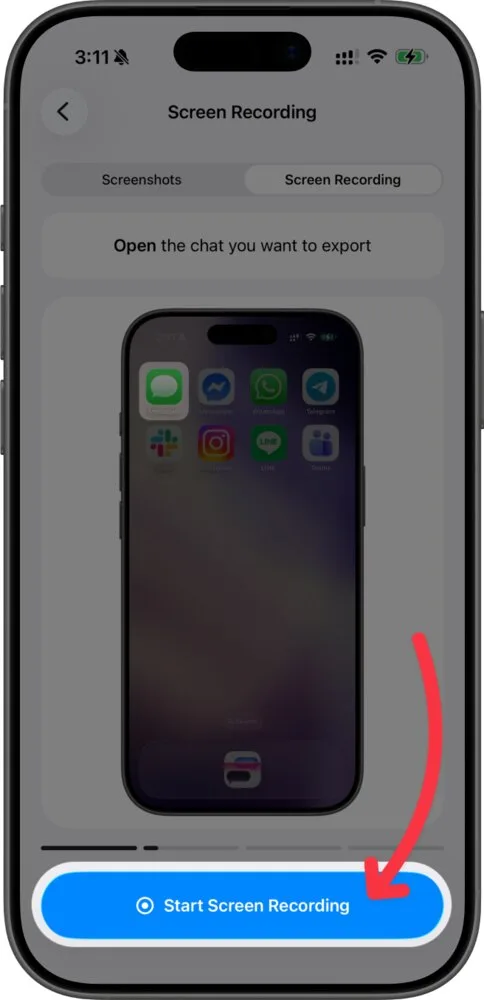
For anything longer than a few screens, use TextPort's Scroll Capture: one screen recording that TextPort reads into a chat you can search, fix and export.
- Open TextPort and tap Add Chat.
- Tap the app name at the top and pick the app the chat is in, like Instagram or Messenger.
- Tap the first card, then Start Screen Recording, then Start Broadcast.
- Switch to the chat and scroll slowly, oldest to newest.
- Go back to TextPort and tap Stop Recording. Trim the video so it starts and ends on the chat, then tap Start Processing.
The recorder stops after 15 minutes by default, so split a very long chat into two recordings. Already recorded it from Control Center? No need to do it again: long-press Start Screen Recording to pick the video from Photos. Overlapping screenshots work too, and TextPort removes the repeats. The full steps are in how to import a chat with Scroll Capture.
Before you export, read through the chat. You can change any message's text, sender, date or time. Then tap Export and PDF. Each page shows who sent each message, with the date and time. See how to export a chat to PDF.
How do I send or print the PDF?
In the PDF preview, tap the blue Share button in the top right. You get three choices:
- Share sends the file by AirDrop, Mail or any app on your phone.
- Share Link gives you a web link to the file instead of an attachment, which helps with a big PDF. The link works for 7 days by default.
- Files saves it wherever you pick: iCloud Drive, On My iPhone, or a folder from another app like Google Drive.
To print, tap Print instead of PDF when you export. Long chats make long PDFs: a 1,000-message chat comes to about 40 pages, so check the page count before you send it to a printer. If someone wants the messages in a spreadsheet or plain text, Spreadsheet (CSV) and Text (TXT) are on the same list.
Can I skip the screenshots for iMessage and SMS?
Yes, on iOS 26.4 or later. TextPort imports a Messages chat through the TextPort Shortcut. It reads the original text and exact times straight from Messages, so there's nothing to screenshot or retype, and photos print in the PDF. Here's how to set up the Shortcut.
How do I get a whole WhatsApp chat without screenshots?
In WhatsApp, tap the contact or group name, then Export chat. WhatsApp saves the chat as a ZIP file and leaves out view once messages. Open that file in TextPort and it reads every message with its exact time. Here's how to export a WhatsApp chat to TextPort.
Frequently asked questions
-
That's up to the court, and TextPort can't give legal advice. Are screenshots of text messages admissible in court? covers what courts look at, with sources. Whatever you send, keep the original screenshots or recording on your phone.

Start exporting your messages
Available for iPhone, Mac, and Windows. No computer required.
