

How to continue on Mac or Windows
Quick answer
In TextPort, with Messages picked at the top:
- Tap Add Chat.
- Scroll down. Tap Continue on Mac or Windows.
- Tap Mac or Windows PC.
- Tap Get TextPort for Mac or Get TextPort for Windows.
Then install TextPort on the computer.
- On Mac: How to install TextPort for Mac and give it Messages access
- On Windows: How to install TextPort for Windows
What you need
- ✓TextPort on your iPhone
- ✓A Mac or a Windows PC
Steps
-
Tap Add Chat
Open TextPort. It is at the bottom of Saved Chats.

-
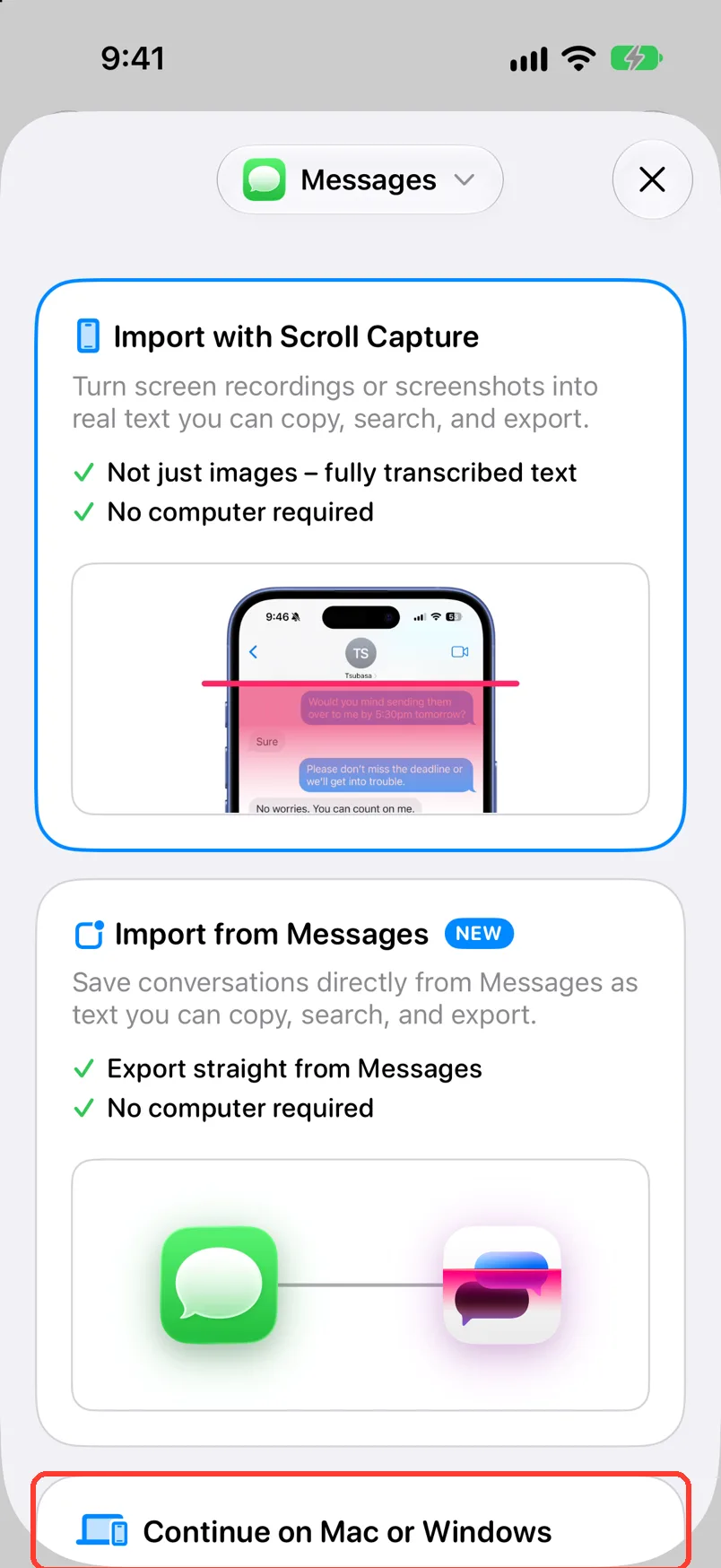
Tap Continue on Mac or Windows
Scroll down to the last card. Import using a Computer opens.
TextPort may ask you to unlock this.
-
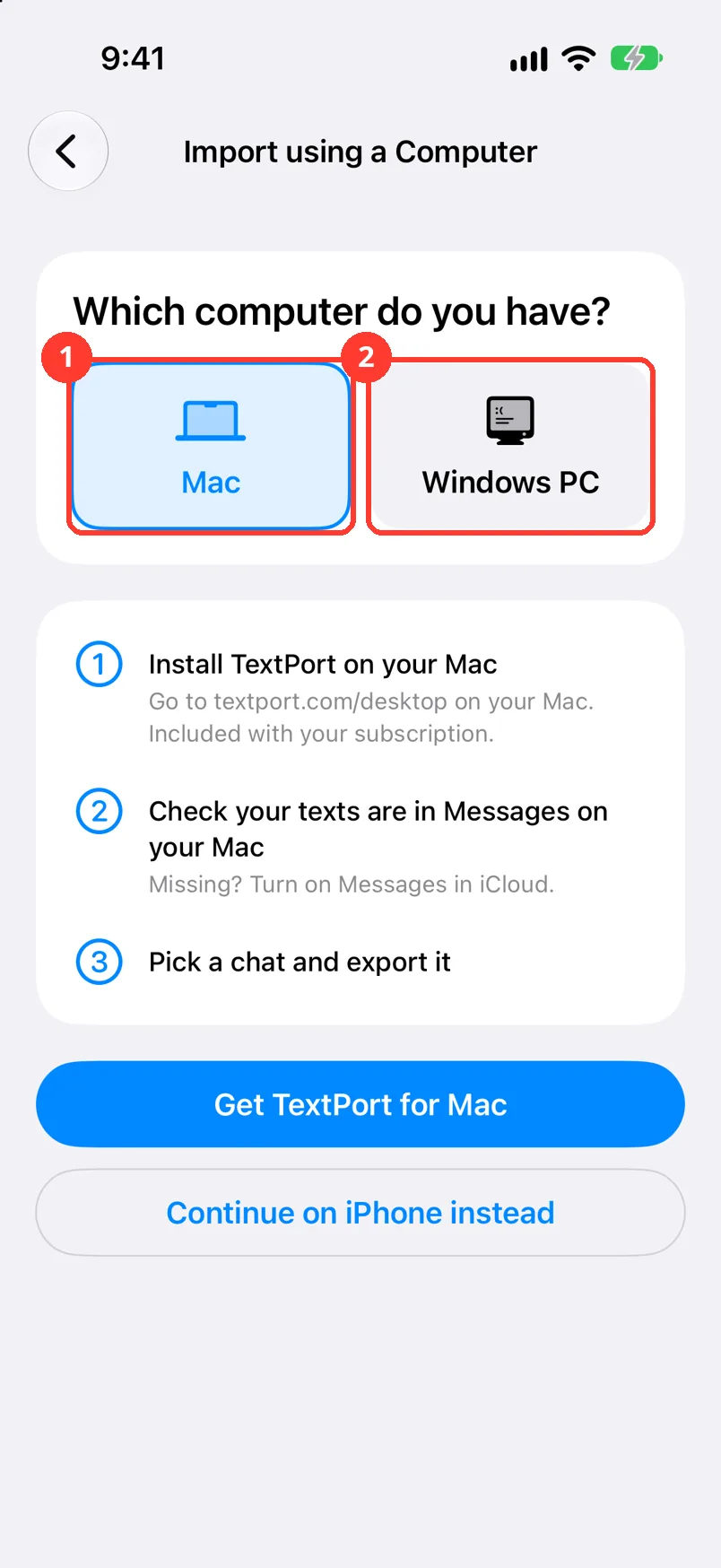
Tap Mac or Windows PC
Which computer do you have? is at the top. Tap Mac (1) or Windows PC (2). The steps change to fit.
-
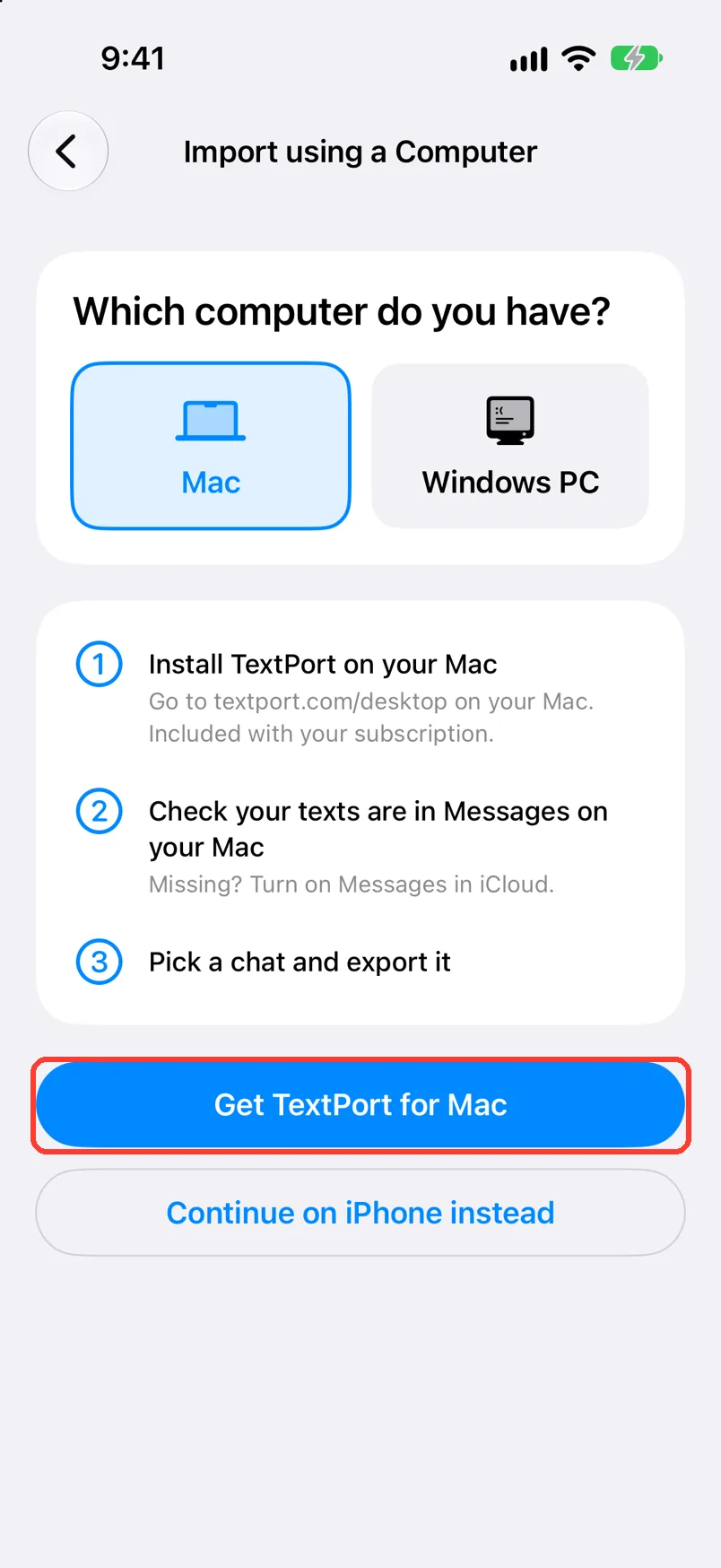
Tap Get TextPort for Mac
On Windows it says Get TextPort for Windows. Your browser opens the download page.
You can also go to textport.com/desktop on the computer.
-
Install TextPort on the computer
On Mac, see Install TextPort for Mac. On Windows, see Install TextPort for Windows.
Done
You have the download page for your computer. The computer guides take it from there.
Problems
There is no Continue on Mac or Windows card.
It shows only when Messages is picked. Tap the app name at the top. Tap Messages.
You do not have a computer.
Tap Continue on iPhone instead. Scroll Capture opens.
Your texts are not in Messages on your Mac.
Turn on Messages in iCloud on your iPhone and your Mac. Wait for them to download.
Your PC does not see your iPhone.
Use a USB cable. Tap Trust on your iPhone. See Fix an iPhone not showing up.
None of these match.
Email [email protected]. Say which step you were on. Say what you saw. We usually reply within a day.
Questions
-
For a long chat with all its attachments. On Windows, TextPort reads a backup of your iPhone. On a Mac, it reads the Messages on that Mac.
-
No. This card is for Messages. For WhatsApp, use Import from WhatsApp.
Next guides
-
 How to install TextPort for Mac and give it Messages access
You will have TextPort for Mac open, showing every chat saved in Messages on that Mac.
-
 How to install TextPort for Windows
You will have TextPort open on your Windows PC, ready to back up your iPhone.
-
 How to back up your iPhone to your PC with TextPort
You will have a backup of your iPhone on your PC, and your messages open in TextPort.
-
 How to pick a way to import a chat
You will know which way to import your chat, and where to tap to start it.

Start exporting your messages
Available for iPhone, Mac, and Windows. No computer required.
