

What to do when TextPort says Couldn't Open Saved Data
Quick answer
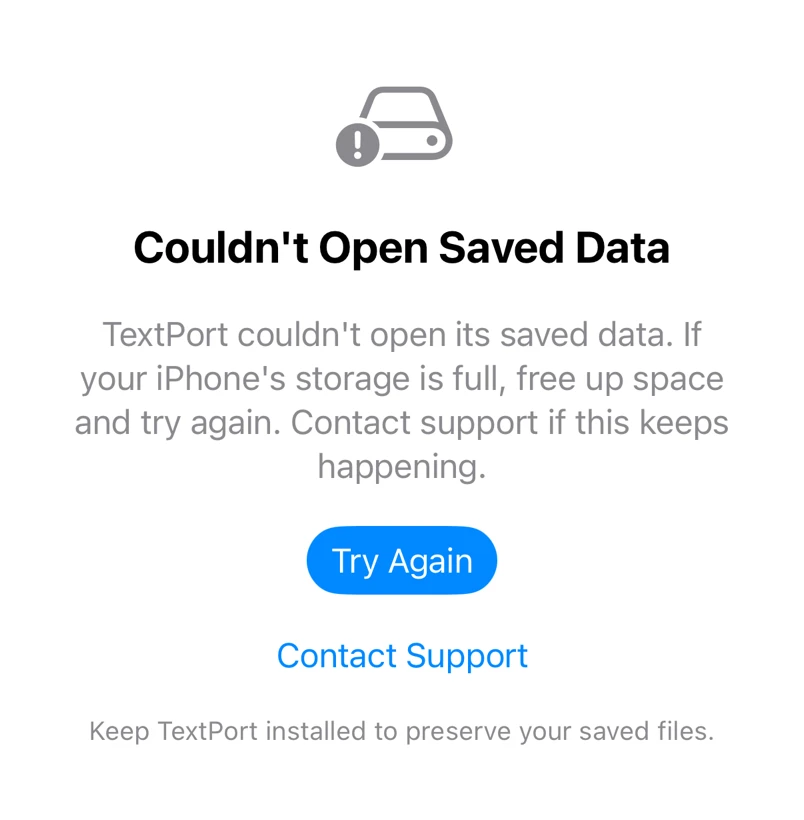
Couldn't Open Saved Data means TextPort could not open its data on your iPhone. Do not delete TextPort. That deletes the files it saved.
- Wait a few seconds. TextPort tries again by itself.
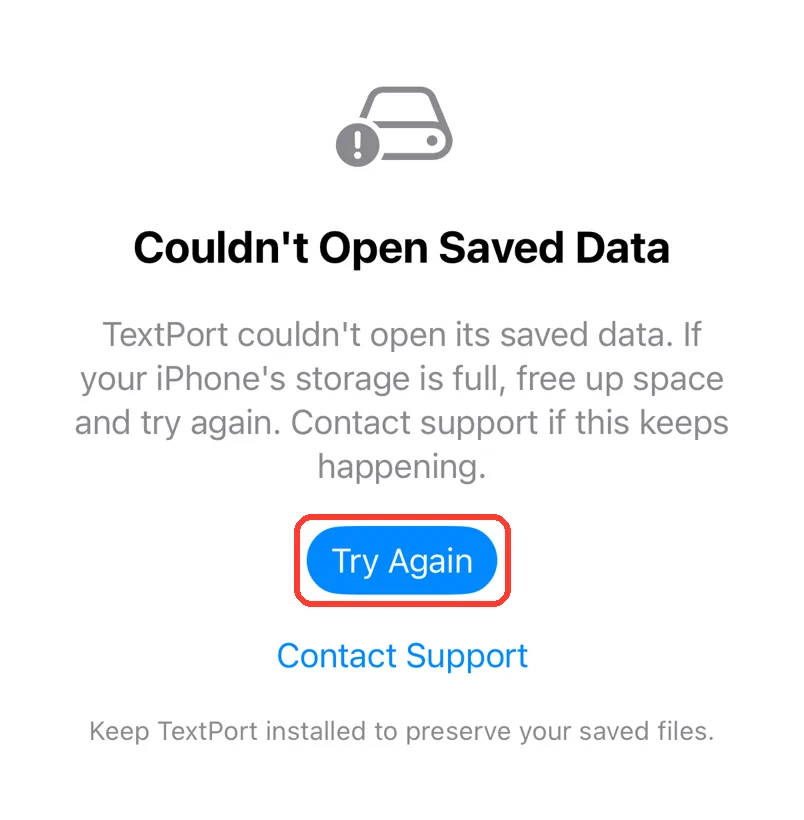
- Tap Try Again.
- Still there? Free up space on your iPhone.
- Open TextPort. Tap Try Again.
- If the screen stays, tap Contact Support.
What you need
- ✓TextPort on your iPhone
Steps
-
Wait a few seconds
TextPort tries again by itself. If it works, TextPort opens.
-
Tap Try Again
It is the blue button. If it works, TextPort opens.
-
Check iPhone Storage
It is in the iPhone Settings app, under General. It shows how full your iPhone is.
-
Free up space
Delete apps, photos, or videos you do not need. Keep TextPort.
-
Open TextPort
If the screen is still there, tap Try Again.
-
Tap Contact Support
Do this if the screen stays. Support opens. Type your email and your message.
Done
TextPort opens again. Your saved chats and files are still there.
Problems
Unlock to Open TextPort
Your iPhone is locked. Unlock it. TextPort then opens by itself.
Your iPhone has free space, but the screen stays.
Tap Contact Support on the screen. Keep TextPort installed.
A Messages import says TextPort couldn't open its saved data.
You deleted TextPort already.
Get TextPort again from the App Store. The files it saved on your iPhone are gone. If your chats do not show, contact support.
None of these match.
Email [email protected]. Say which step you were on. Say what you saw. We usually reply within a day.
Questions
-
TextPort keeps its saved data on your iPhone. This screen shows when TextPort cannot open that data. A full iPhone can cause it.
-
No. This screen does not delete anything. TextPort opens the same data again when it can.
-
Deleting the app deletes the files it saved on this iPhone. These are photos and attachments, screenshots, and screen recordings. The screen says Keep TextPort installed to preserve your saved files.
Next guides
-
 How to contact TextPort support or report a problem
Your question or problem will reach TextPort support, with your email so they can answer.
-
 How to fix a stuck or failed Shortcut import with TextPort
You will get a Messages import that finishes, or know exactly what to tell support.
-
 How to see and delete your TextPort data
You will see which files TextPort keeps on your iPhone, and you can delete them.

Start exporting your messages
Available for iPhone, Mac, and Windows. No computer required.