
5 best apps to print text messages from iPhone in 2026

Printing text messages from an iPhone isn't straightforward. Apple's native Messages app doesn't have a print or export button — so whether you need a formatted PDF for a custody dispute, a paper record for a workplace complaint, or just a clean printout to keep on file, you need a third-party tool.
This list covers the five most practical options available in 2026, with honest notes on what each does well, where it falls short, and which situations it fits.
1. TextPort — best for any messaging app, no computer needed
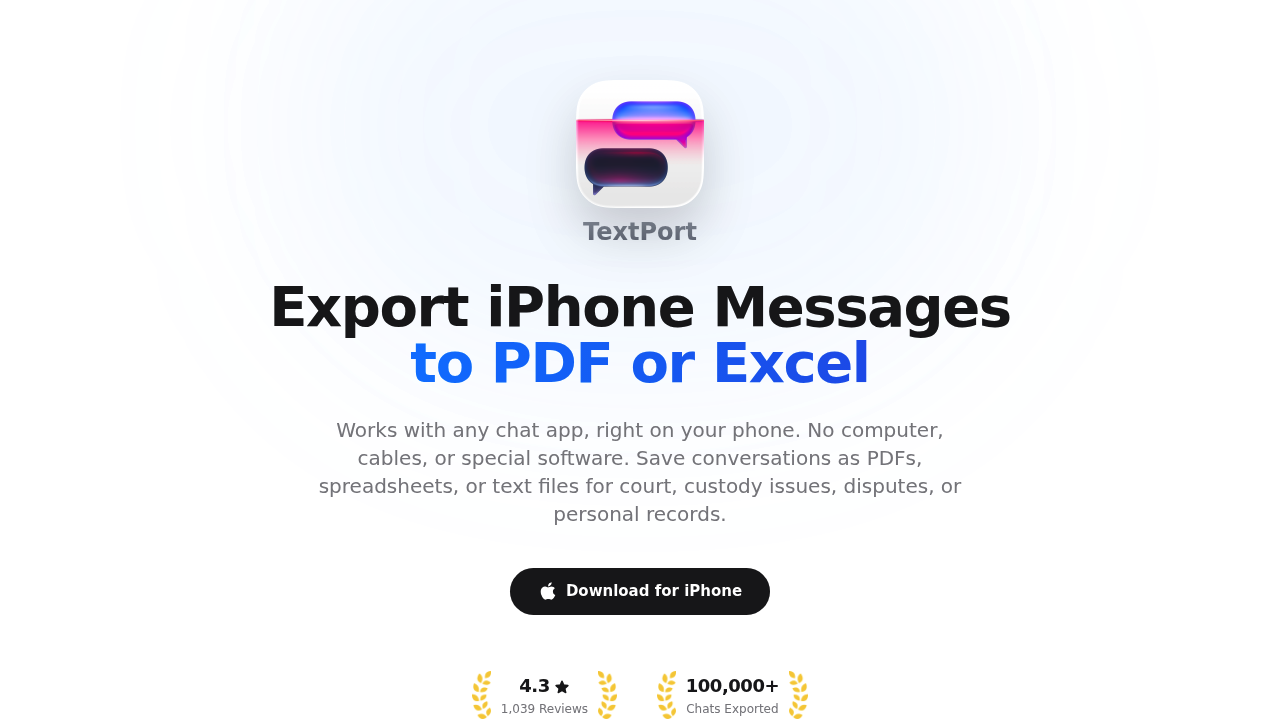
TextPort is an iPhone app that exports conversations directly from your device — no USB cable, no computer, no iTunes backup required. Pick a conversation and TextPort pulls it straight out of iMessage: sender names, timestamps, and message order all intact.
The resulting file can be exported as a formatted PDF, a CSV spreadsheet, or plain text. The PDF output is designed for printing and formal use — suitable for court filings, business records, and personal archives. The app is rated 4.3 out of 5 from over 1,000 ratings across 41 App Store storefronts (as of June 2026).
What sets it apart from every desktop tool on this list is coverage. It handles iMessage, SMS, WhatsApp, Instagram DMs, Facebook Messenger, Telegram, Signal, and any other messaging app. There's no limit on the number of conversations or messages exported.
Best for: Users who need to print text message right on their iPhone and want to do it without a computer.
Export formats: PDF, CSV, TXT
Desktop option: TextPort also has two desktop apps for iMessage and SMS, for when you want a whole history at once. TextPort for Mac reads the Messages already on your Mac (turn on Messages in iCloud to get your iPhone's full history), with no cable and no backup. TextPort for Windows backs up your iPhone over USB through Apple's Apple Devices app or iTunes, or opens a backup already on the PC. Both export many conversations at once to PDF, CSV, or TXT, with a ZIP of attachments; print the PDF from there. No account needed. They don't read WhatsApp or other third-party apps.
2. iMazing — best desktop manager for iMessage and SMS
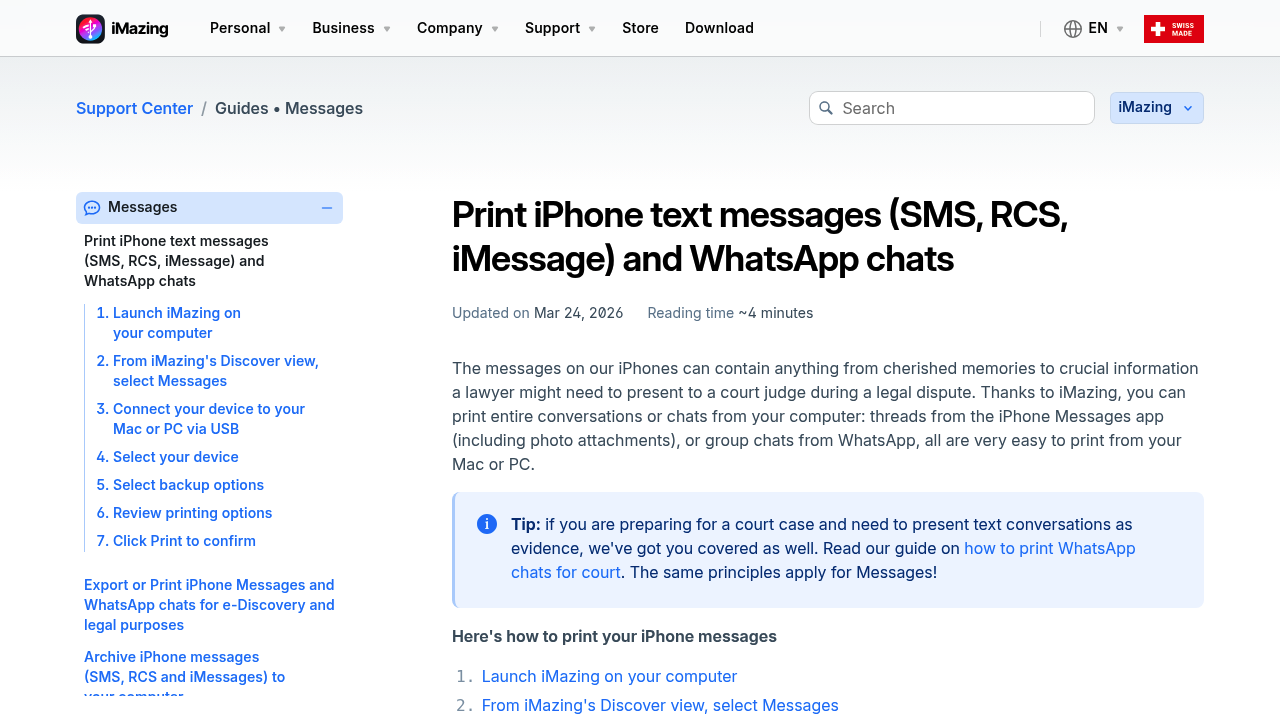
iMazing is a Mac and Windows desktop application that reads your iPhone's local backup and lets you export messages in PDF, CSV, Excel, plain text, and RSMF (a format used in legal e-discovery). It also manages photos, app data, music, and device backups — making it a broader tool than most users need just for printing texts.
For iMessage and SMS, the output quality is high: conversations display with timestamps, sender names, and attachments. The print settings include options for headers, footers, and metadata — useful if a document needs to carry provenance information for court.
iMazing does support WhatsApp exports as well, though that requires an iPhone backup to include WhatsApp data, which is controlled by WhatsApp's own backup settings. According to the iMazing alternatives comparison on TextPort, iMazing moved to a subscription pricing model in 2025.
Best for: Power users who want a full iPhone management suite and need clean iMessage/SMS exports for legal or archival purposes.
Export formats: PDF, CSV, Excel, TXT, HTML, RSMF
Limitation: Requires a computer, a USB cable (or Wi-Fi sync), and time to complete a backup before exporting.
3. Decipher TextMessage — best focused tool for iMessage/SMS
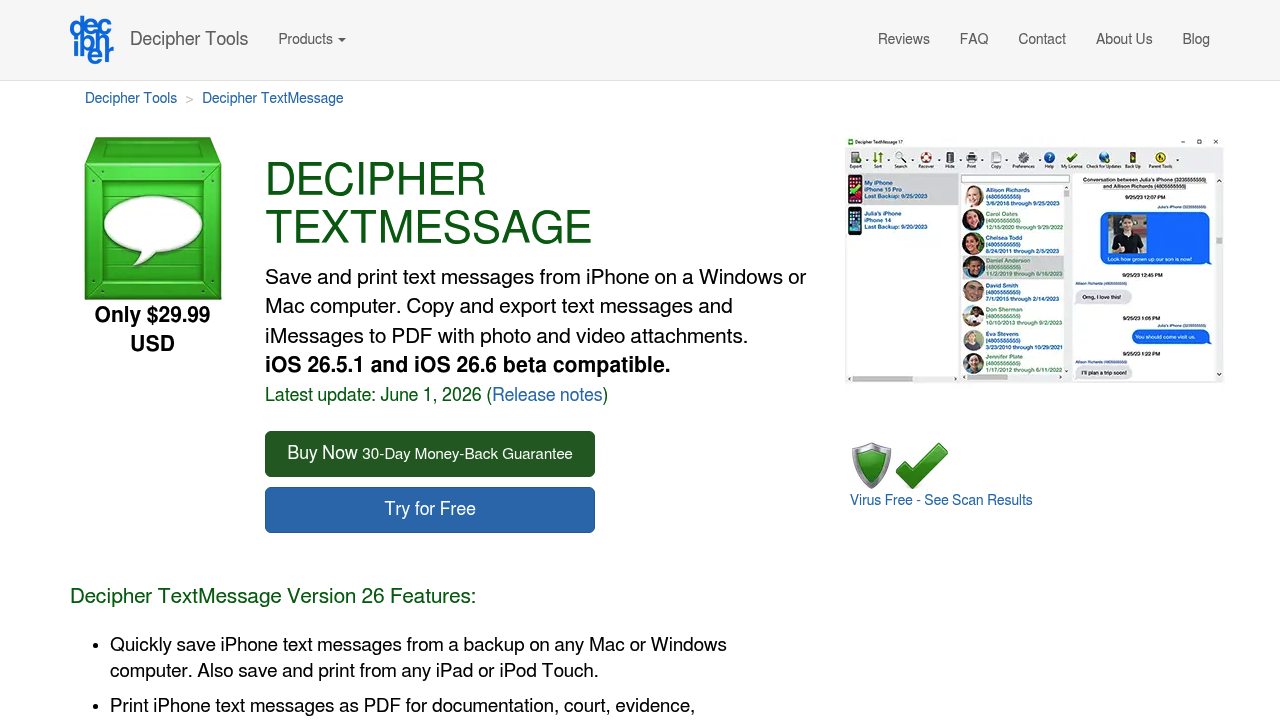
Decipher TextMessage is a single-purpose Mac and Windows app built specifically for archiving and printing iMessage and SMS conversations. It reads from an iTunes/Finder backup, displays threads cleanly with timestamps on every message, and exports to PDF, HTML, CSV, or plain text. The interface is simpler than iMazing's — it doesn't try to manage your whole device.
It's a long-standing tool with a strong track record among attorneys and paralegals. The one-time purchase price (currently $29.99 for two devices) is lower than iMazing's subscription. The trade-off: it only works with iMessage and SMS. It does not read WhatsApp, Telegram, Signal, or other third-party messaging apps. For a detailed side-by-side, see the Decipher TextMessage vs TextPort comparison.
Best for: Users who only need to print iMessage or SMS threads and want a clean, low-cost desktop tool.
Export formats: PDF, HTML, CSV, TXT
Limitation: No support for third-party messaging apps.
4. TouchCopy — best for printing WhatsApp alongside iMessage
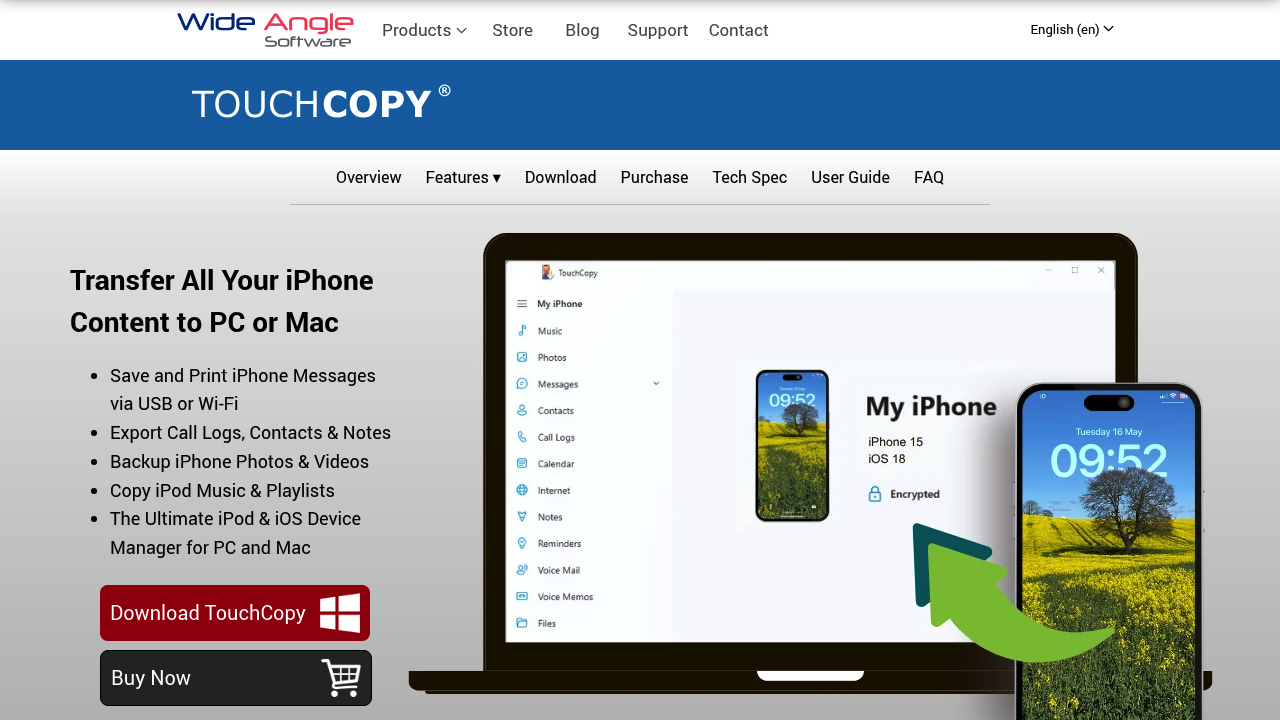
TouchCopy is a Mac and Windows desktop app from Wide Angle Software. It connects directly to an iPhone (via USB or Wi-Fi) rather than reading from a backup, which some users find more intuitive. It prints SMS, MMS, RCS, iMessage, and WhatsApp conversations — preserving emojis, images, and chat bubbles — and also lets you export to PDF, HTML, CSV, or plain text.
The interface puts you straight into a message browser; no separate backup step required. TouchCopy also handles phone content beyond messages: music, contacts, photos, and call logs. Pricing is a one-time purchase at around $39.99. According to the TouchCopy vs TextPort breakdown, it remains a solid pick for Windows users who need WhatsApp exports from a desktop app.
Best for: Windows users who want to print both iMessage and WhatsApp from a single desktop app.
Export formats: PDF, HTML, CSV, TXT
Limitation: Requires a computer and a physical or Wi-Fi connection. Third-party app coverage is more limited than TextPort's.
5. iPhone screenshots + AirPrint — best for one-off quick prints
For short conversations — two or three messages you want on paper immediately — the iPhone's built-in screenshot function combined with AirPrint is the fastest path. Take a screenshot with the Side + Volume Up buttons, open it in Photos, tap the Share icon, and select Print to send it directly to an AirPrint-compatible printer.
The obvious drawbacks: screenshots capture only what's visible on screen, so a long conversation requires dozens of captures. There's no automatic stitching, no consistent timestamp display across images, and no clean page breaks. For court use, a stack of raw screenshots is generally less credible than a single formatted PDF export. If you're printing messages as evidence for a legal matter, this method isn't recommended.
Best for: Casual use — printing a handful of messages quickly without any additional software.
Export formats: Image files printed via AirPrint
Limitation: Impractical for long threads; lacks the metadata formatting needed for formal or legal documentation.
Which app should you use?
The right choice depends on two things: which messaging app the conversation is in, and whether you have a computer available.
- iMessage or SMS only, on a desktop: TextPort for Mac or TextPort for Windows exports every conversation at once. Decipher TextMessage ($29.99) is the most focused and affordable option, and iMazing covers more if you also need device management.
- WhatsApp, Instagram, Telegram, Signal, or any app: TextPort handles them right on your iPhone — no computer, no cable. It's the only option on this list that handles all messaging apps with a single workflow.
- Need both iMessage and WhatsApp from a desktop on Windows: TouchCopy handles both and connects directly to the device.
- Printing 2-3 messages right now: iPhone screenshots via AirPrint gets it done in under a minute.
For a fuller guide on producing print-ready text message printouts from iPhone, including authentication requirements and what courts typically look for in exported conversations, that resource covers the legal side in detail.

Start exporting your messages
Available for iPhone, Mac, and Windows. No computer required.
