
How to Export iPhone Messages to PDF (4 Easy Methods)
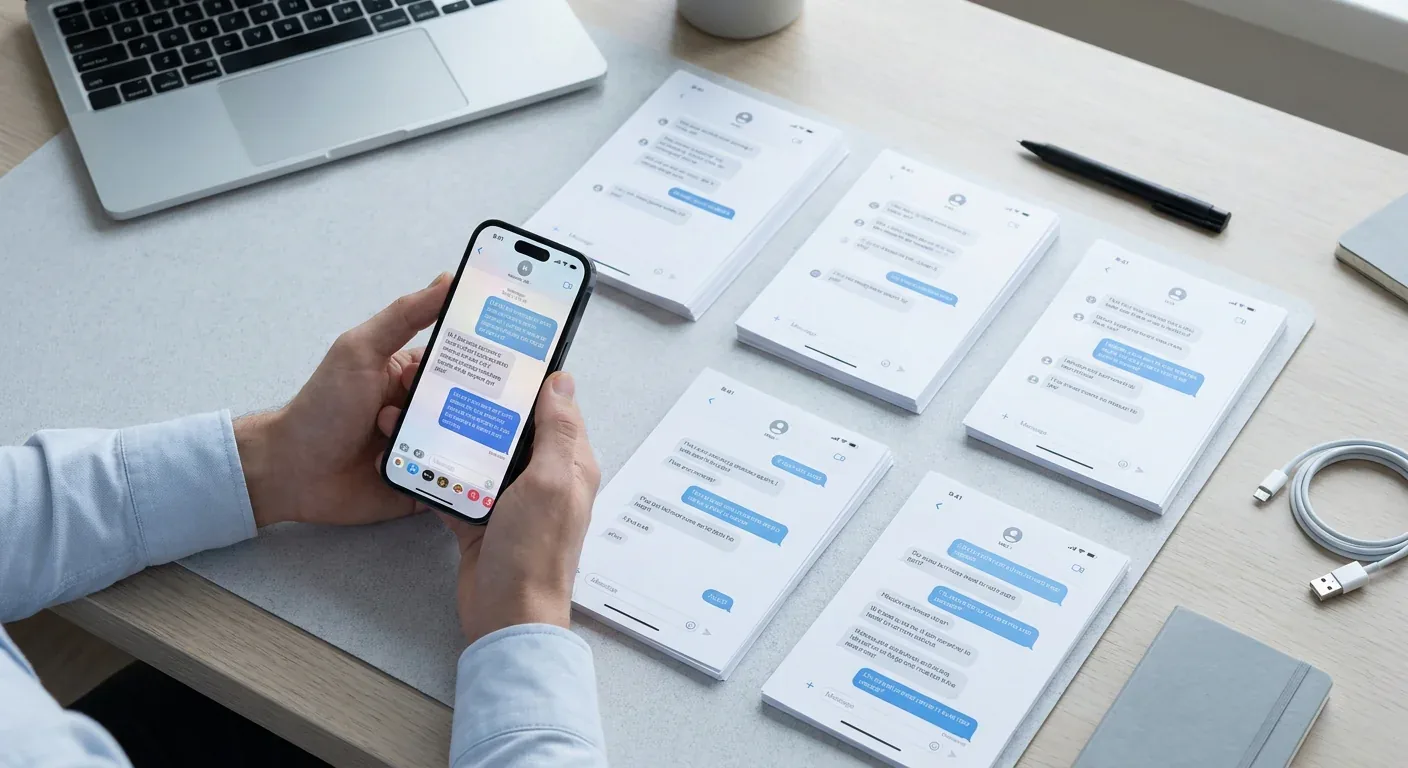
At some point, most of us need to save a text conversation. Maybe it's proof of an agreement, a record of something that happened, or just a thread you don't want to lose. The problem is that iPhones don't make this easy by default. There's no "Save as PDF" button sitting in your Messages app.
Here are the four methods that actually work, ranked from quickest to most thorough.
1. Use an app on your iPhone (no computer needed)
If you need a clean, properly formatted PDF without plugging anything into a computer, TextPort is the fastest path. It pulls the conversation straight out of iMessage and exports it as a PDF, with sender names, timestamps, and message order preserved. No screenshots, no scrolling.
- Open TextPort and tap Import.
- Choose the Messages conversation you want to export.
- Pick the date range you need.
- TextPort imports every message with sender and timestamp. Export as PDF, CSV, or TXT.
It also works with WhatsApp, Instagram DMs, Telegram, Signal, and more. This makes it especially useful for exporting messages from apps beyond iMessage, where other methods fall short.
2. Screenshot method (free, no apps required)
This is the most accessible option:
- Open the conversation and scroll to where you want to start.
- Take screenshots as you scroll (press the side button + volume up).
- Open the Photos app and select all the screenshots.
- Tap Share → Print, then pinch outward on the print preview, which converts it into a PDF.
- Tap Share again to save the PDF to Files or send it.
It works, but it's slow for long threads and the resulting file can be hard to read without some cropping.
3. Mac Messages app (built-in, iMessage/SMS only)
If you have a Mac signed into the same Apple ID:
- Open Messages on your Mac.
- Select the conversation.
- Go to File → Print.
- In the print dialog, click Save as PDF in the bottom-left corner.
This method is clean and free, but it only captures what's already synced on your Mac. Long threads can also cause the Messages app to become slow or unresponsive, a known limitation. It also won't work for WhatsApp or other third-party apps.
For long threads, TextPort for Mac, on the Mac App Store, reads the same synced Messages and exports whole conversations, or a date range, to PDF, CSV, or TXT without scrolling back first. No cable and no backup.
4. Desktop tools (iMazing, TouchCopy, Decipher TextMessage)
Apps like iMazing, TouchCopy, and Decipher TextMessage connect your iPhone to a Mac or PC via USB and export message histories directly from your device or backup. They produce well-formatted PDFs with timestamps and handle very long threads reliably.
The trade-off is that they require a computer, a USB cable, and a paid license ($30–$50 range). For one-off exports, that's a steep ask. For anyone doing regular documentation or bulk exports, it might be worth it.
TextPort's own desktop apps export entire iMessage and SMS histories at once, attachments included. On a PC, TextPort for Windows lets you export iPhone messages to PDF on a PC: it backs up your iPhone over USB through Apple's Apple Devices app or iTunes, or opens a backup already on the PC. On a Mac, TextPort for Mac needs no cable or backup at all. You can compare the full feature breakdown in our guide to the best apps to convert text messages to PDF.
Which method should you use?
- No computer, any app (WhatsApp, iMessage, etc.): TextPort
- Quick and free, short conversation: Screenshot method
- Already on a Mac, iMessage only: Mac Messages app
- Long history, need maximum reliability: Desktop tool (TextPort for Mac or Windows, iMazing, etc.)
For most people (especially those exporting from multiple apps or dealing with legal documentation), a phone-first tool like TextPort removes the most friction. You don't need a cable, a computer, or any technical setup. Just pick the chat and let the app do the rest.

Start exporting your messages
Available for iPhone, Mac, and Windows. No computer required.
