

How to copy a message in TextPort for Windows
Quick answer
In a conversation:
- Right-click the empty space next to the message.
- Click Copy for the date, time, sender, and words.
- Or click Copy text for only the words.
Paste it in any app.
- On iPhone: How to copy a message in TextPort
What you need
- ✓TextPort for Windows, with a conversation open
Steps
-
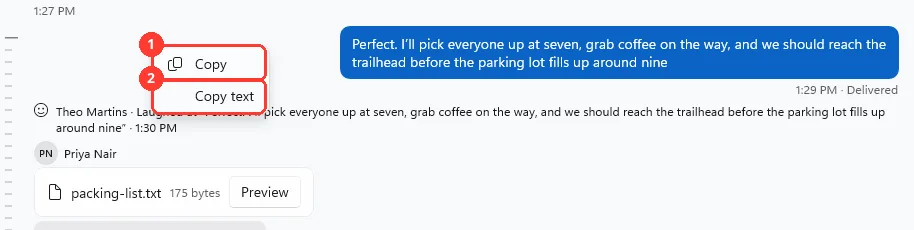
Right-click next to the message
Right-click the empty space in its row, not the text. A menu opens.
You can also click next to a message and press Ctrl C.
-
Click Copy or Copy text
Copy (1) adds the date, time, and sender. Copy text (2) copies only the words.
Done
The message is copied. Paste it in any app.
Problems
You only see Select All.
You right-clicked the words. Right-click the empty space next to the message.
You want the message a reply quotes.
You want the names and numbers of a group.
None of these match.
Email [email protected]. Say which step you were on. Say what you saw. We usually reply within a day.
Questions
-
Preview on a message with a photo or file. Open and Save original… when that file is in the backup. Go to original message on a reply.
-
Right-click the empty space next to the message. Click Open. A click on the message does not open the link.
-
Yes. Select the words with the mouse. Press Ctrl C.
-
It uses the same line as a text file export: the date and time, the sender, then the words.
Next guides
-
 How to go to the message a reply quotes in TextPort for Windows
You will see the message a reply answers, then go back to where you were.
-
 How to see who is in a group conversation in TextPort for Windows
You will see each person in a group, with their number or email.
-
 How to preview and save photos and files in TextPort for Windows
You will see a photo or file from a conversation, and have your own copy if you want.
-
 How to find and read a conversation in TextPort for Windows
You will have the right conversation open on your PC, ready to read.

Start exporting your messages
Available for iPhone, Mac, and Windows. No computer required.