

How to export or back up your contacts with TextPort
Quick answer
In TextPort:
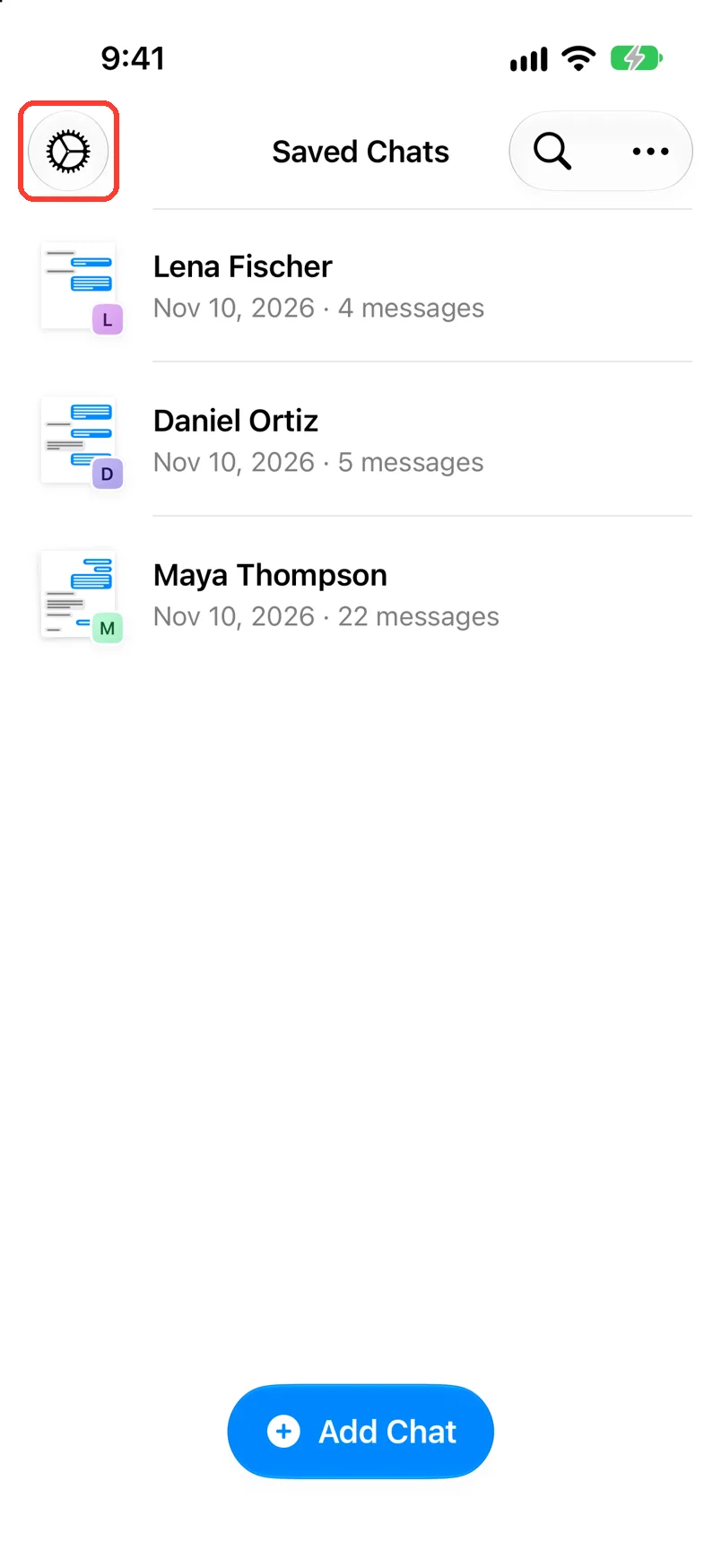
- Tap the gear in the top left of Saved Chats.
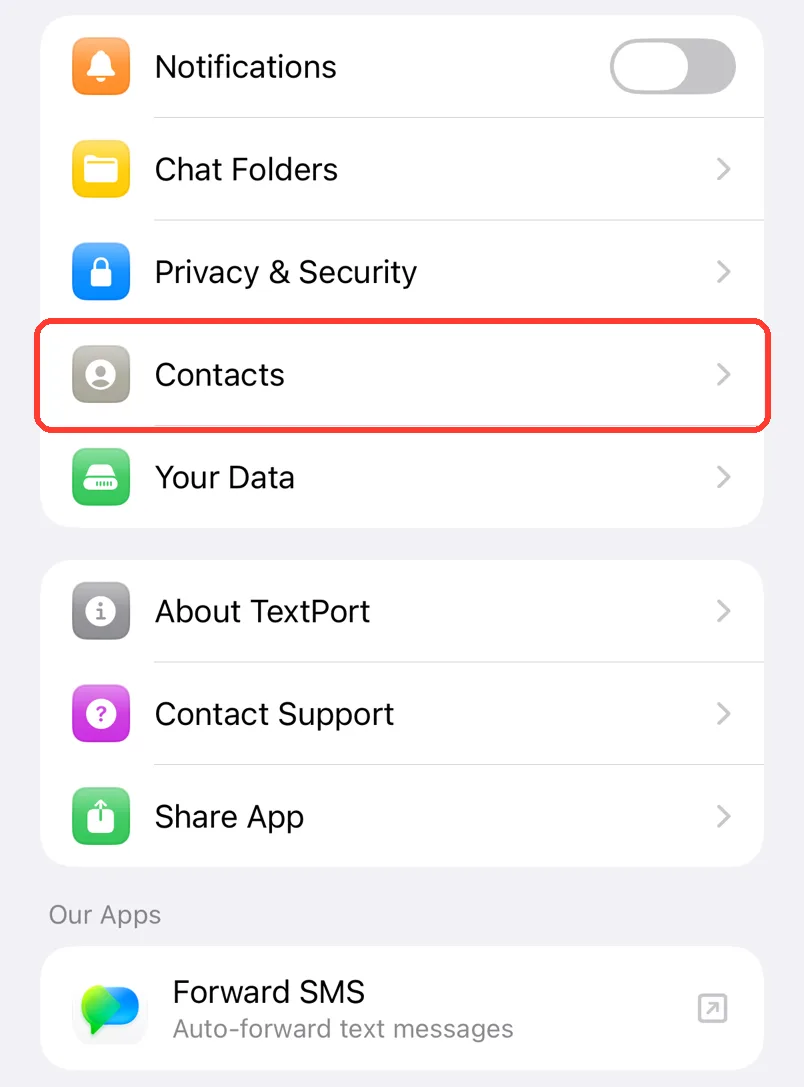
- Tap Contacts.
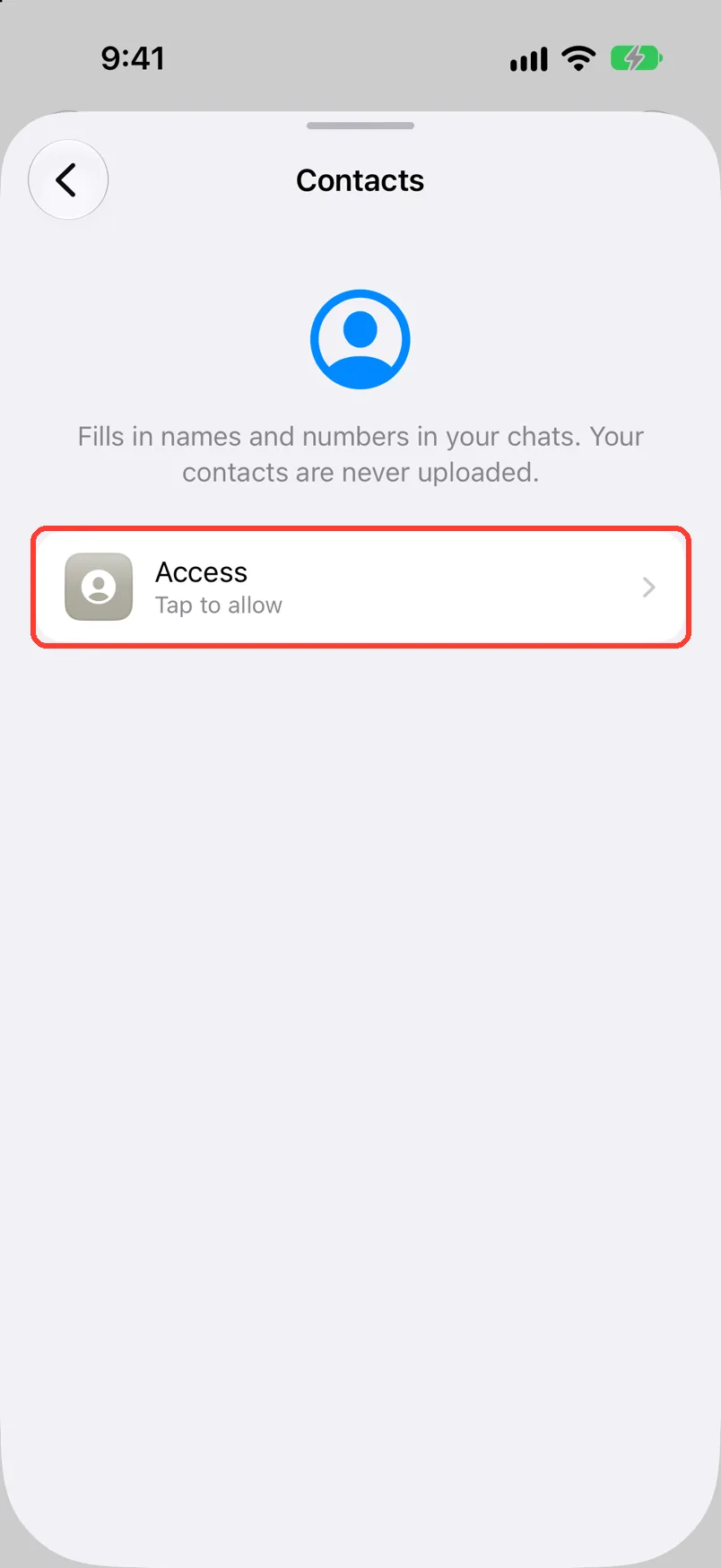
- First time only, tap Access and share all contacts.
- Tap vCard File or Spreadsheet.
- Tap Save to Files, then Save.
Your contacts are then in one file in the Files app.
What you need
- ✓TextPort on your iPhone
- ✓Contacts saved on your iPhone
Steps
-
Tap the gear
It is in the top left of Saved Chats. Settings opens.
-
Tap Contacts
It is under Privacy & Security. Contacts opens.
-
Tap Access
Do this when the row says Tap to allow. Your iPhone asks about your contacts.
If the row says All contacts, skip to step 6.
-
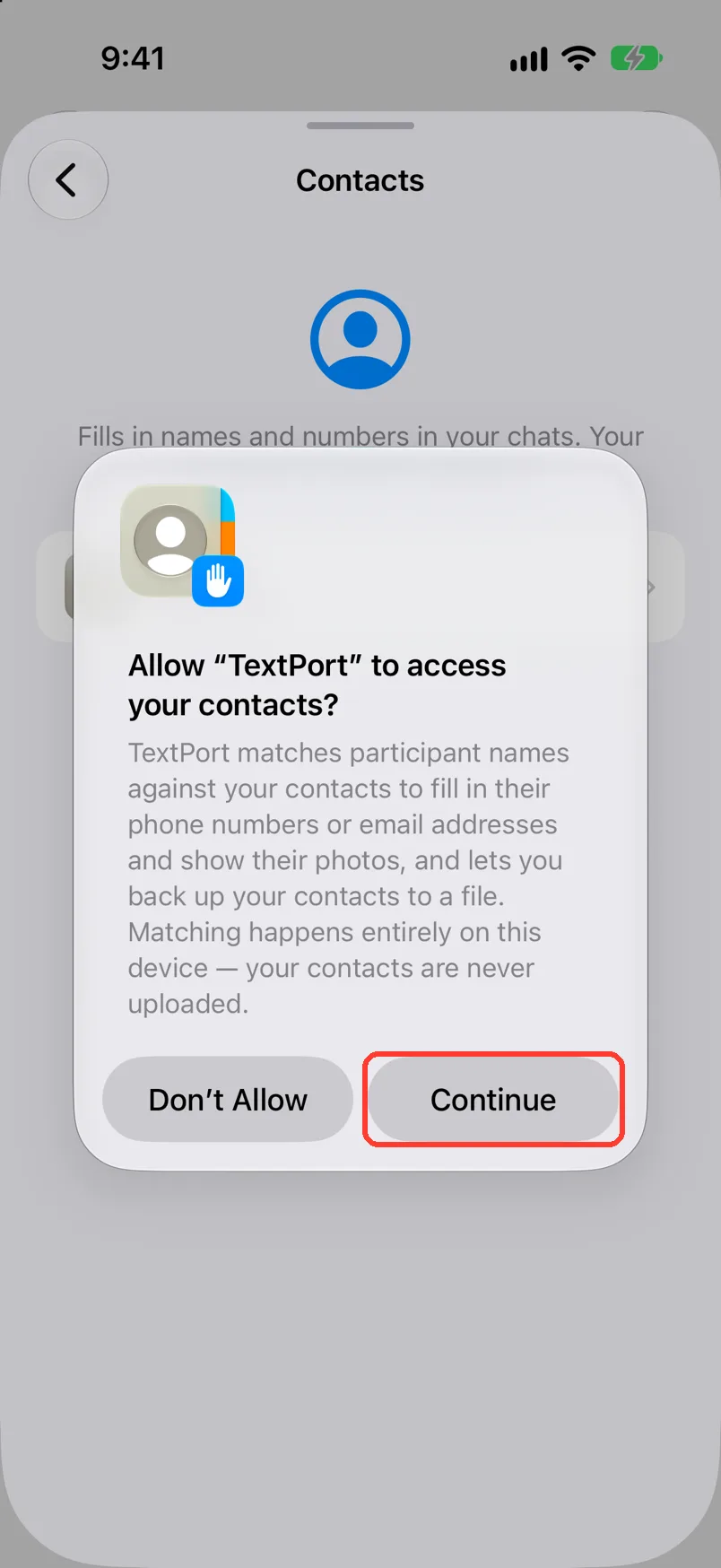
Tap Continue
Your iPhone asks Allow “TextPort” to access your contacts? Next it asks how to share them.
-
Tap Share All … Contacts
The button shows how many contacts you have. The Contacts screen now shows EXPORT YOUR CONTACTS.
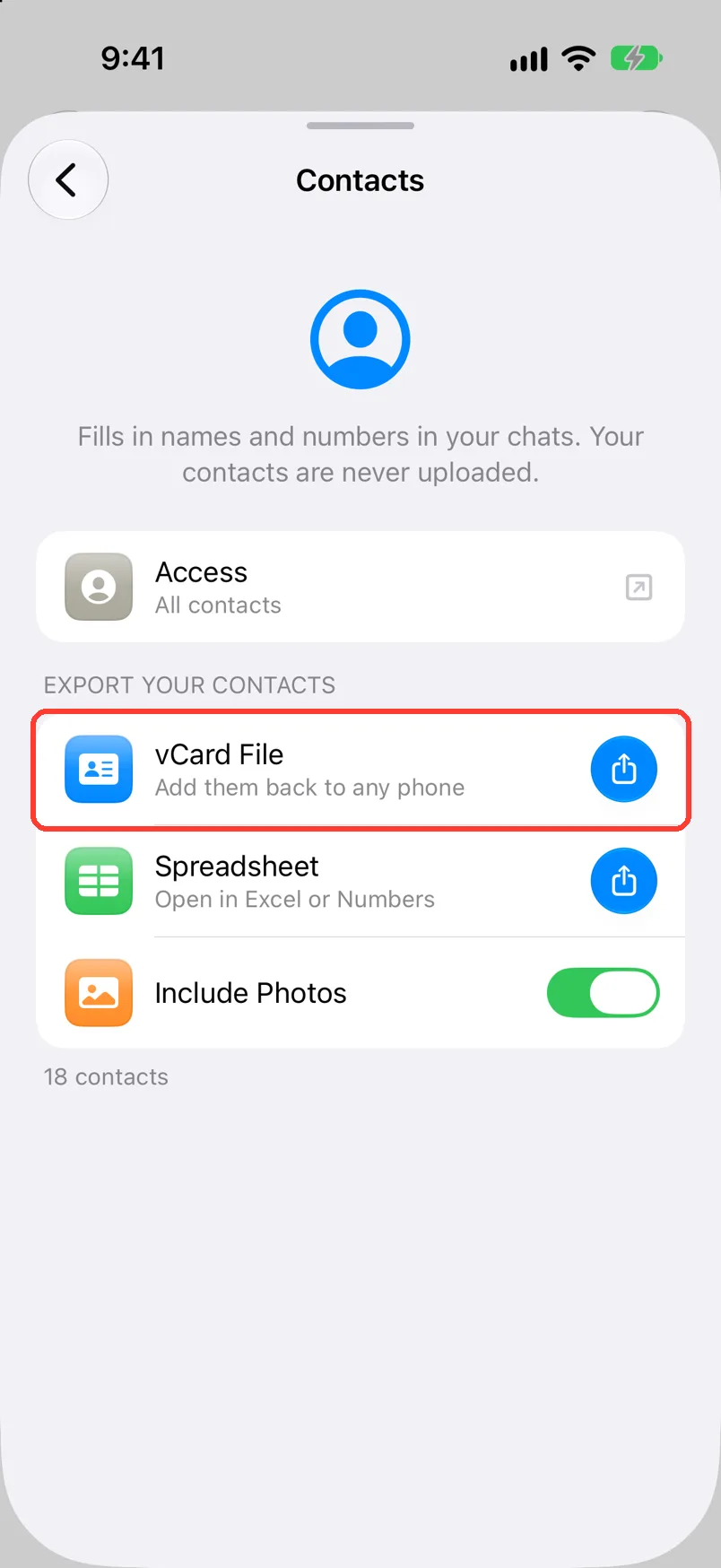
vCard file
-
Tap vCard File
It is under EXPORT YOUR CONTACTS. The share sheet opens with a file named Contacts and today's date.
To leave photos out of the file, turn off Include Photos first.
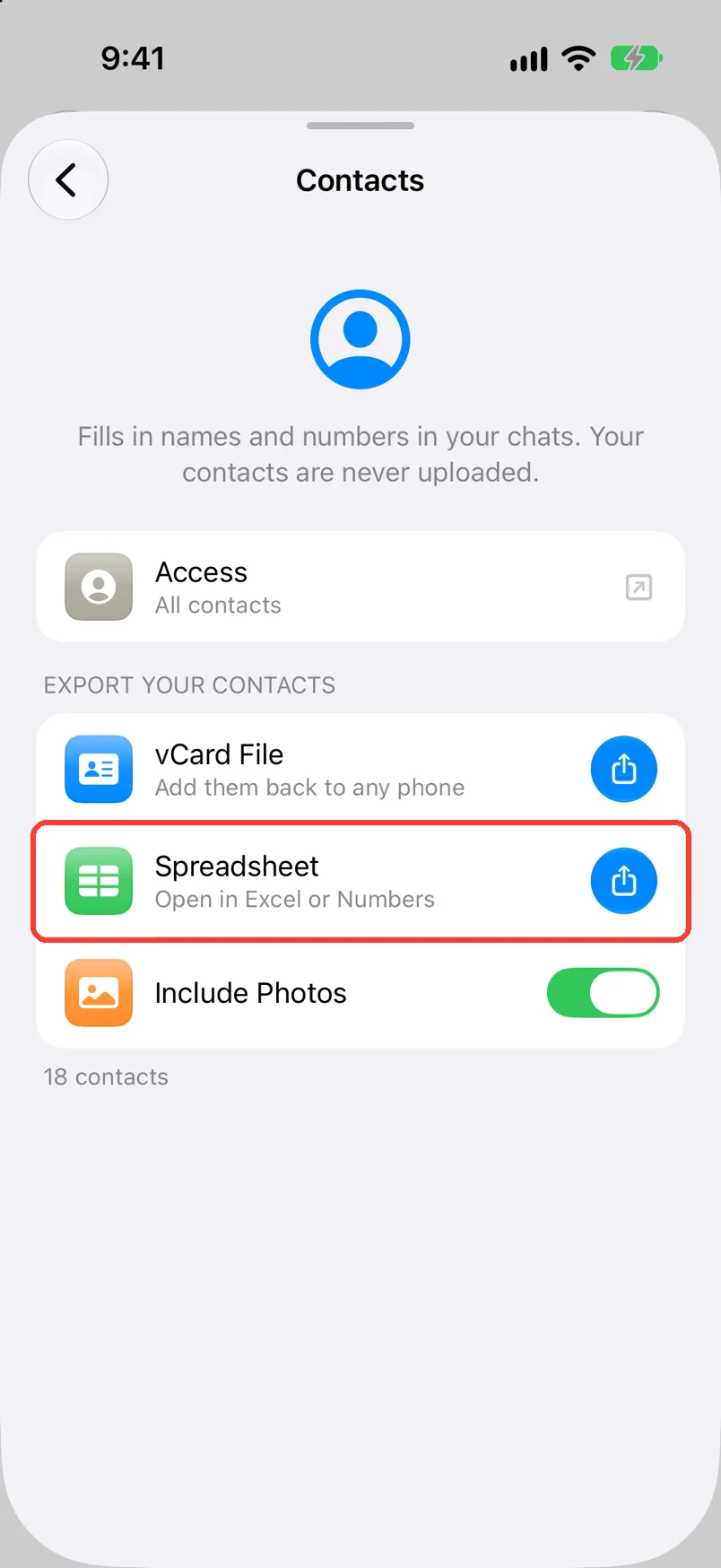
Spreadsheet
-
Tap Spreadsheet
It is under vCard File. The share sheet opens with a file named Contacts and today's date.
-
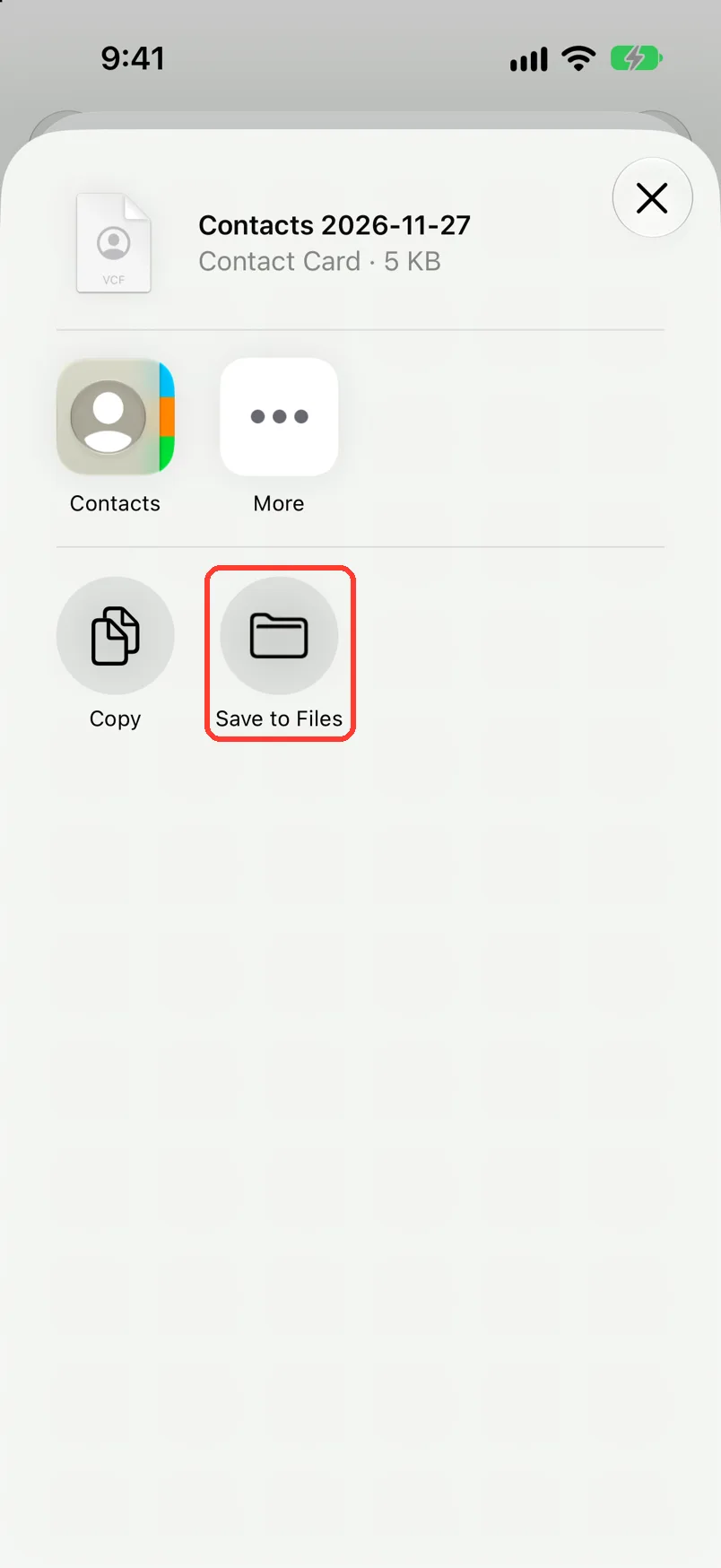
Tap Save to Files
It is in the share sheet. A save window opens.
To send the file to someone, tap an app in the share sheet instead.
-
Tap Save
It is the blue button in the top right. Pick iCloud Drive or On My iPhone first if you want.
Done
All your contacts are in one file. Open the Files app to see it.
Problems
Access says Off.
Tap Access. The iPhone Settings app opens. Let TextPort use your contacts there. Then go back to TextPort.
Access says Some contacts.
The file will hold only the contacts you shared. To get them all, tap Access. The iPhone Settings app opens. Let TextPort use all your contacts.
There is no EXPORT YOUR CONTACTS.
TextPort cannot see your contacts yet. Do steps 3 to 5.
vCard File and Spreadsheet are gray.
Wait if a row shows a spinning circle. TextPort is making the file. If the line under the rows says 0 contacts, TextPort sees no contacts. Check Access.
Couldn't save a copy
Tap OK. Tap vCard File or Spreadsheet again.
None of these match.
Email [email protected]. Say which step you were on. Say what you saw. We usually reply within a day.
Questions
-
Pick vCard File to put your contacts on a phone again. The app says Add them back to any phone. Pick Spreadsheet for a list to read, sort, or print.
-
One row for each contact. It has the name, company, job, birthday, phone numbers, emails, addresses, and websites. It has no photos.
-
Yes, when Include Photos is on. Turn it off for a smaller file.
-
As many as the line under the rows says, like 18 contacts.
-
Contacts and the day you made it, like Contacts 2026-11-27.
-
No. TextPort only reads them to make the file. Your contacts stay as they are.
-
No. TextPort makes the file on your iPhone. It removes its own copy when the share sheet closes. The copy you saved stays.
Next guides
-
 How to save an export to Files or iCloud Drive with TextPort
Your exported file will be saved in the Files app or in iCloud Drive.
-
 How to link, change, or unlink a contact with TextPort
A person in your chat will have the name and number from your contact.
-
 How to add phone numbers to a PDF with TextPort
Your PDF will show each person's phone number next to their name.
-
 How to see and delete your TextPort data
You will see which files TextPort keeps on your iPhone, and you can delete them.

Start exporting your messages
Available for iPhone, Mac, and Windows. No computer required.