

How to filter a conversation by date in TextPort for Windows
Quick answer
In a conversation:
- Click All time next to Export.
- Click a day under From and a day under To.
- Click Apply.
To see every day again, click the dates, then All time.
What you need
- ✓TextPort for Windows, with a conversation open
Steps
-
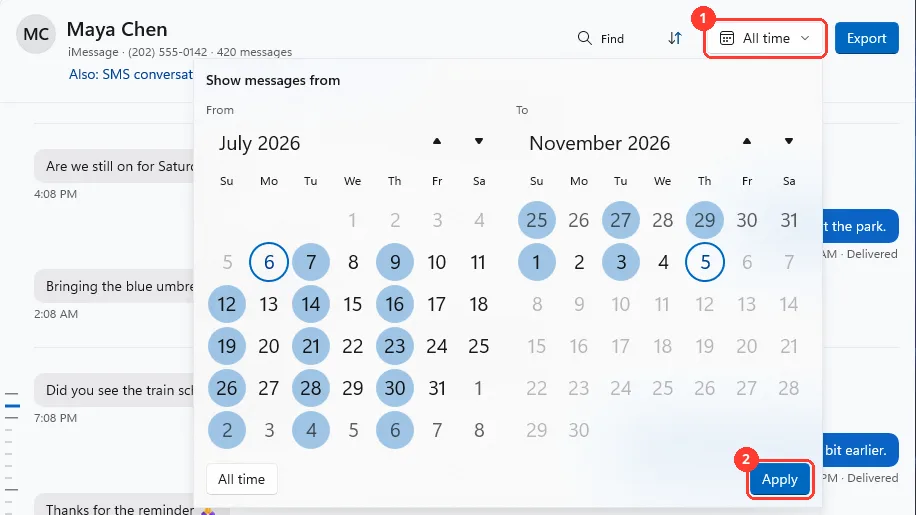
Click All time
It is next to Export (1). Show messages from opens.
You can also press Ctrl G.
-
Pick the days and click Apply
Click a day under From and a day under To. Click Apply (2).
-
Read the messages
Only those days show. The button next to Export now shows your dates.
To see every day again, click the dates, then All time in the window.
Done
The conversation shows only the days you picked. An export from here starts with those days.
Problems
No messages in this date range
This conversation has no messages in the days you picked. Click Clear date filter.
Replying to a message that isn’t in this view
The dates you picked leave out the original. Click the dates next to Export, then All time.
Other conversations still show every day.
The dates are for the open conversation only. Pick them again in the other one.
No conversations in this date range
The date button above the list limits the list. Click Clear date filter.
None of these match.
Email [email protected]. Say which step you were on. Say what you saw. We usually reply within a day.
Questions
-
The one above the list limits the list. The one next to Export limits the open conversation only.
-
Click the date button above the list. Pick Last 30 days, Last 12 months, or Custom range….
-
Yes. The Export window starts with those days. See Export only some dates.
-
Use the strip of lines at the left of the messages. See Jump to a date.
-
No. It only hides the other days. Click All time to see them again.
Next guides
-
 How to jump to a date in TextPort for Windows
You will move right to a date in a long conversation.
-
 How to find and read a conversation in TextPort for Windows
You will have the right conversation open on your PC, ready to read.
-
 How to export only some dates in TextPort for Windows
You will get a file with only the days you picked from one conversation.
-
 How to find words in a conversation in TextPort for Windows
You will find a word in one conversation and step through each place it shows.

Start exporting your messages
Available for iPhone, Mac, and Windows. No computer required.