

How to jump to a date in TextPort for Windows
Quick answer
In a long conversation:
- Move the pointer to the strip of small lines at the left of the messages.
- Move up or down to the date you want.
- Click.
The conversation moves to that date.
- On iPhone: How to jump to a date in a TextPort chat
- On Mac: How to jump to a date in TextPort for Mac
What you need
- ✓TextPort for Windows, with a long conversation open
Steps
-
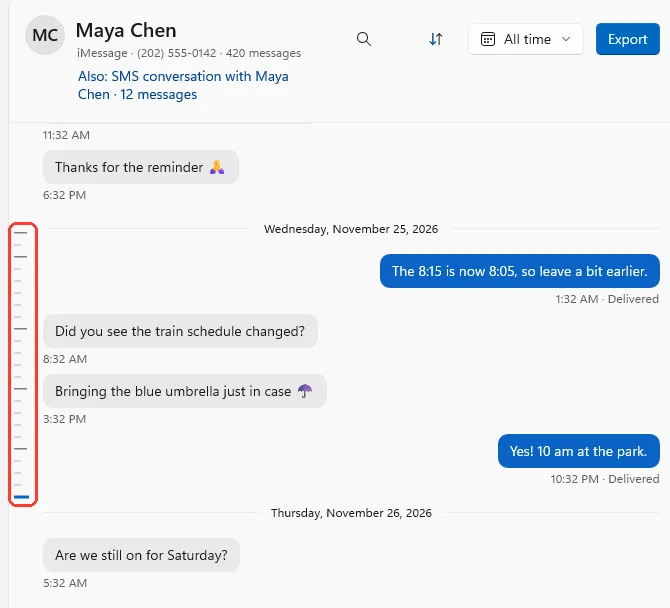
Move the pointer to the strip of lines
It is at the left of the messages. The blue line shows where you are.
-
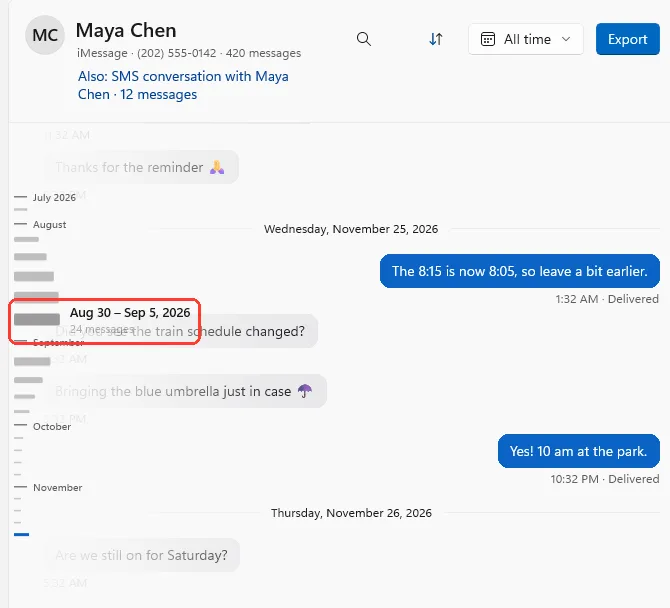
Move up or down to a date
Month names show. The date and its message count show next to the pointer.
-
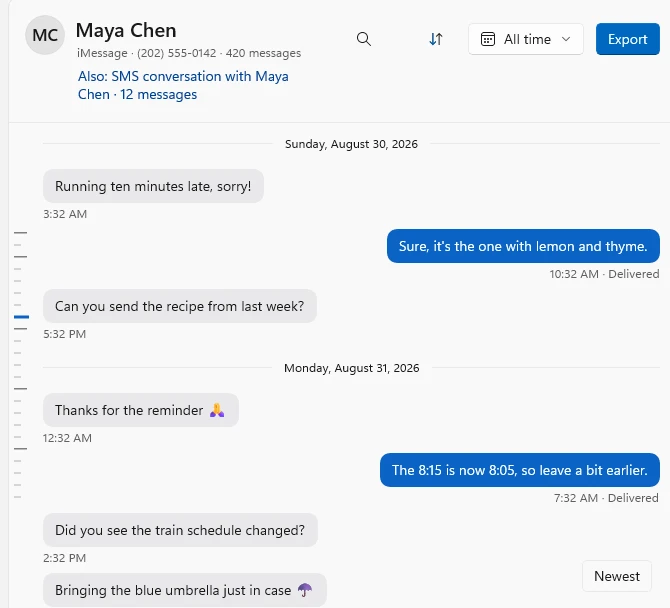
Click the date
The conversation moves there. Its first day is at the top.
To go back to the newest messages, click Newest.
Done
You are at the date you wanted.
Problems
There is no strip of lines.
The strip shows only in a long conversation. In a short one, scroll.
The strip has no line for the date you want.
Only dates with messages get a line. Click the line next to it.
The strip stops before the date you want.
A date filter may be on. Click the dates next to Export, then All time.
You want to see only some days.
You want to go to the message a reply quotes.
None of these match.
Email [email protected]. Say which step you were on. Say what you saw. We usually reply within a day.
Questions
-
Each line is a day, a week, a month, three months, or a year with messages. A longer conversation gets longer steps. A longer line starts a new month or a new year. The blue line shows where you are.
-
Yes. Hold the mouse button and move up or down. The conversation moves with you.
-
Not on the screen. Narrator reads it as Conversation timeline.
-
Yes. Click a message. Then press Ctrl Up or Ctrl Down to go one day up or down. See Keyboard shortcuts.
-
Press Ctrl F. See Find words in a conversation.
Next guides
-
 How to filter a conversation by date in TextPort for Windows
The conversation will show only the messages from the days you pick.
-
 How to go to the message a reply quotes in TextPort for Windows
You will see the message a reply answers, then go back to where you were.
-
 How to find words in a conversation in TextPort for Windows
You will find a word in one conversation and step through each place it shows.
-
 Keyboard shortcuts in TextPort for Windows
You will know every keyboard shortcut in TextPort for Windows, and where to see the list.

Start exporting your messages
Available for iPhone, Mac, and Windows. No computer required.