

How to hide or show the times in a chat with TextPort
Quick answer
In a chat from screenshots or Scroll Capture:
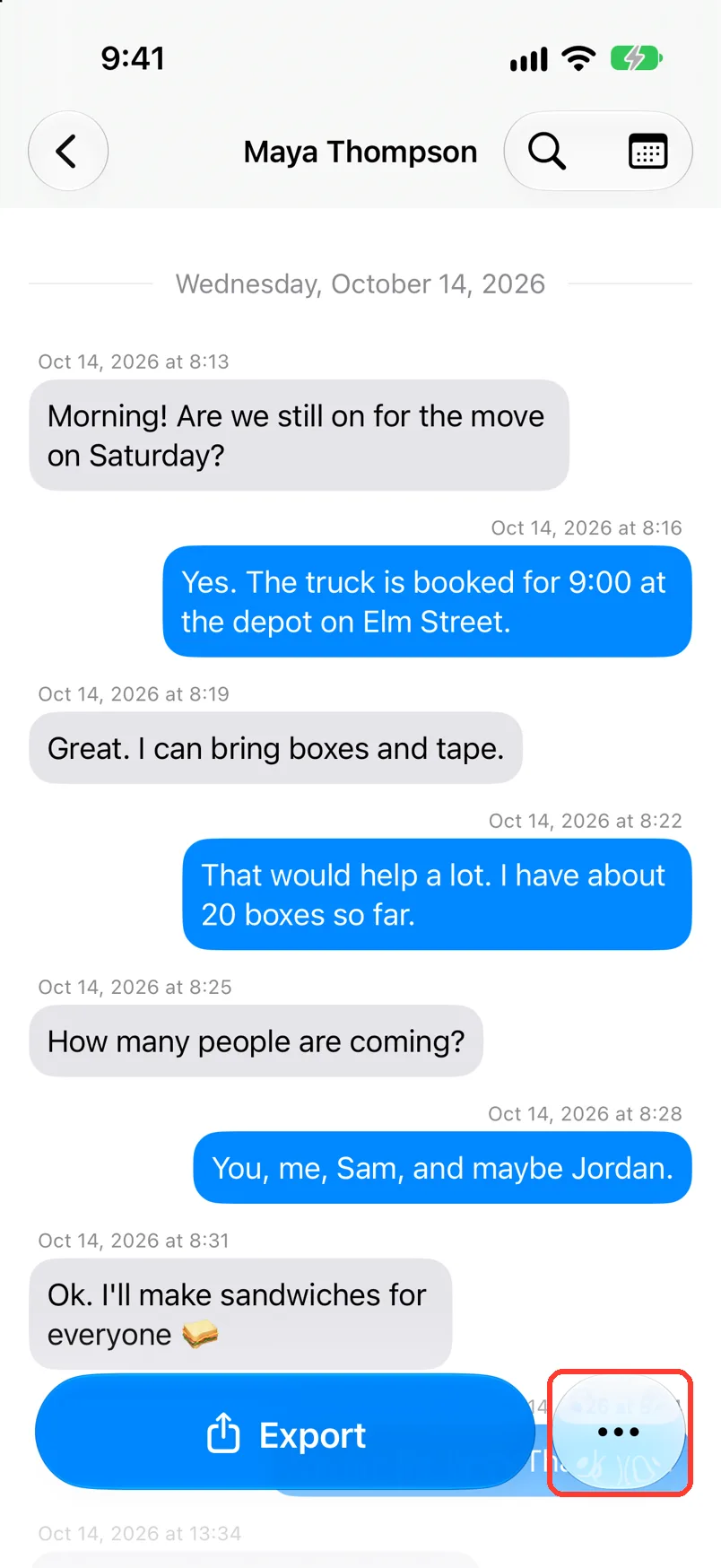
- Tap … next to Export.
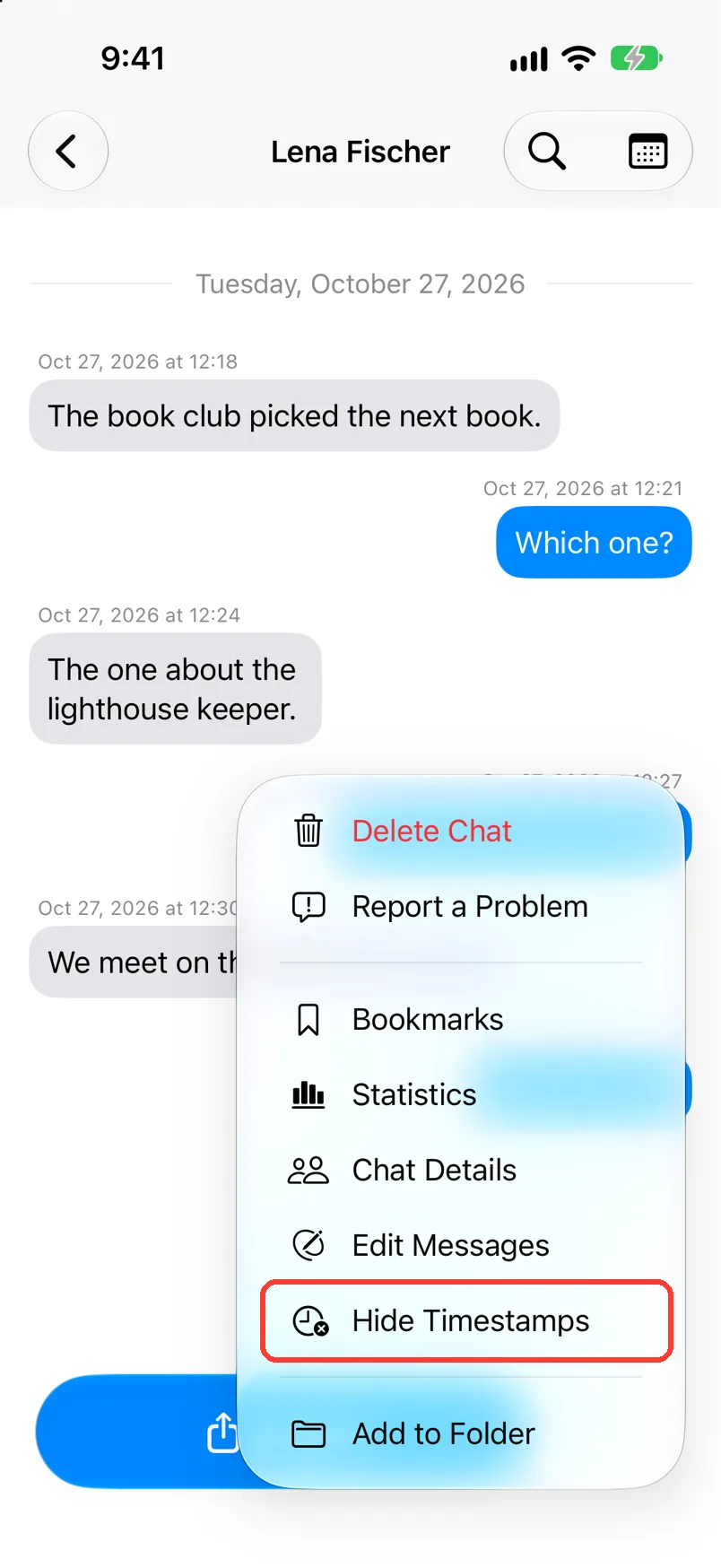
- Tap Hide Timestamps.
- To see the times again, tap …, then Show Timestamps.
Your PDF hides or shows the dates and times like the chat.
What you need
- ✓TextPort on your iPhone
- ✓A chat from screenshots or Scroll Capture
Steps
Hide the times
-
Tap …
Open the chat. It is next to Export at the bottom. A menu opens.
-
Tap Hide Timestamps
The date lines and times go away. In a group chat, the names stay.
No Hide Timestamps in the menu? The chat came from Messages, WhatsApp, LINE, or KakaoTalk.
-
Check the chat
You see only the messages. Your PDF hides the dates and times too.

Show the times
-
Tap …
Open the chat. It is next to Export at the bottom. A menu opens.

-
Tap Show Timestamps
It is where Hide Timestamps was. The date lines and times come back.
-
Check the chat
A date line starts each day. The date and time sit above each message.
Done
The chat shows the dates and times, or only the messages. Your PDF does the same.
Problems
There is no Hide Timestamps in the menu.
The chat came from Messages, WhatsApp, LINE, or KakaoTalk. Those chats always show the date and time.
Your PDF has no dates or times.
The chat has its times hidden. Do the Show the times steps. Then export again.
Another chat did not change.
Each chat has its own setting. Do the steps in that chat.
A time is wrong.
None of these match.
Email [email protected]. Say which step you were on. Say what you saw. We usually reply within a day.
Questions
-
Yes. The PDF leaves out the dates and times too. Tap Show Timestamps before you export a chat for a lawyer or a court.
-
Yes. Both leave out the dates and times while they are hidden.
-
No. TextPort keeps them. Tap Show Timestamps to see them again.
-
Those chats are exact copies, so they always show the date and time. Hide Timestamps shows only for chats from screenshots or Scroll Capture.
Next guides
-
 How to read a chat in TextPort
You will know who sent each message and when.
-
 How to edit a message's text or time with TextPort
The message will show the right words and the right date and time.
-
 How to export a chat to PDF with TextPort
You will get a PDF of one chat, with names, dates, and times, ready to share or print.
-
 How to change the bubble color in a TextPort chat
Your messages in this chat will show in the color you pick.

Start exporting your messages
Available for iPhone, Mac, and Windows. No computer required.