

How to hide voice message transcripts in PDFs in TextPort for Windows
Quick answer
In TextPort:
- Click the gear at the top right.
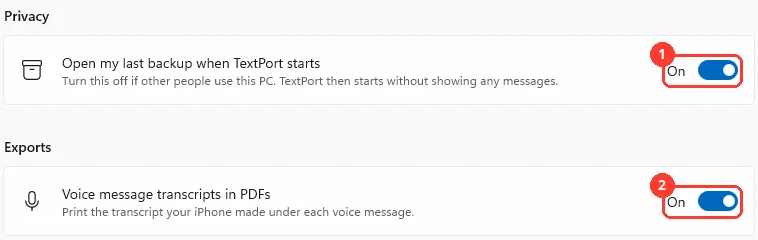
- Under Exports, turn off Voice message transcripts in PDFs.
Then export the PDF again. Turn the switch on to print them again.
- On iPhone: How to hide voice message transcripts in PDFs with TextPort
- On Mac: How to hide voice message transcripts in PDFs in TextPort for Mac
What you need
- ✓TextPort for Windows
Steps
-
Click the gear
It is at the top right. Settings opens.
You can also press Ctrl comma .
-
Turn off Voice message transcripts in PDFs
It is under Exports (2). New PDFs leave out the transcripts.
-
Export the PDF again
A PDF you made before does not change. See Export a conversation.
Done
New PDFs show each voice message without its words.
Problems
Couldn’t save your settings
Your change wasn't saved. Click the switch again.
The PDF still has transcripts.
That PDF was made with the switch on. Export it again.
None of these match.
Email [email protected]. Say which step you were on. Say what you saw. We usually reply within a day.
Questions
-
On. PDFs print each transcript unless you turn it off.
-
Your iPhone does. TextPort prints the transcript your iPhone made, and some voice messages have none.
Next guides
-
 How to export a conversation to PDF, CSV, or TXT in TextPort for Windows
You will get a file of one conversation on your PC, as a PDF, a spreadsheet, or plain text.
-
 How to print text messages in TextPort for Windows
You will have a printed copy of one conversation, with names, dates, and times.
-
 How to change theme and text size in TextPort for Windows
TextPort will look the way you want, with message text at the size you like.

Start exporting your messages
Available for iPhone, Mac, and Windows. No computer required.