

How to hide voice message transcripts in PDFs with TextPort
Quick answer
In TextPort:
- Tap the gear in the top left of Saved Chats.
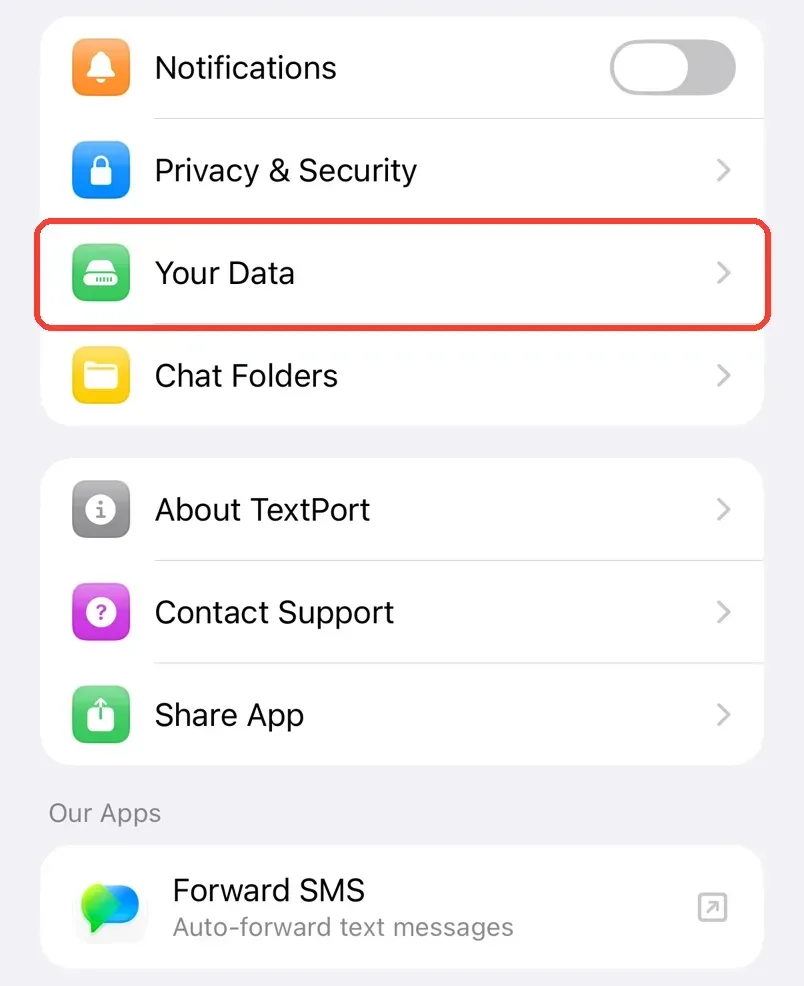
- Tap Your Data.
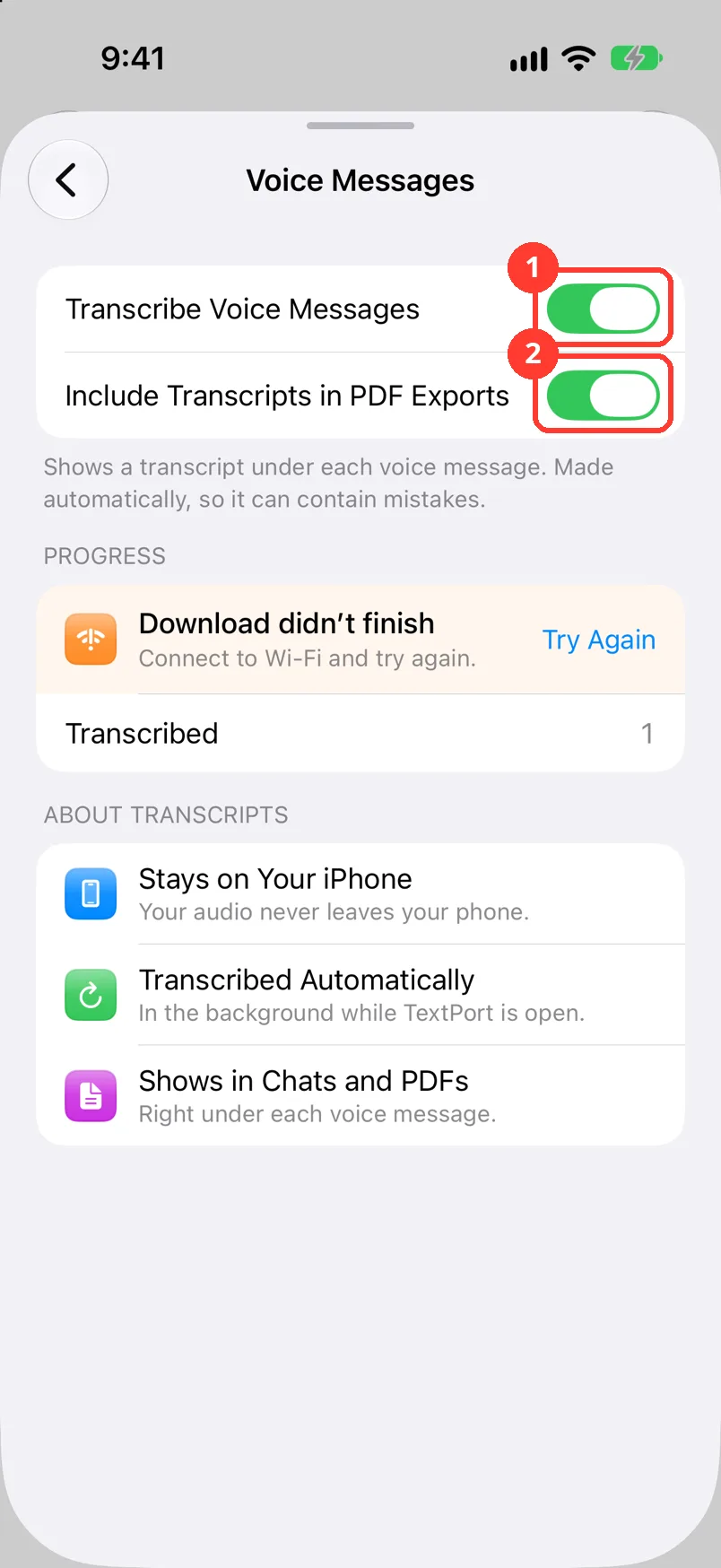
- Tap Voice Messages.
- Turn off Include Transcripts in PDF Exports.
Then export the PDF again. Turn the switch on to show them again.
- On Mac: How to hide voice message transcripts in PDFs in TextPort for Mac
- On Windows: How to hide voice message transcripts in PDFs in TextPort for Windows
What you need
- ✓TextPort on your iPhone
- ✓A chat with a voice message saved on this iPhone
Steps
-
Tap the gear
It is in the top left of Saved Chats. Settings opens.

-
Tap Your Data
It is below Privacy & Security. Your Data opens.
-
Tap Voice Messages
Voice Messages opens. It has two switches.
-
Turn off Include Transcripts in PDF Exports
It is the second switch (2). New PDFs leave out the transcripts.
Transcribe Voice Messages (1) hides the transcripts in your chats too.
-
Export the PDF again
A PDF you made before does not change. See Export a chat to PDF.
Done
New PDFs show each voice message without its words. The chat still shows them.
Problems
There is no Voice Messages in Your Data.
The row shows when a chat on this iPhone has a voice message. Import a chat with one first.
There is no Include Transcripts in PDF Exports.
Transcribe Voice Messages is off. Transcripts are then hidden in your chats and PDFs. Turn it on to see the second switch.
The PDF still has transcripts.
That PDF was made with the switch on. Export it again.
A transcript has a wrong word.
None of these match.
Email [email protected]. Say which step you were on. Say what you saw. We usually reply within a day.
Questions
-
On. PDFs show each transcript unless you turn it off.
-
No. The chat still shows them. Only PDFs change.
-
No. Turn the switch on and export again. The PDF shows them again.
Next guides
-
 How to read and fix voice message transcripts with TextPort
You will read a voice message as text and fix its words.
-
 How to export a chat to PDF with TextPort
You will get a PDF of one chat, with names, dates, and times, ready to share or print.
-
 How to see and delete your TextPort data
You will see which files TextPort keeps on your iPhone, and you can delete them.

Start exporting your messages
Available for iPhone, Mac, and Windows. No computer required.