
How to Export KakaoTalk Chats from iPhone (3 Methods)
The quickest way to export a KakaoTalk chat on iPhone is to save it with KakaoTalk's own Export Messages and share the file with TextPort. In the chat, tap ≡, then the gear, then Export Messages, and choose to save all messages. KakaoTalk puts a ZIP file in its folder in the Files app. Share that ZIP with TextPort, and the chat comes back as a clean conversation with the date and time on every message, ready to print or save as a PDF on your iPhone, no computer needed.
You can also keep KakaoTalk's files as they are, or take screenshots when you only need a few messages. Here are all three, best first.
Method 1: Import the KakaoTalk chat into TextPort
TextPort reads the file KakaoTalk saves, so every message comes through word for word, with its sender and time, in the right order. Long chats and group chats work too.
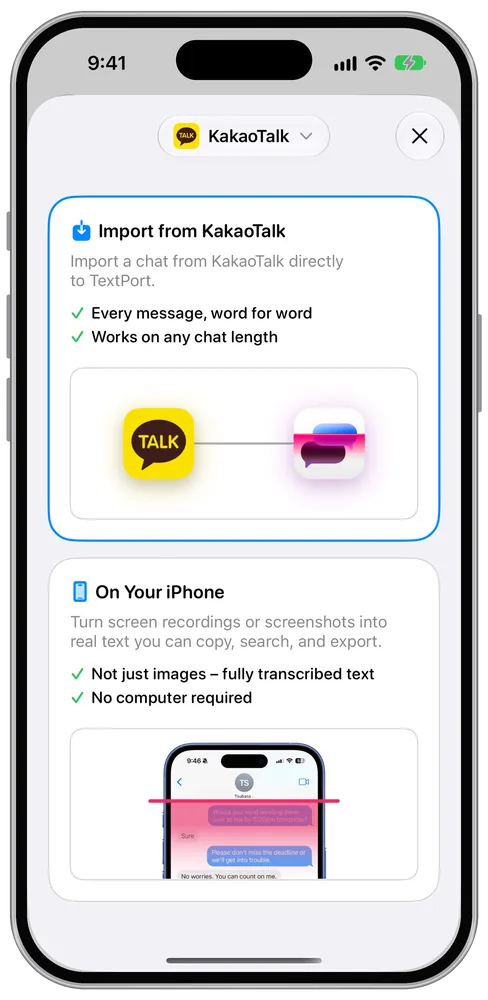
Steps:
- In TextPort, add a chat, pick KakaoTalk as the app, and tap Import from KakaoTalk. A short guide plays each step, and Open KakaoTalk takes you there.
- In KakaoTalk, open the chat you want to export and tap ≡ at the top right.
- Tap the gear at the bottom of the menu.
- Tap Export Messages.
- Choose to save all messages, then wait while KakaoTalk saves the file.
- Open the Files app, tap On My iPhone, then KakaoTalk.
- Touch and hold the ZIP file (its name starts with
Kakaotalk_Chat_) and tap Share. - In the share sheet, tap TextPort.
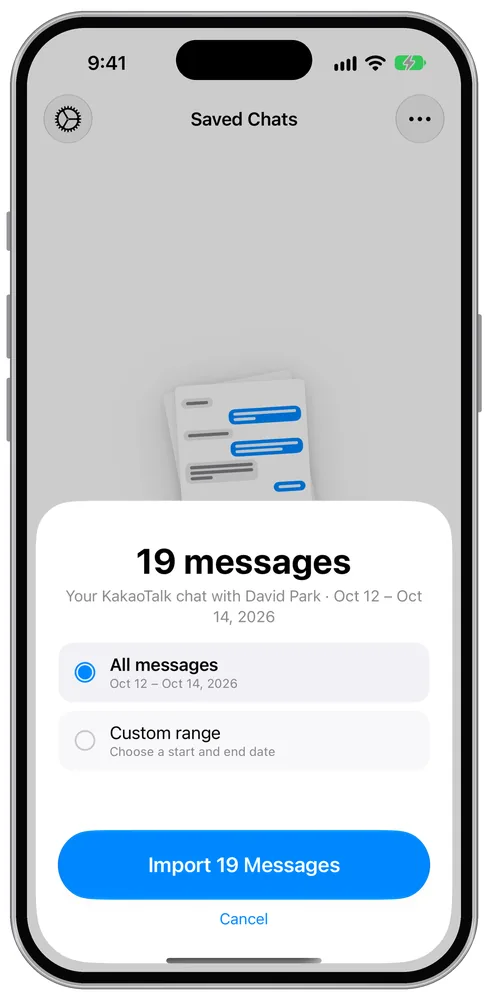
TextPort shows how many messages it found and who the chat is with before you import. In a one-on-one chat it works out which side is you; in a group chat it asks.
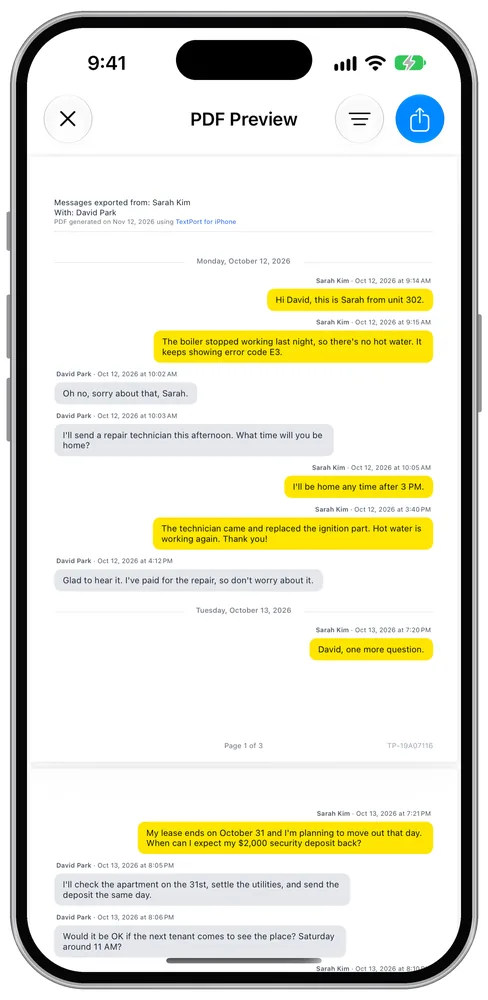
Once the chat is in TextPort, tap Print to send it to an AirPrint printer, or save it as a PDF to email, file or keep. You can export just a date range, and CSV and plain text are there too.
Good to know:
- TextPort imports the chat's text. KakaoTalk's file doesn't say which photo belongs to which message, so photos show up as a label in the chat rather than as pictures. If the photos matter, use Scroll Capture instead: record the screen while you scroll the chat, and TextPort reads the messages from the recording.
- TextPort reads exports from KakaoTalk for iPhone, in Korean and in English. Exports made with KakaoTalk on Android, Mac or Windows use a different layout and can't be imported.
- KakaoTalk's text-only export option sends the chat by email. That copy can't go to TextPort, so choose to save all messages.
- Your first three conversations are free to import. A subscription covers more.
Method 2: Keep KakaoTalk's export files as they are
If you only need a copy of the words, KakaoTalk's export is enough on its own.
- Export the chat the same way: open it, tap ≡, then the gear, then Export Messages.
- Save all messages to get the ZIP in Files, or pick the text option to email the chat to yourself.
- In Files, tap the ZIP to unpack it. Inside is a folder with the chat's text files (
Talk_…txt) and the photos and files from the chat.
What you need to know before using this method:
- Only messages still on your phone are exported. Messages that are no longer in the chat on this iPhone won't be in the file.
- The text is plain: one line per message with the date, time, sender and words. Photos appear in the text only as a word, and the photo files sit next to it without saying which message they belong to.
- A long chat is split across several text files, about 1 MB each, which you have to read in order.
- You have to export each chat on its own.
That works as a raw backup. For a clean, dated document you can read or hand to someone, share the same ZIP with TextPort (Method 1).
Method 3: Take screenshots of the KakaoTalk chat
For a handful of messages, screenshots are the quickest route, and they're the only one here that keeps photos and emoticons where they appeared.
- Open the KakaoTalk chat on your iPhone.
- Press the side button + volume up (Face ID iPhones) or side button + Home button (Touch ID iPhones).
- Scroll and repeat until you've covered the messages you need.
- To print, open Photos, select the screenshots, tap Share, and choose Print.
Overlap each screenshot with the one before so no message falls between them. Here's how to take a long screenshot of a text conversation on iPhone, stitched into one picture or recorded in one scroll.
A long chat means dozens of screenshots, and what you end up with is a stack of images, not a document. For a long chat with photos, Scroll Capture turns one screen recording into a dated transcript instead.
What does each KakaoTalk export include?
| TextPort import (Method 1) | KakaoTalk's files (Method 2) | Screenshots (Method 3) | |
|---|---|---|---|
| Text messages | ✅ Yes | ✅ Yes | ✅ Yes |
| Sender names and times | ✅ Kept with every message | ✅ As plain text | ✅ As shown on screen |
| Photos | Labels only (use Scroll Capture for photos) | Separate files, not matched to messages | ✅ Yes |
| Messages no longer on your phone | ❌ No | ❌ No | ❌ No |
| What you get | A formatted PDF, printout, CSV or text file | A ZIP of text files and media | A stack of images |
Which way should you export KakaoTalk messages?
- A clean, dated record or a PDF: share KakaoTalk's export with TextPort (Method 1). If you need text message records for any situation, such as a custody case, a dispute with a landlord or a translation for an immigration file, start here.
- A raw backup of everything: keep KakaoTalk's ZIP (Method 2).
- A few specific messages, photos included: screenshots (Method 3).
Got iMessage, WhatsApp or LINE chats too? TextPort imports those the same way, so every conversation ends up in one format instead of a different tool for each. To keep them all together, see how to archive iPhone text messages.

Start exporting your messages
Available for iPhone, Mac, and Windows. No computer required.