
iMessage Downloader: Apple Doesn't Make One, So Here's What Works (2026)
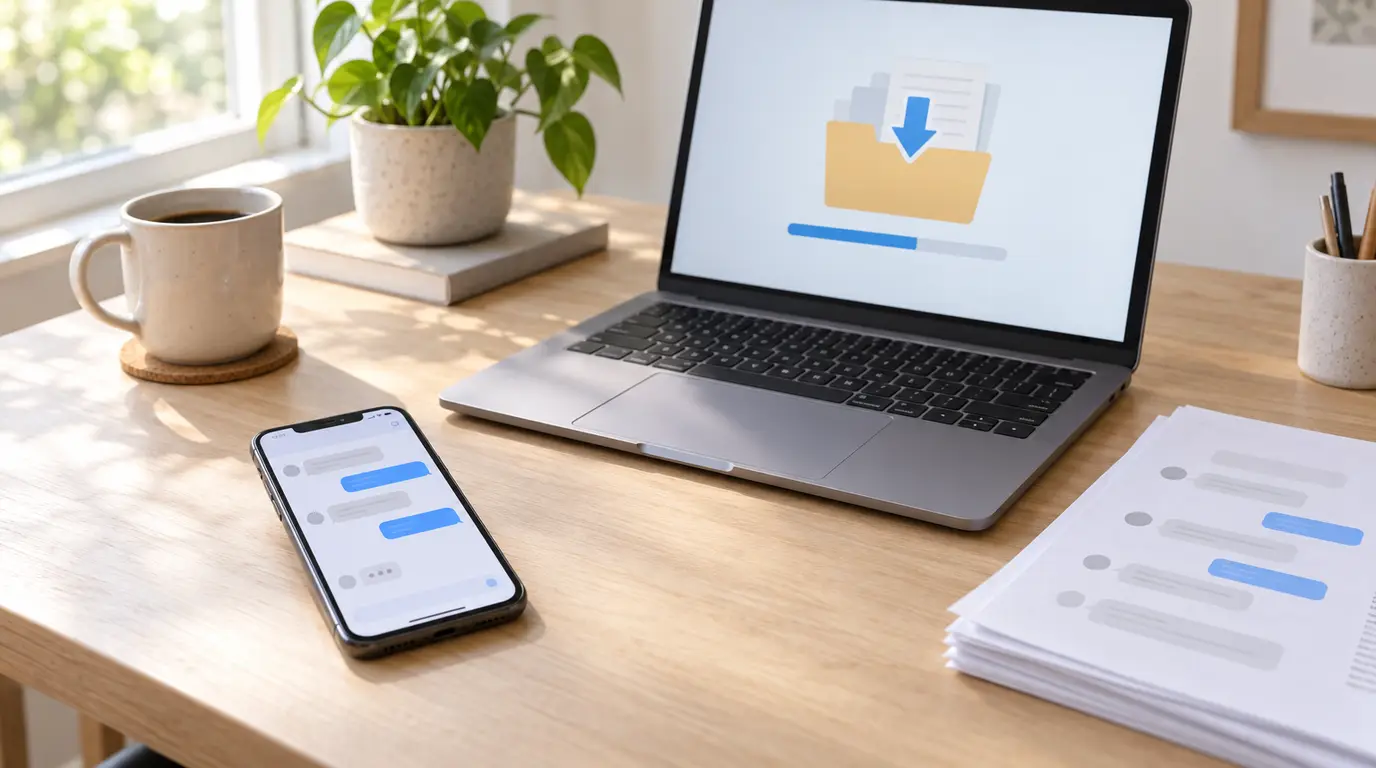
Apple doesn't make an iMessage downloader. The Messages app has no Download button, iCloud.com doesn't show your messages, and Apple's data request leaves them out. To get your iMessages as a file you can keep, print or send, you need a downloader from someone else.
Quick answer: On a Mac, TextPort for Mac downloads all your iMessages for free. On a Windows PC, TextPort for Windows does it from your iPhone, also free. With only your iPhone, the TextPort iPhone app downloads a conversation without a computer. Each saves your messages as a PDF, a spreadsheet (CSV) or a text file, with the sender, date and time on every message.
Does Apple have an iMessage downloader?
No. Here is where you would expect one, and what you find instead:
- Messages on iPhone and Mac: no Download or Export button. On a Mac you can print one conversation to PDF, and that's it.
- iCloud.com: no Messages app. Messages in iCloud keeps your conversations in sync across your Apple devices, but you can only read them on those devices.
- Apple's data and privacy request: Apple will send you a copy of your account data, but your messages aren't in it. Apple's own answer to why: "Your messages are encrypted on your device and can't be accessed by anyone without your device passcode."
- An iPhone backup: your messages are inside, but a backup is a file for restoring a phone, not something you can open and read.
So every iMessage downloader works the same way underneath: it reads the messages from a device you're signed in on, or from a backup of one, and writes them into a file.
Which iMessage downloader should you use?
Pick by the device you have:
| Downloader | Runs on | Price | Downloads | Files |
|---|---|---|---|---|
| TextPort for Mac | Mac, macOS 14.6 or later | Free | One conversation or all of them | PDF, CSV, TXT, attachments ZIP |
| TextPort for Windows | Windows PC, plus your iPhone and a USB cable | Free | One conversation or all of them | PDF, CSV, TXT, attachments ZIP |
| TextPort for iPhone | iPhone on iOS 26.4 or later | First 3 conversations free, then a subscription | One conversation at a time, for the dates you pick | PDF, CSV, TXT |
| Messages on a Mac (Print to PDF) | Mac | Free | One conversation at a time | |
| imessage-exporter | Mac, Windows or Linux, in Terminal | Free, open source | Everything, or filtered by person and date | HTML, TXT |
| iMazing, Decipher TextMessage | Mac or Windows, from an iPhone backup | Paid | One conversation or all of them | PDF, CSV, TXT (Decipher also HTML) |
If you're not sure, start with the free app for your computer. If you don't have a computer with you, use the iPhone app.
The free iMessage downloader for a Mac
TextPort for Mac is free on the Mac App Store, with no account and nothing to buy. It reads the Messages already on your Mac, so there's no cable and no backup.
- Bring your iPhone's history to the Mac. On the Mac, open Messages, choose Messages > Settings > iMessage and select Enable Messages in iCloud. Turn it on on your iPhone too, and give it time to sync.
- Open TextPort for Mac and choose your Messages folder when it asks. You only do this once.
- Download. Open a conversation, pick the dates on a calendar if you want only part of it, and export a PDF, CSV, TXT or a ZIP of the attachments. To download every conversation at once, choose File > Export All.
The Mac export guide shows each screen.
The free iMessage downloader for a Windows PC
Windows can't sign in to iMessage, so a Windows downloader reads your messages from a backup of your iPhone. TextPort for Windows is free from the Microsoft Store, with no account, and it makes that backup for you.
- Install Apple's Apple Devices app (or iTunes on older Windows 10). TextPort checks that it's there.
- Connect your iPhone with a USB cable and tap Trust on the phone. TextPort backs it up and shows your first messages in about 10 minutes. It can also open a backup that's already on your PC.
- Download one conversation, several, or every one to PDF, CSV or TXT, with photos and files in a ZIP.
The Windows guide walks through it.
Downloading iMessages on your iPhone, without a computer
The TextPort iPhone app pulls a conversation straight out of Messages, word for word, with every sender, date and time. You pick the chat and the dates you need, and it turns them into a PDF, a spreadsheet or a text file right on the phone.
Apps can't read Messages on their own, so TextPort uses an Apple Shortcut you add once. It needs iOS 26.4 or later. Your first 3 conversations import free; exporting them needs a subscription. The Shortcut import guide shows every step, and how to download text messages from iPhone compares the phone with the computer routes.
The iPhone app also downloads chats from WhatsApp, from WhatsApp's own Export Chat file, and from apps like Instagram, Messenger and Signal, from a screen recording. Signal and Telegram are out of reach for the computer downloaders.
Messages on a Mac: Print to PDF
If you have a Mac and need one short conversation, Messages can save it as a PDF for free. Open the conversation, scroll up to where you want it to start so the older messages load, then choose File > Print, open the PDF menu and choose Save as PDF.
It's one conversation at a time, a long thread means a lot of scrolling first, and the printout may not show the date and time of every message.
imessage-exporter: free, if you don't mind Terminal
imessage-exporter is a free, open-source command-line tool. It reads your Mac's Messages or an iPhone backup, encrypted or not, and writes every conversation to HTML or TXT. It keeps more iMessage detail, like Tapbacks and edit history, than any other tool we have compared.
You install it with Homebrew, give Terminal Full Disk Access, and type a command such as imessage-exporter -f html -c clone. There's no app with buttons, and no PDF or CSV. Our imessage-exporter review covers how to use it and its limits.
Paid desktop downloaders
Paid desktop tools read your messages from an iPhone backup on a Mac or PC. iMazing exports to PDF, Excel/CSV and TXT on a yearly subscription, and Decipher TextMessage exports PDF, CSV, TXT and HTML for a one-time price. Decipher can also try to recover deleted messages from a backup, which TextPort doesn't do. The best apps to export text messages compares them in more detail.
Looking for iMessage itself on Windows or Android?
Some people searching "iMessage downloader" want to download the iMessage app, not their messages. Apple doesn't make iMessage for Windows or Android. On Windows, Microsoft's Phone Link lets you read and reply to new texts from a paired iPhone, but it shows no older messages and saves nothing. Can you use iMessage on Windows? explains what works.
Which format should you download?
- PDF: for printing, sending to a lawyer, or filing. It reads like the chat.
- Spreadsheet (CSV): for sorting by date or sender in Excel or Google Sheets.
- Text (TXT): small and plain, good for searching or pasting.
For more on getting a whole history out of Messages, see the iMessage chat history export guide.
Frequently asked questions
-
No. The Messages app on iPhone and Mac has no Download or Export button, iCloud.com has no Messages app, and Apple's data and privacy request leaves Messages out. To get your iMessages as a file, you need a third-party app or the Mac's Print to PDF.
-
Yes. TextPort for Mac and TextPort for Windows are free, with no account, and export every conversation to PDF, CSV or TXT. imessage-exporter is free too, but runs in Terminal. Messages on a Mac can also print one conversation to PDF for free.
-
Not directly. iCloud.com doesn't show Messages, and a copy of your Apple Account data doesn't include them. Apple's answer is that your messages are encrypted on your device. Turn on Messages in iCloud on a Mac instead, let your history sync, then download it from the Mac.
-
Yes, from an iPhone backup. Windows can't sign in to iMessage, so a Windows downloader reads the messages from a backup of your iPhone. TextPort for Windows makes that backup itself over a USB cable, then exports your conversations to PDF, CSV or TXT.
-
Most can. TextPort for Mac and TextPort for Windows put photos inline in the PDF and save every attachment in a ZIP file. The TextPort iPhone app prints photos inline in the PDF. imessage-exporter copies attachments when you add the
-coption. -
Only in some cases. Messages keeps deleted messages in Recently Deleted for up to 30 days, and you can restore them there before you download. Some paid desktop tools, like Decipher TextMessage, try to recover older deleted messages from an iPhone backup. TextPort exports only the messages that are still there.
Start exporting your messages
Available for iPhone, Mac, and Windows. No computer required.