

How to import a chat from Messenger with TextPort
Quick answer
On a computer:
- Go to messenger.com. Click your profile picture, then Privacy and safety.
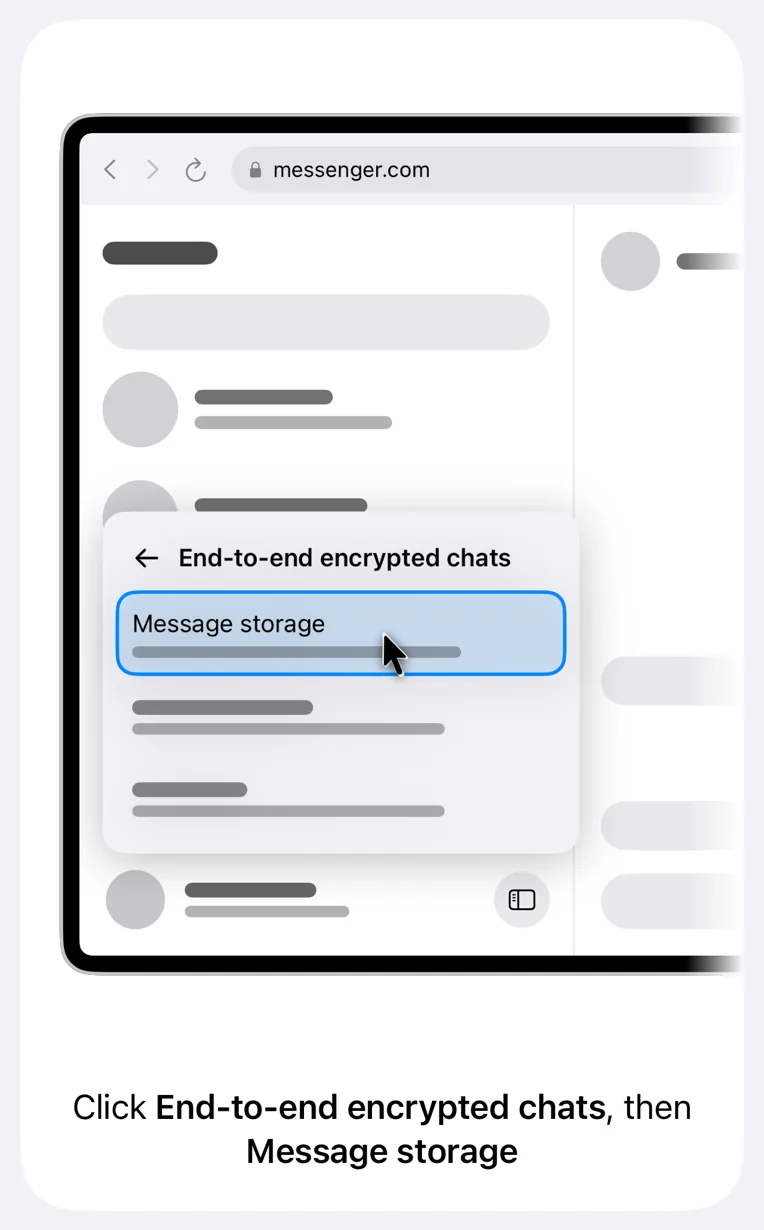
- Click End-to-end encrypted chats, then Message storage.
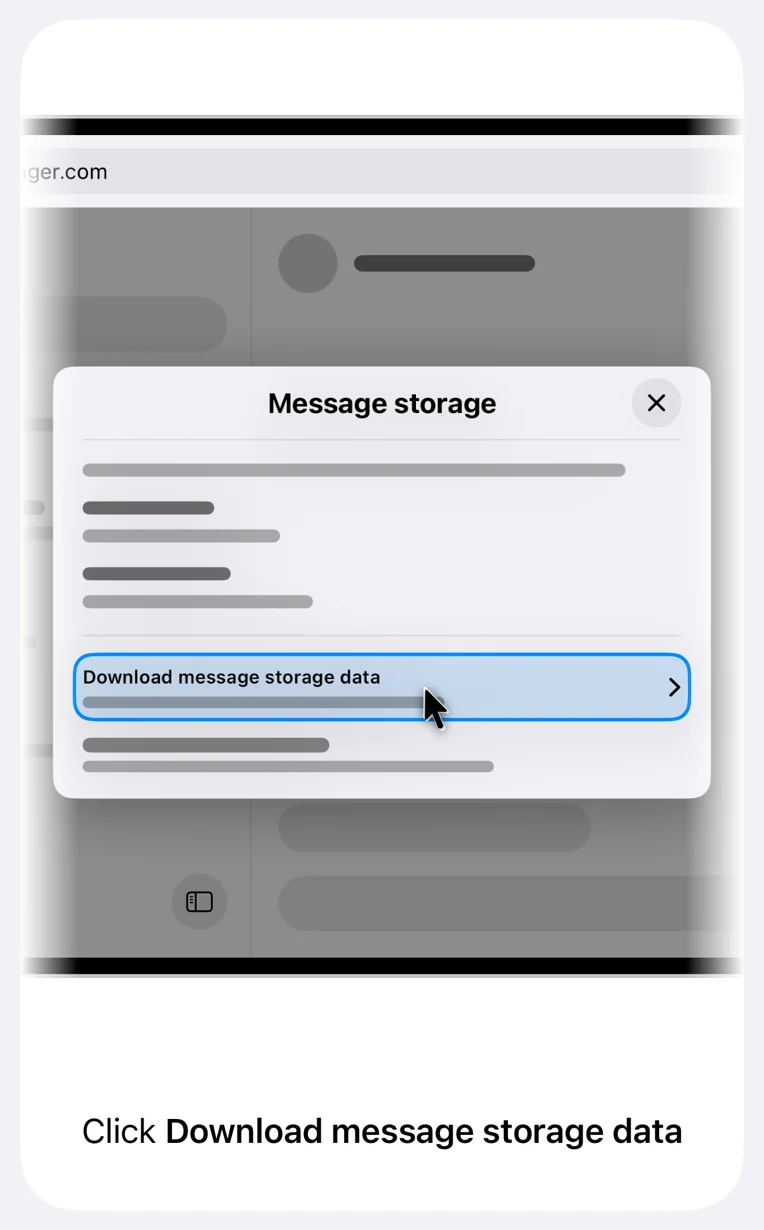
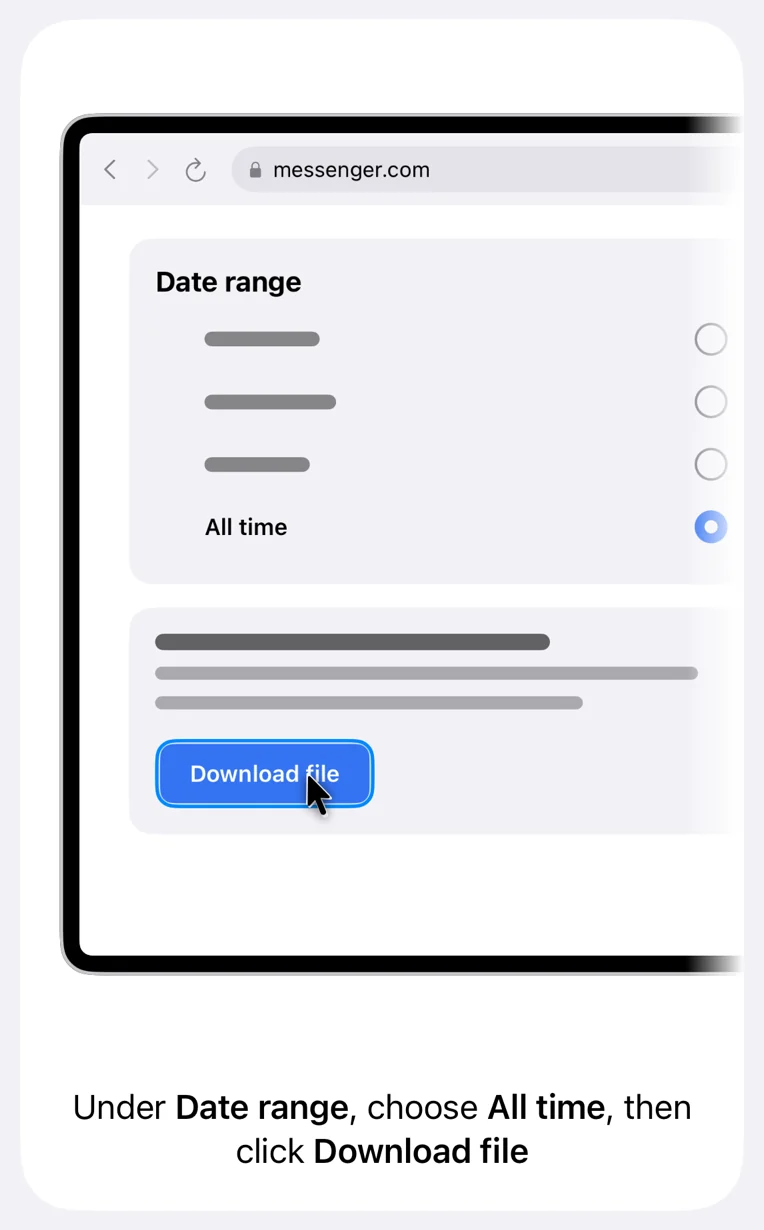
- Click Download message storage data. Pick All time. Click Download file.
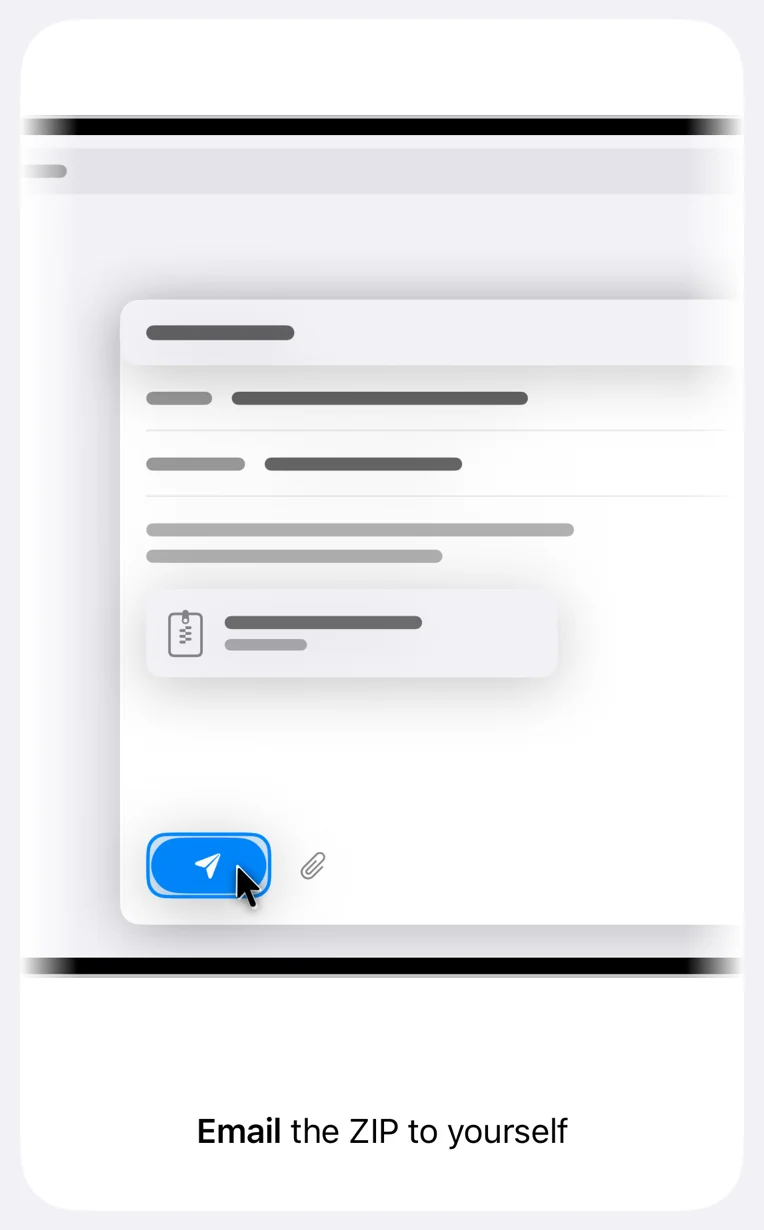
- Email the ZIP file to yourself.
- On your iPhone, open the email. Tap the ZIP file, Share, then TextPort.
- Pick your chats and tap the blue Import button.
The chats then show in TextPort.
What you need
- ✓TextPort on your iPhone
- ✓A Mac or a PC
- ✓An email account you can open on the computer and on the iPhone
Steps
-
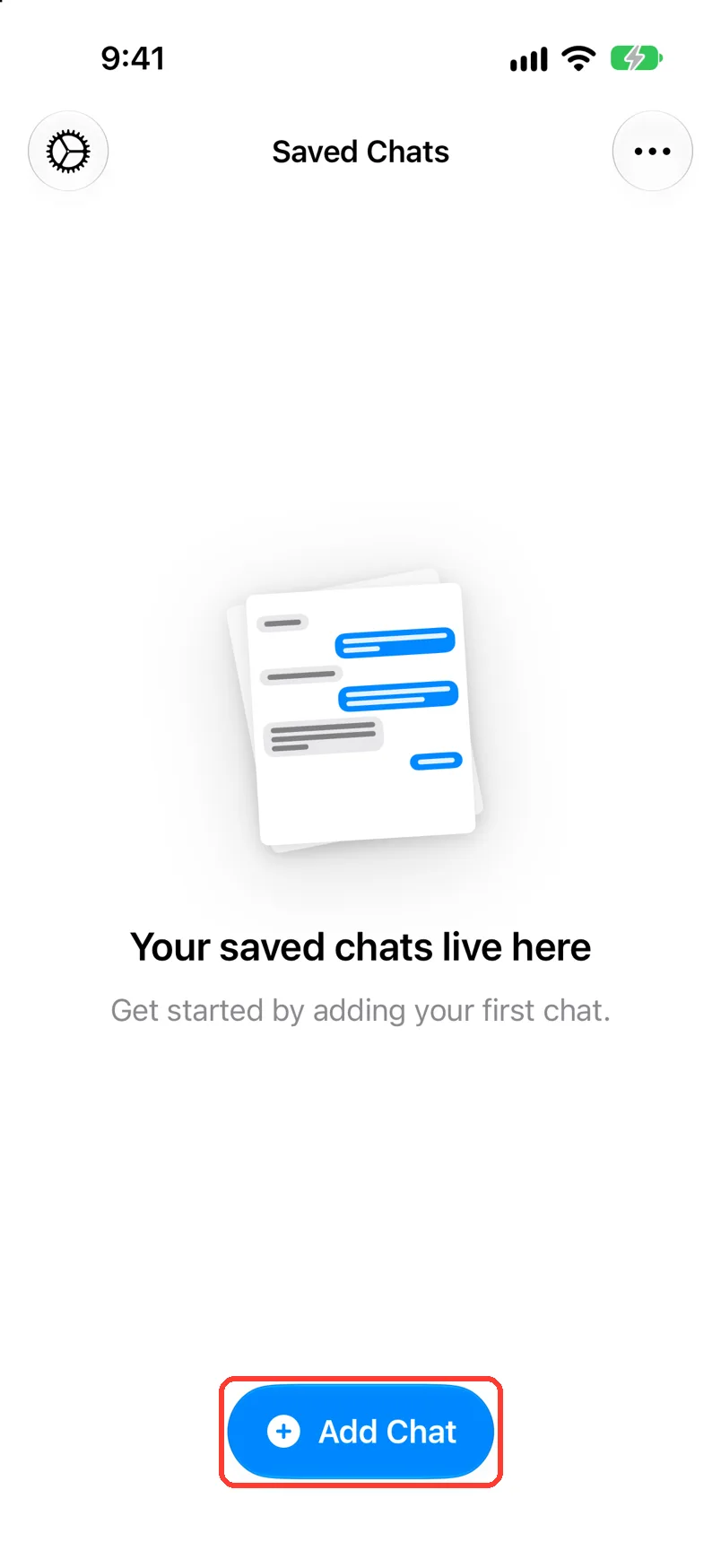
Tap Add Chat
Open TextPort. It is at the bottom of Saved Chats.
-
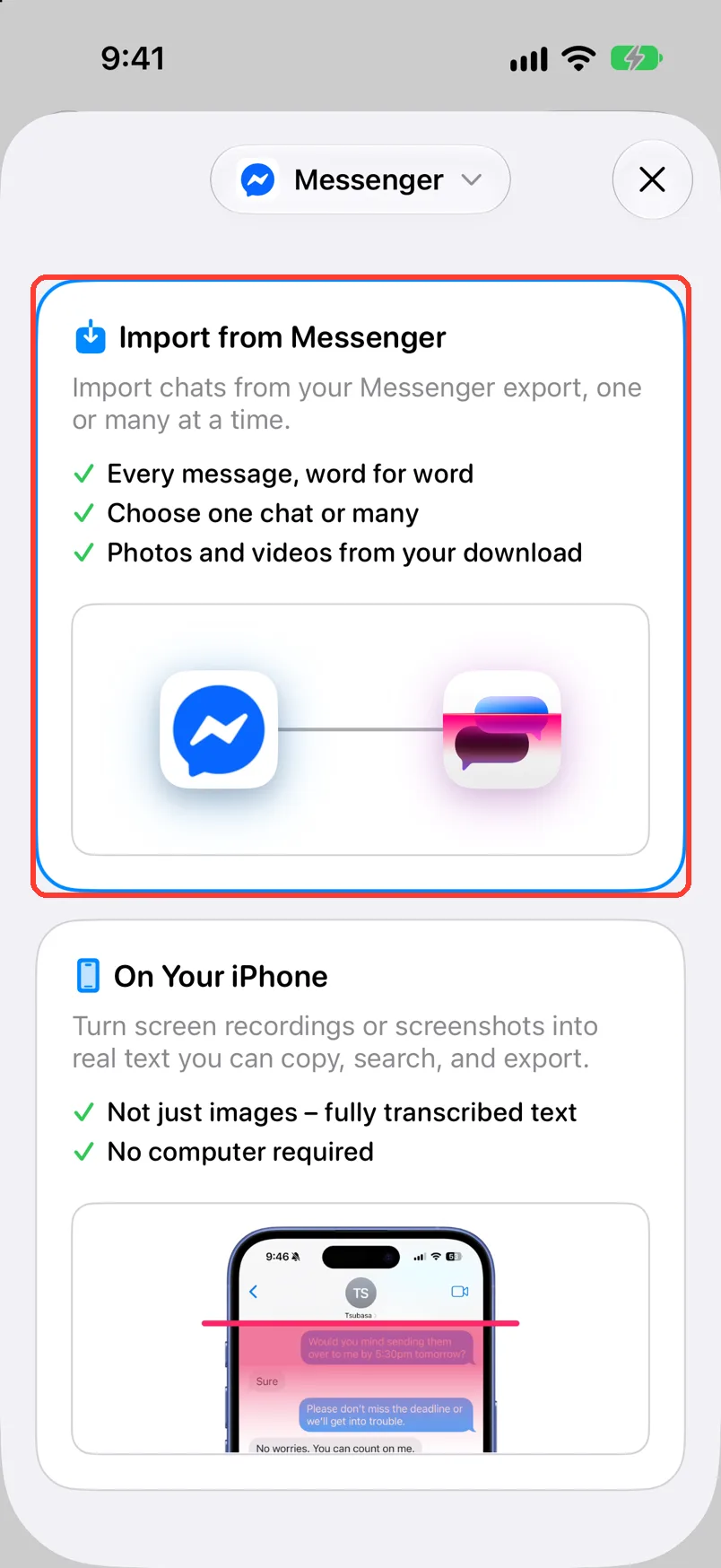
Tap Import from Messenger
If it is not there, tap the app name at the top and pick Messenger. Import from Messenger opens and shows the steps.
-
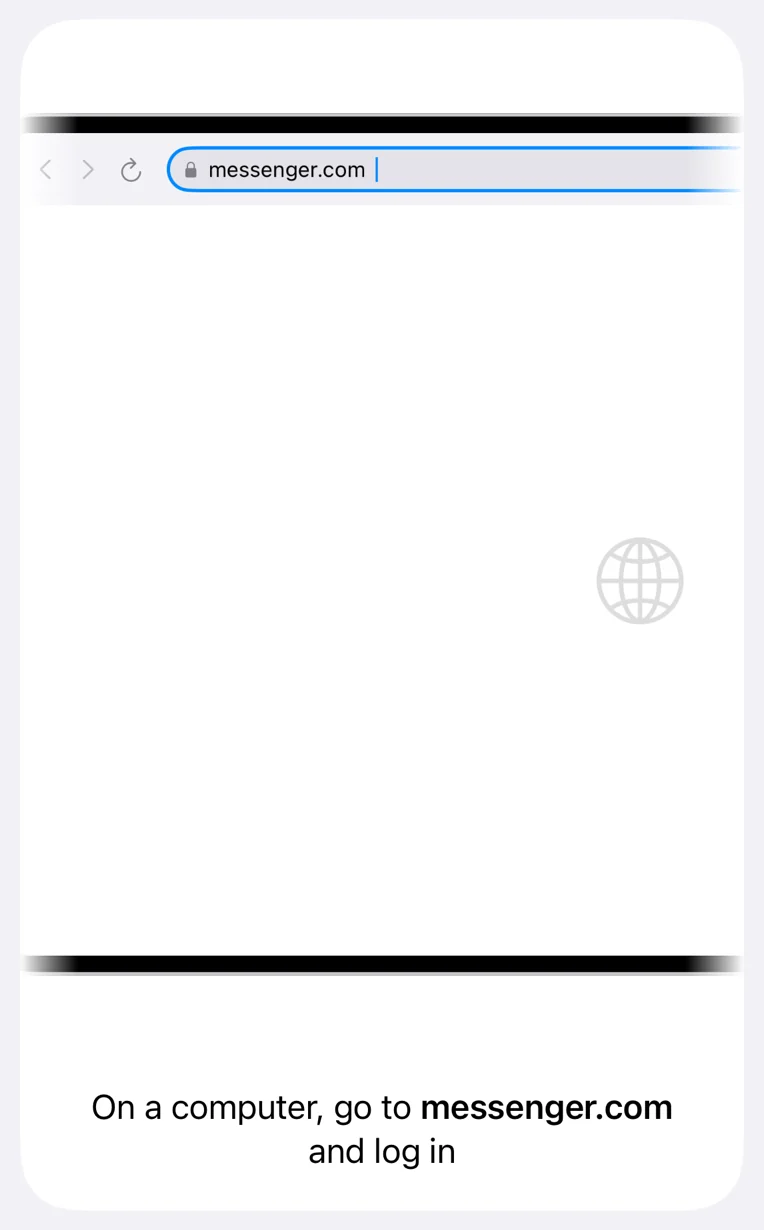
Open messenger.com on a computer
Use a Mac or a PC. Log in to Messenger.
-
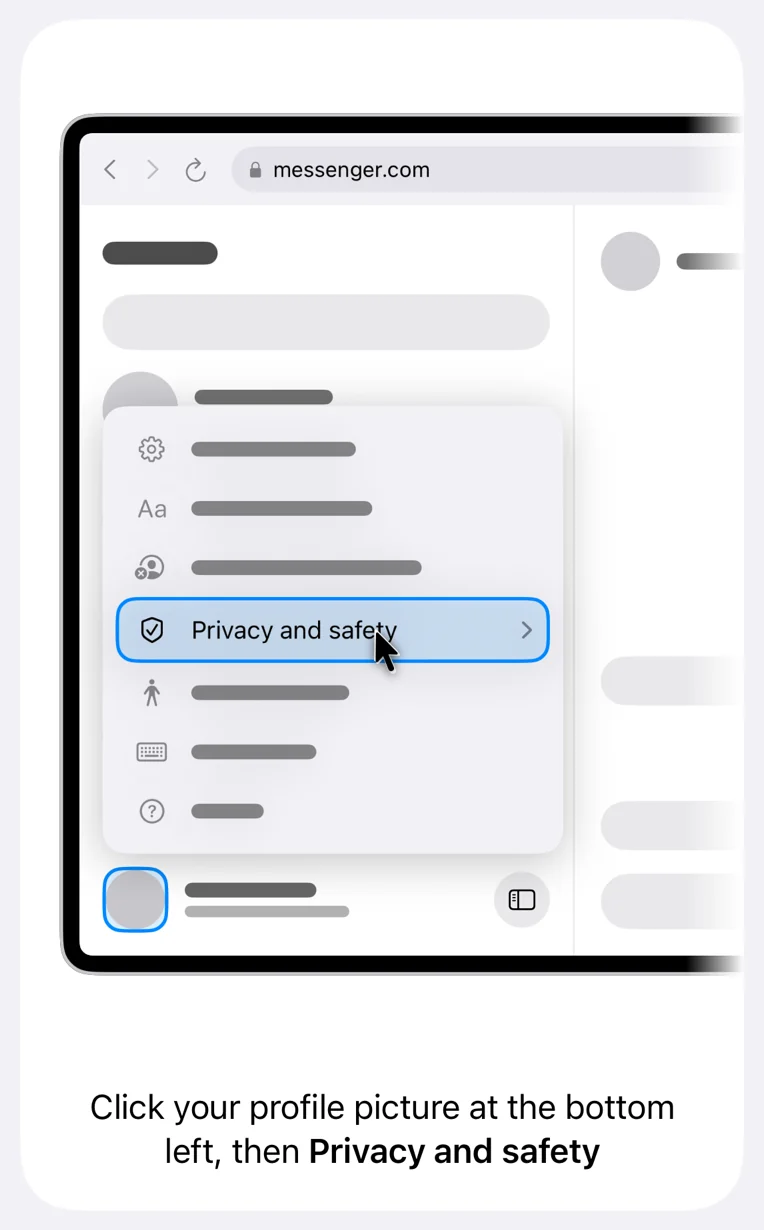
Click your profile picture, then Privacy and safety
Your picture is at the bottom left. Privacy and safety is in the menu that opens.
-
Click End-to-end encrypted chats, then Message storage
Message storage is first in the short list. A window named Message storage opens.
-
Click Download message storage data
It is near the bottom of the window. A new page opens.
-
Click All time, then Download file
All time is under Date range. It gets your whole chats. Your computer saves a ZIP file.
-
Email the ZIP file to yourself
Start a new email to your own address. Add the ZIP file and send it.
-
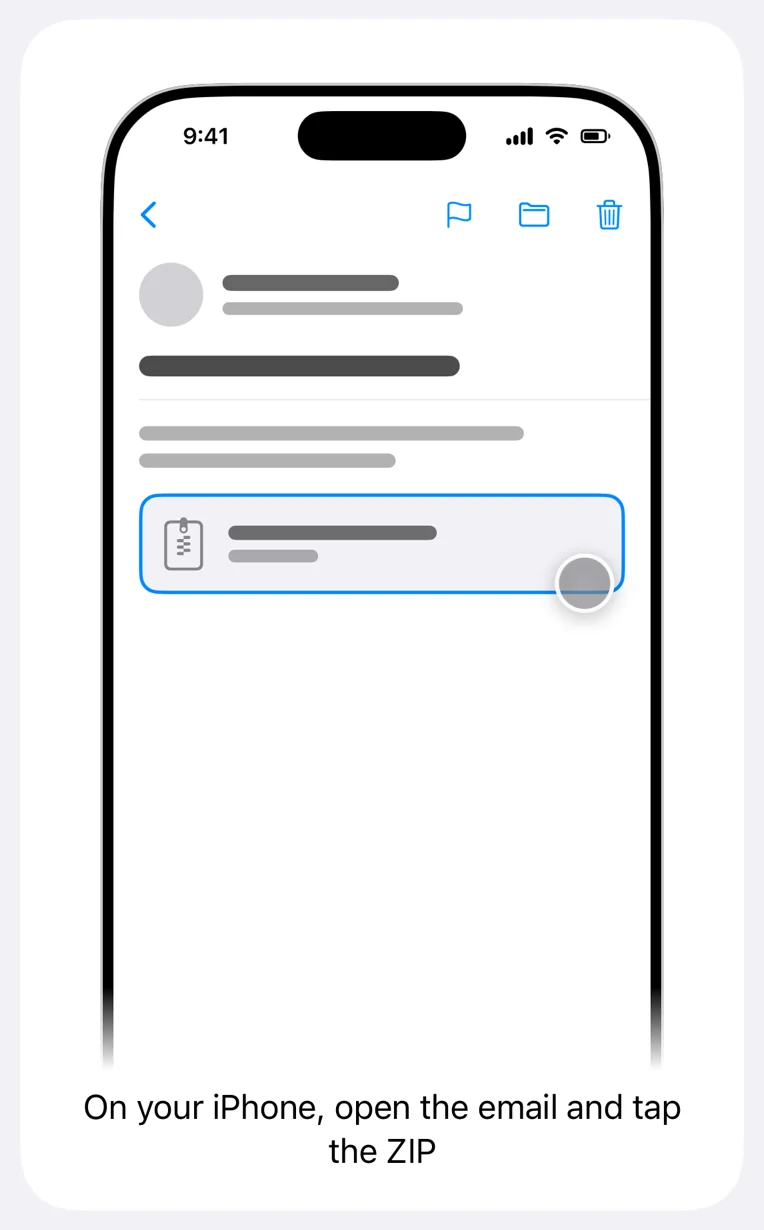
Open the email on your iPhone, then tap the ZIP file
Use the mail app on the iPhone that has TextPort. The file opens.
-
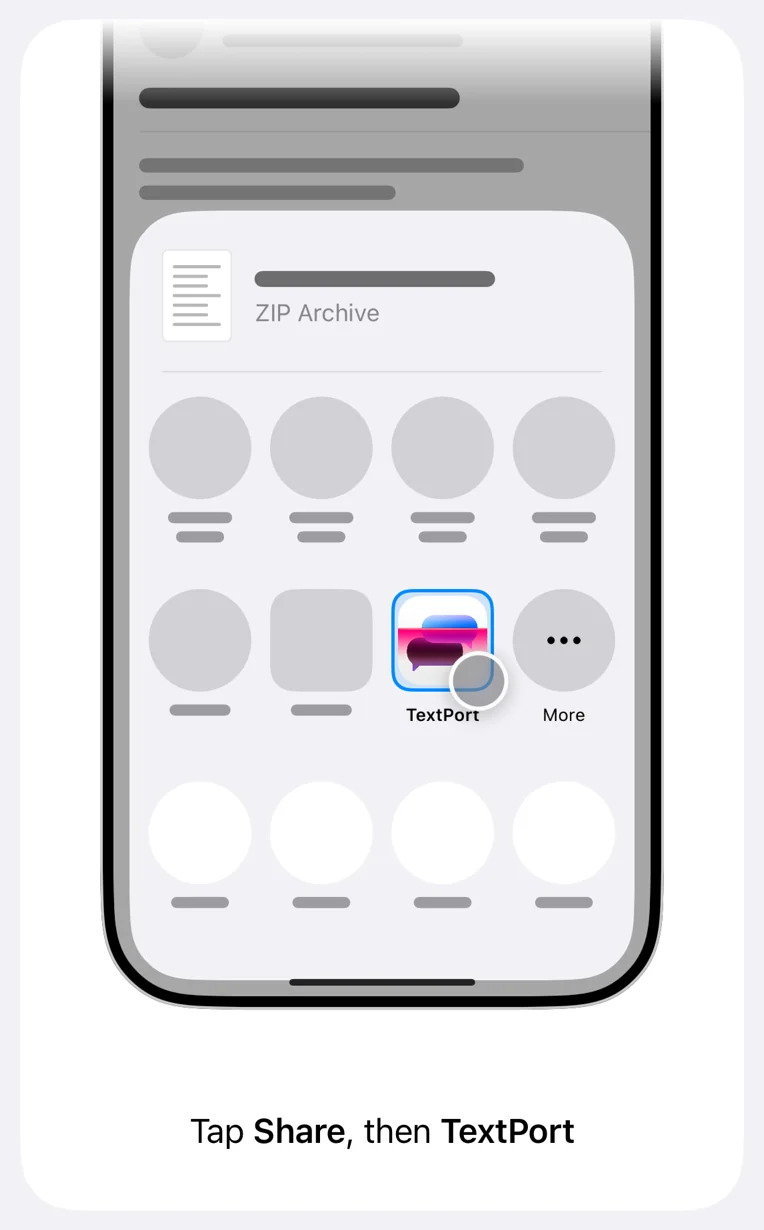
Tap Share, then TextPort
Find TextPort in the row of apps. TextPort opens and shows Choose chats to import.
One chat
-
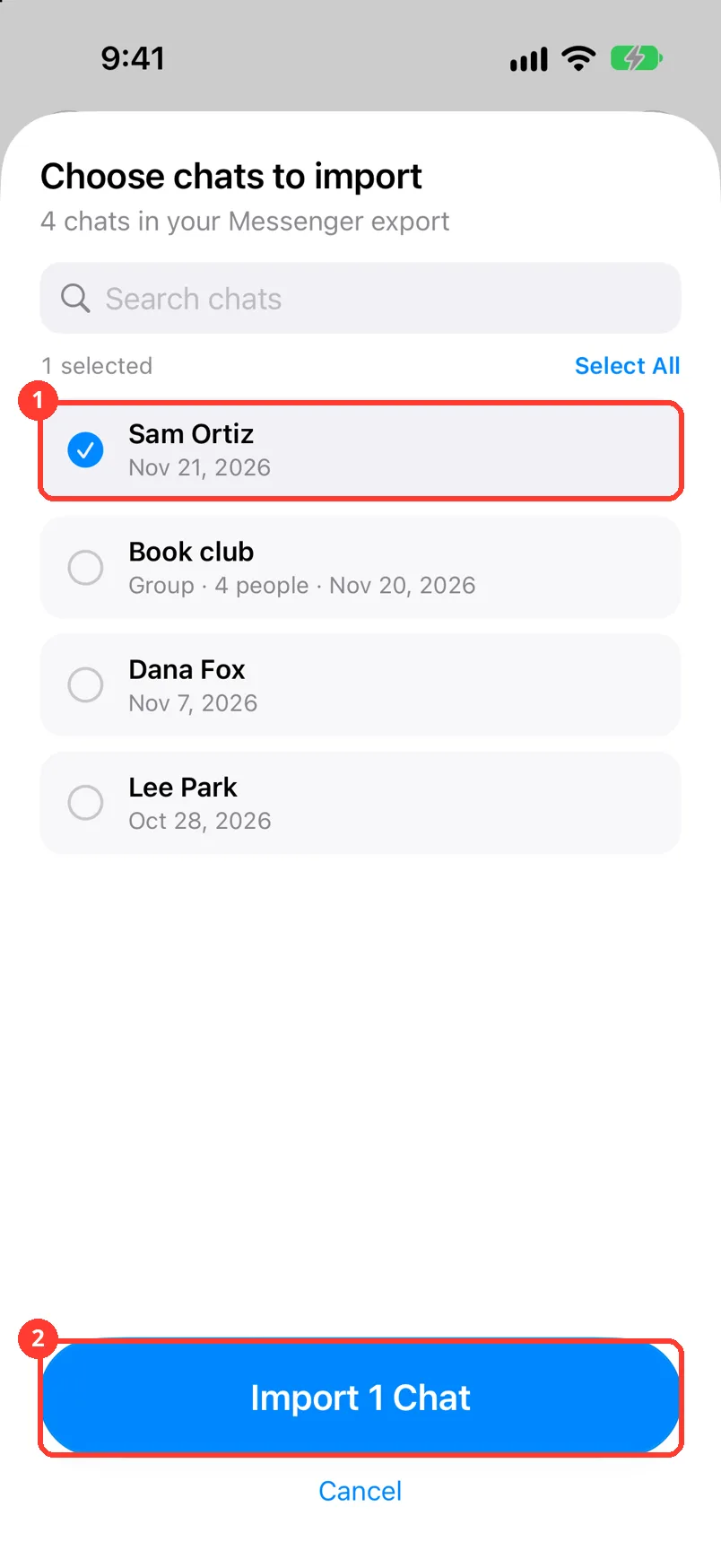
Tap the chat, then Import 1 Chat
Tap the chat you want (1). Tap Import 1 Chat (2). TextPort shows Reading your chat.
To find a chat fast, type a name in Search chats.
-
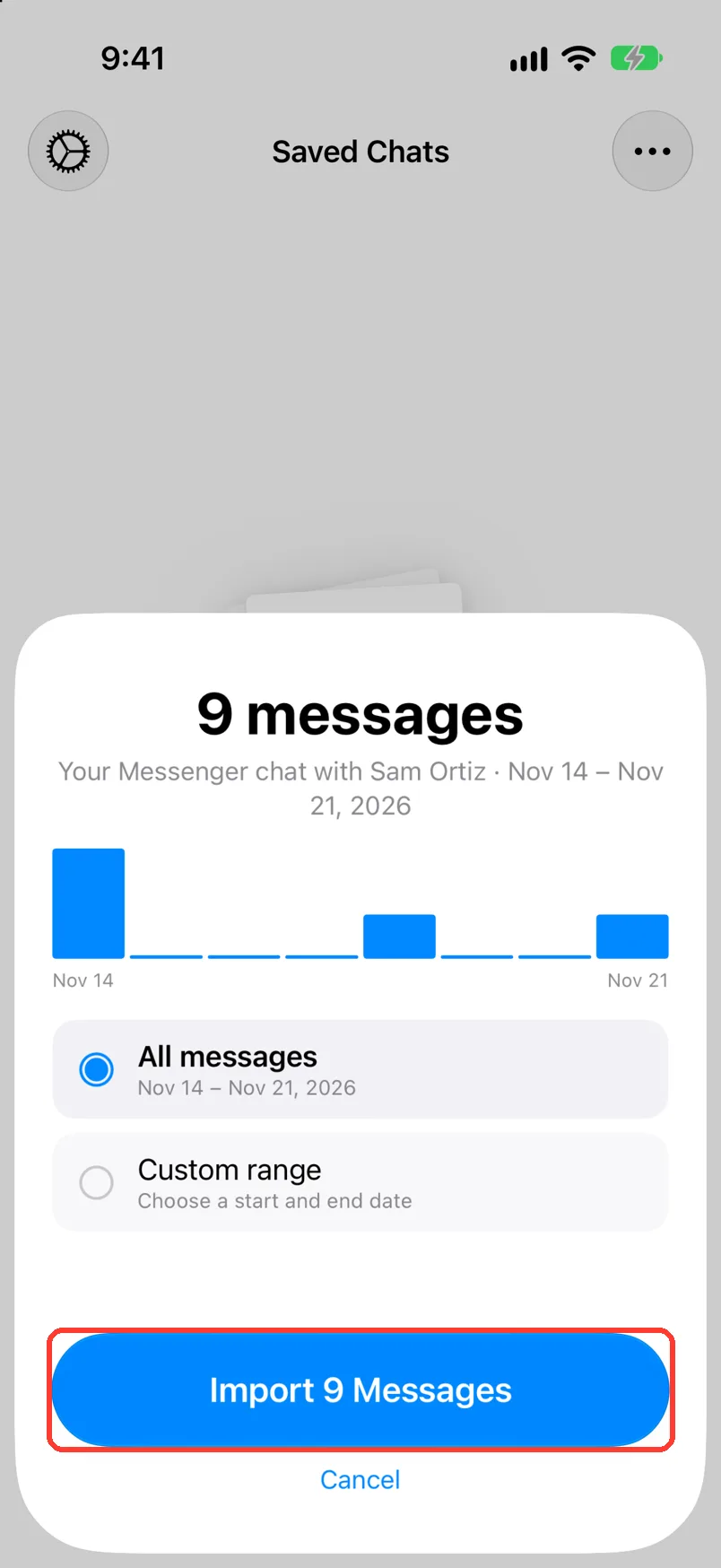
Tap Import … Messages
The button shows the number of messages. The chat then opens.
To save fewer days, tap Custom range first. It shows only if the chat spans more than one day.
-
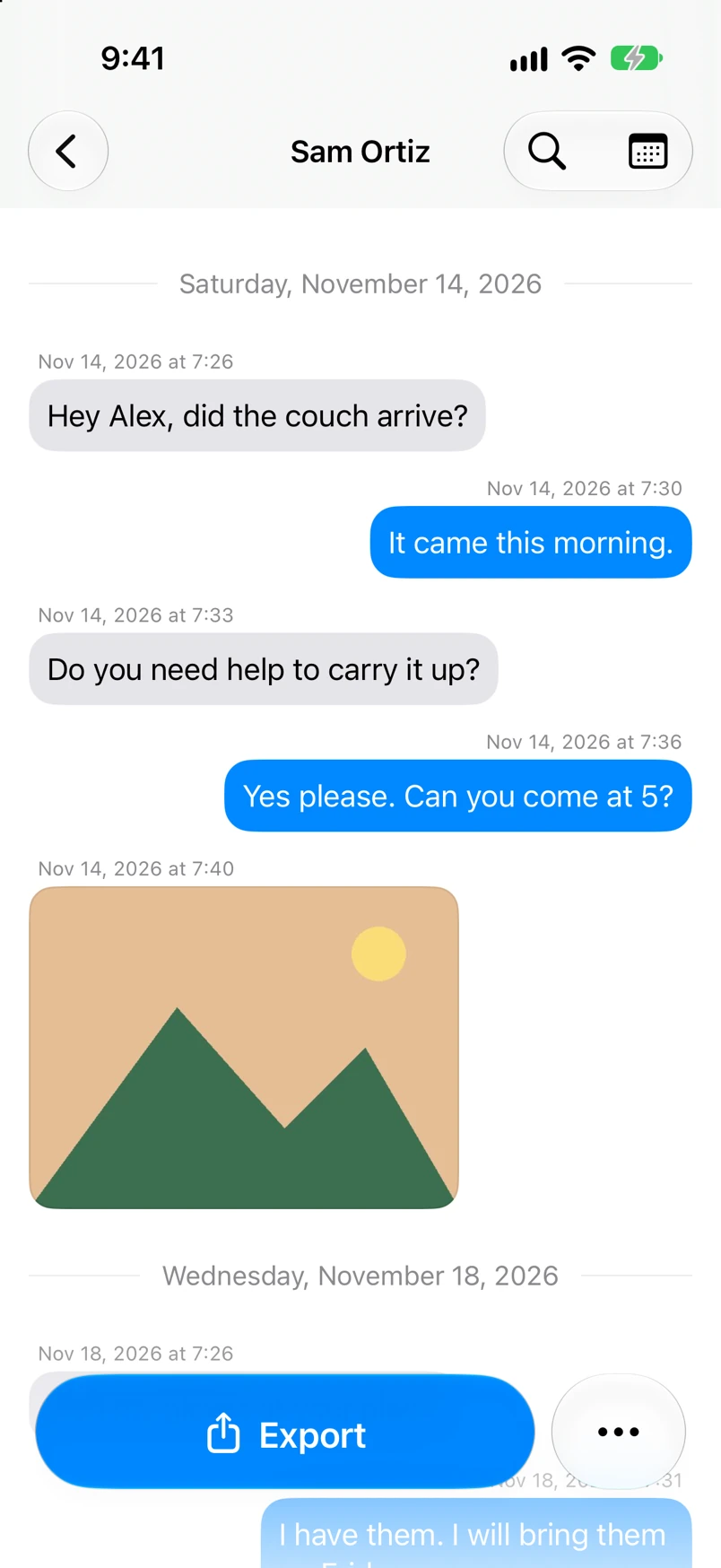
Read the chat
Your messages are blue. The chat is also in Saved Chats.
Several chats
-
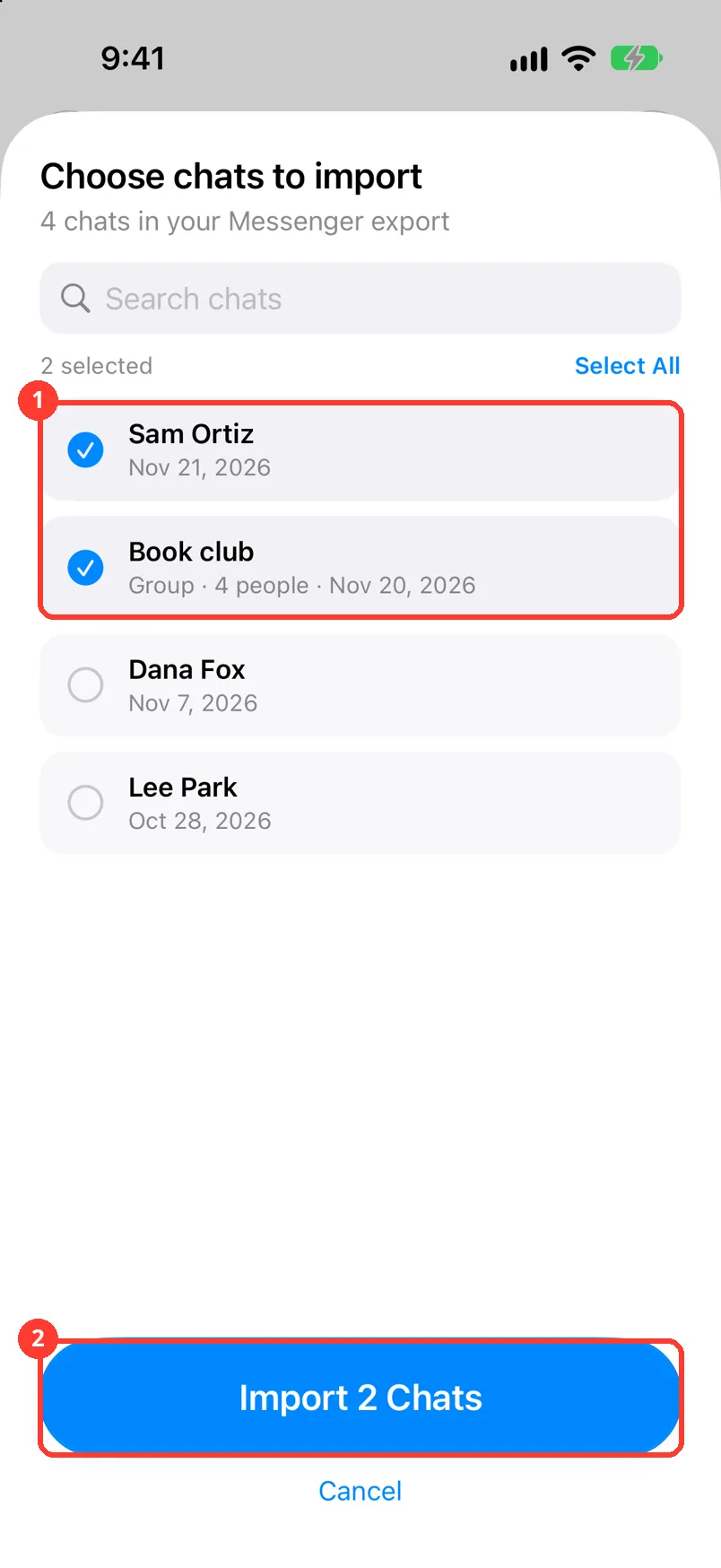
Tap each chat, then Import … Chats
Tap every chat you want (1). The button shows how many you picked (2).
To pick every chat, tap Select All.
-
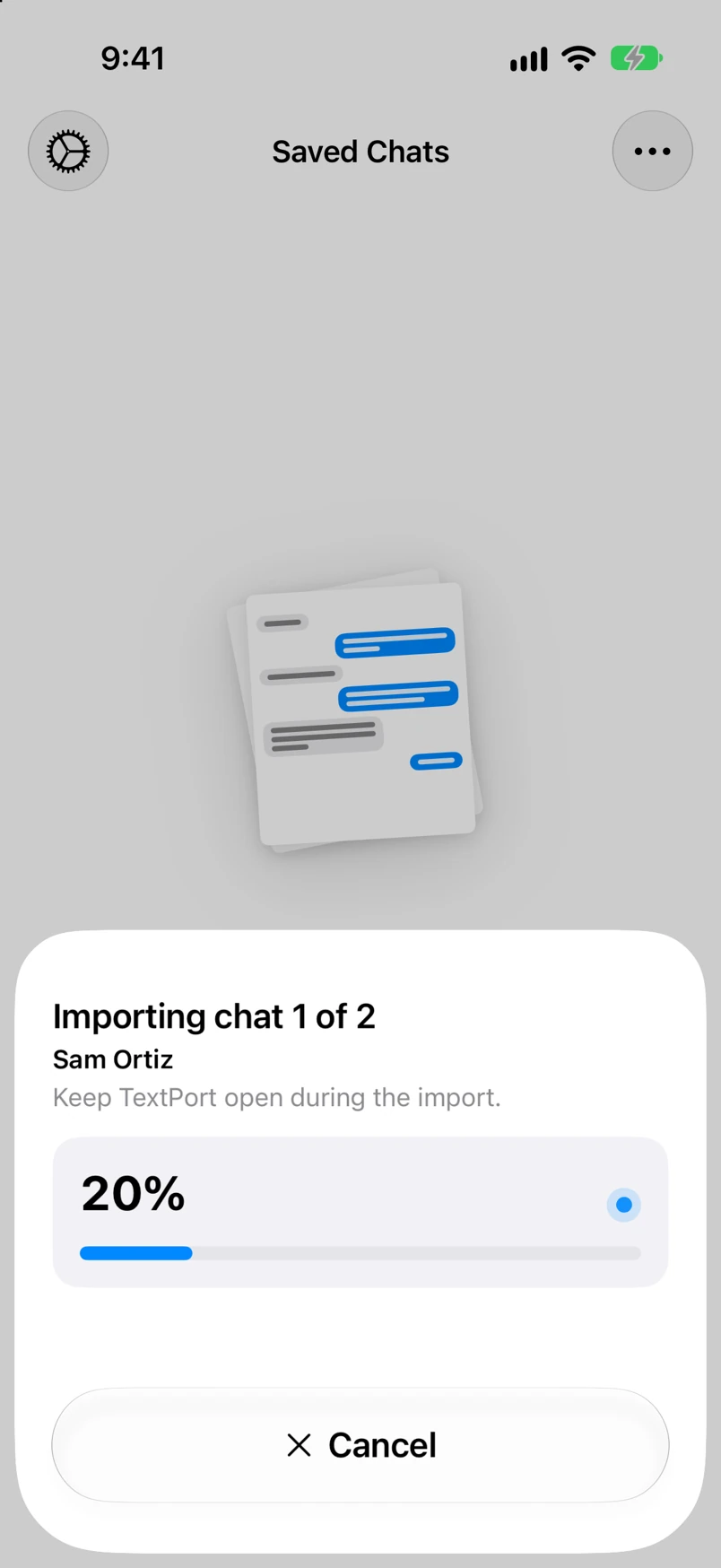
Keep TextPort open
TextPort shows Importing chat 1 of 2, with your own numbers. It imports the chats one after another.
-
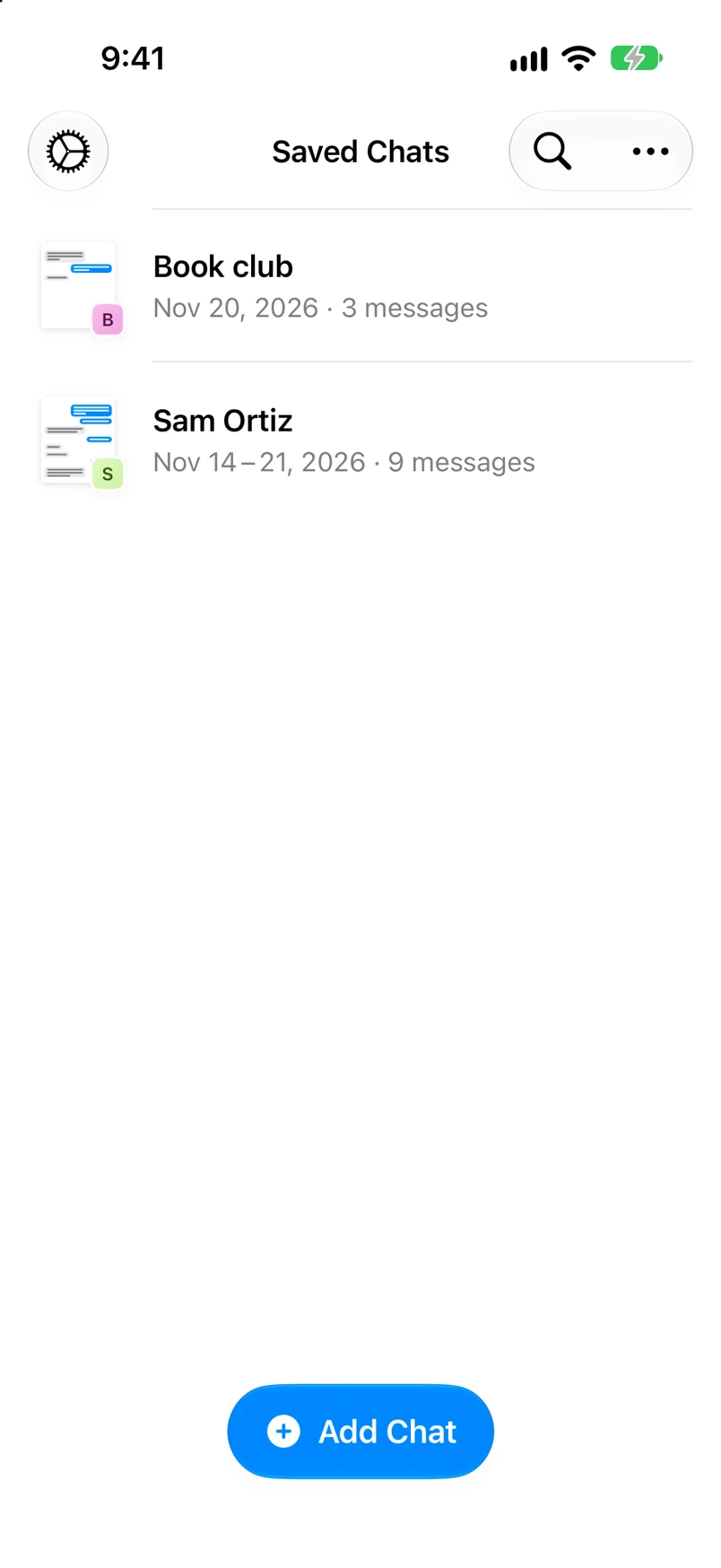
Tap a chat in Saved Chats
The sheet closes when all chats are in. Each chat has its own row.
Done
Your Messenger chats are saved in TextPort, word for word. You can export them.
Problems
There is no Import from Messenger card.
Tap the app name at the top. Pick Messenger. If the card is still missing, update TextPort.
You do not have a computer.
Meta lets you download these chats only on a computer. Without one, see Import a chat with Scroll Capture.
The ZIP file is too big to email.
On the computer, put it in a cloud folder, such as iCloud Drive. Open that folder in the Files app on your iPhone. Then see the next row.
The ZIP file is in the Files app on your iPhone.
Yes. Do steps 1 and 2. Tap Choose from Files. Tap Browse and find the ZIP file. Tap it. Then do step 11.
This export is in HTML
This is not the ZIP file from Download message storage data. Tap How to export from Messenger. Do steps 3 to 7 on a computer.
No chats in this file
Meta sent your export as several ZIP files. This one has only photos and other files. Share the ZIP file that has your messages.
This isn't a chat export
You shared a ZIP file that is not a chat. Tap the X. Share the ZIP file from step 7.
TextPort does not show Choose chats to import.
The ZIP file has only one chat. TextPort skips the list. Tap Import … Messages.
Which one is you?
TextPort could not tell which person is you. Tap your name. Then tap the blue Import button.
A photo shows as [Image], or a video as [Video].
That file was not in the ZIP file you shared. The words of the chat are all there. To save those photos, see Import a chat with Scroll Capture.
A message says [Unsent message].
That message was unsent in Messenger. The ZIP file does not have its words, so TextPort cannot show them.
Couldn't import this chat
Read the line under it. Tap Retry if you see it. If not, or if it fails again, tap the X. Do steps 3 to 7 again for a new ZIP file.
Couldn't import these chats, or the sheet says some chats couldn't be imported.
The sheet lists those chats. Tap Retry if you see it. If not, tap Done. The other chats are in Saved Chats.
The Import … Messages button is gray.
The dates you picked have no messages. Pick other dates. Or tap All messages.
The chat says Import failed in Saved Chats.
TextPort could not read the chat. The chat is empty. Do steps 3 to 7 again and share the new ZIP file. If it fails again, contact support.
You picked the wrong name.
Tap the chat name at the top. Chat Details opens. Tap the person who is you. Turn on This is me. Tap the back button, then the X.
TextPort asks you to unlock this.
Follow the steps on the screen. Then open the chat from Saved Chats.
None of these match.
Email [email protected]. Say which step you were on. Say what you saw. We usually reply within a day.
Questions
-
Meta lets you download these chats only on a computer. You need the iPhone again when you open the email.
-
Yes. Tap each chat you want, or tap Select All. See the Several chats steps.
-
Yes. The list says Group and how many people are in it. Each message shows who sent it.
-
Yes, when their files are in the ZIP file you share. They stay on the iPhone that imported them.
-
Yes. A reaction shows on a line under the message, with the name of the person who gave it.
-
No. A Messenger import is an exact copy of the ZIP file.
-
No. Messenger keeps your chats as they are.
-
Yes. See Change the bubble color.
Next guides
-
 How to pick a way to import a chat with TextPort
You will know which way to import your chat, and where to tap to start it.
-
 How to import a chat from Instagram with TextPort
You will get your Instagram chats saved in TextPort, with every message word for word.
-
 How to import a chat with Scroll Capture in TextPort
You will get a chat from any app saved in TextPort, made from a screen recording of you scrolling.
-
 How to change the bubble color in a TextPort chat
Your messages in this chat will show in the color you pick.
-
 How to export a chat to PDF with TextPort
You will get a PDF of one chat, with names, dates, and times, ready to share or print.

Start exporting your messages
Available for iPhone, Mac, and Windows. No computer required.