

How to fix messages missing from a Messages import with TextPort
Quick answer
TextPort imports the messages that are on this iPhone. Old messages can still be in iCloud. Your iPhone must also index them first.
- Open Messages. Scroll the chat up to the oldest message you need.
- Plug your iPhone in to power. Keep it on Wi-Fi.
- Leave it overnight.
- In TextPort, tap Add Chat, then Import from Messages.
- Tap Find chats. Pick the chat.
- Tap Choose dates. Pick days that cover the whole chat. Tap Start import.
Still short? Use Scroll Capture. Or use TextPort for Mac or Windows.
What you need
- ✓TextPort on your iPhone
- ✓The TextPort shortcut on your iPhone
- ✓A charger and Wi-Fi
Steps
-
Open Messages
Open the chat. Scroll up to the oldest message you need. Check that it shows.
If it does not show there, TextPort cannot import it yet.
-
Check Use on this iPhone
Open Settings. Tap your name, then iCloud. Tap See All, then Messages in iCloud. If it is on, old messages can still be on their way from iCloud.
If it is off, read the row below before you turn it on.
-
Set Keep Messages to Forever
In Settings, tap Apps, then Messages. Tap Keep Messages. With Forever, your iPhone does not delete old messages.
-
Plug your iPhone in to power
Leave it plugged in for the whole wait.
-
Keep your iPhone on Wi-Fi
To check, open Settings and tap Wi-Fi.
-
Wait overnight
Your iPhone gets the old messages and indexes them in this time.
-
Open Messages again
Scroll the chat up to the oldest message you need. It must show there now.
-
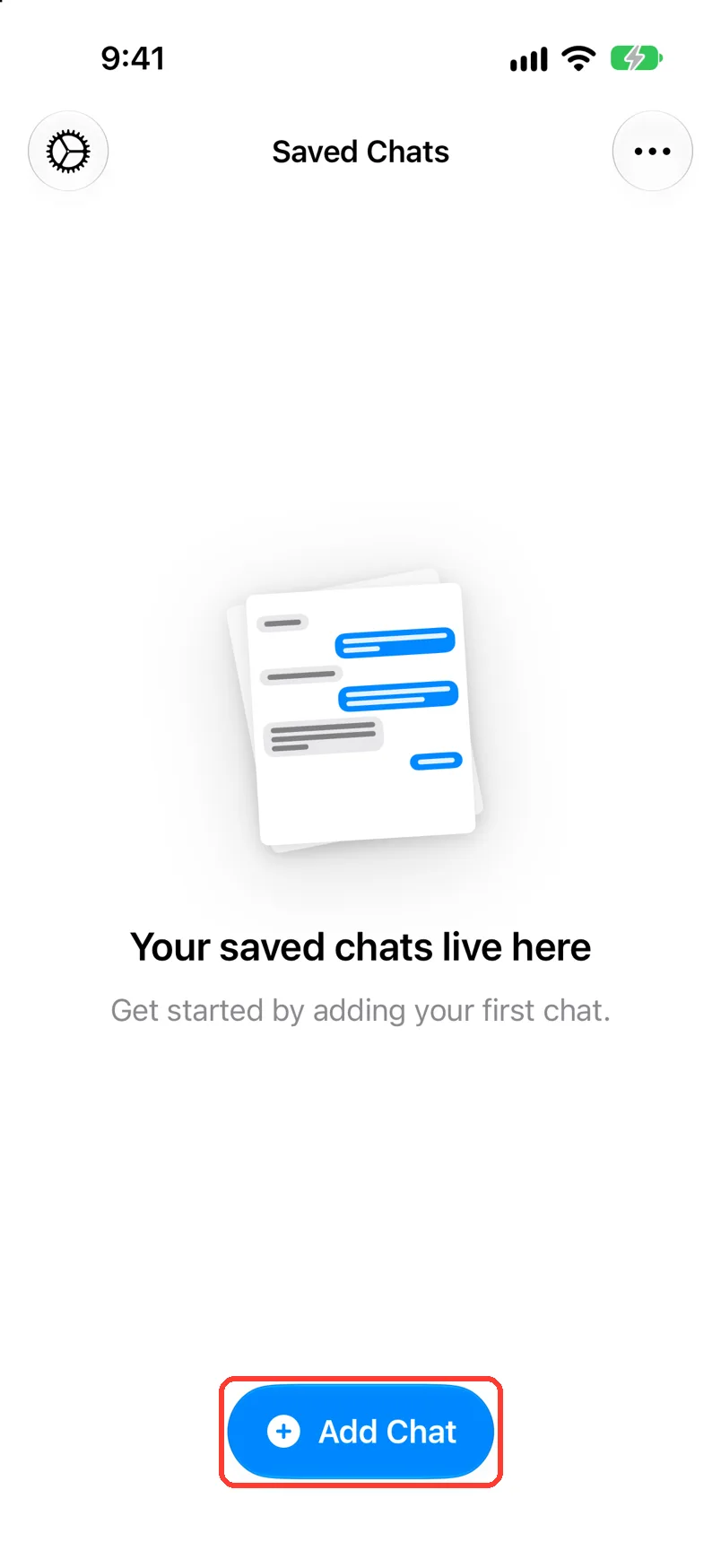
Tap Add Chat
Open TextPort. It is at the bottom of Saved Chats.
-
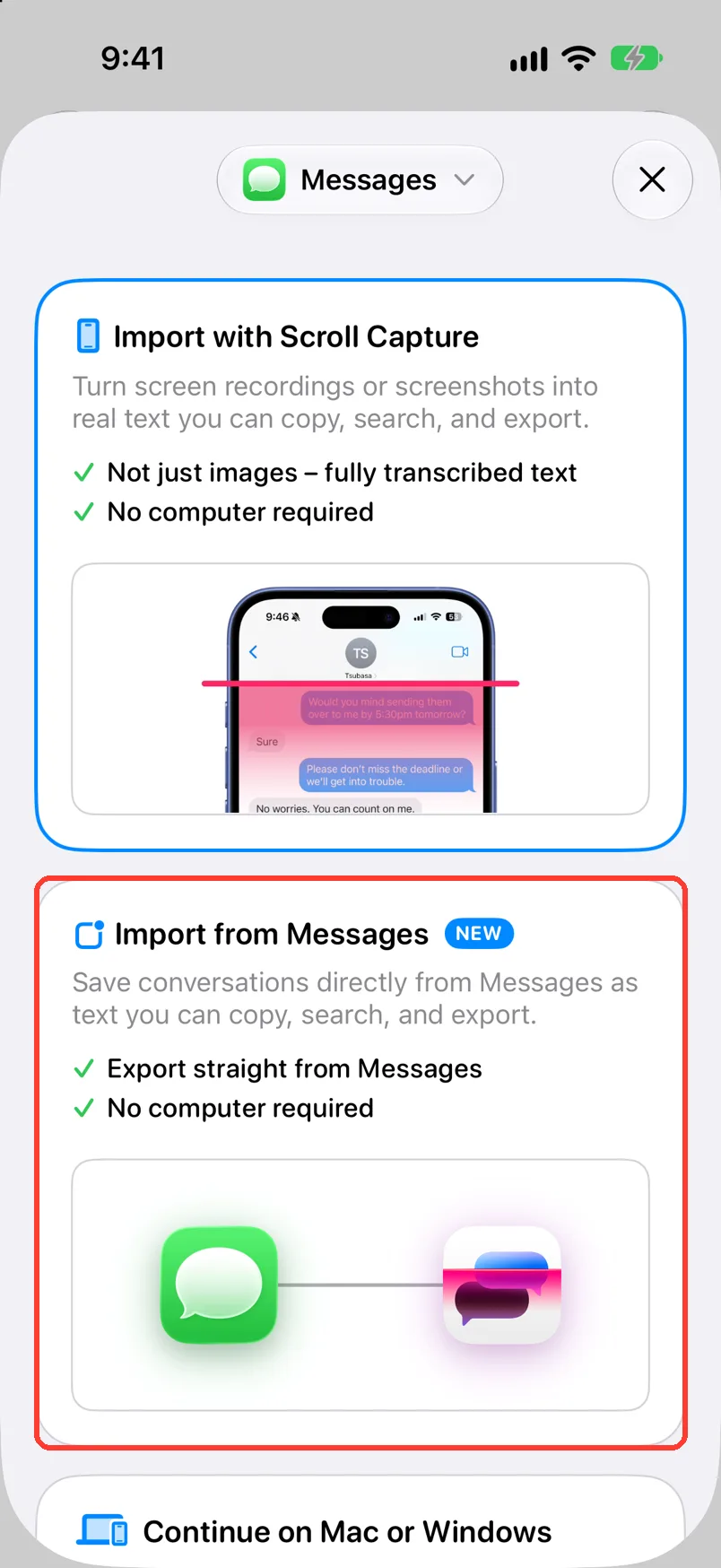
Tap Import from Messages
Check that Messages is picked at the top.
-
Tap Find chats
TextPort shows Starting Shortcuts… or Finding your chats…. Then your chats show.
If chats show already, tap the round arrow at the top right. It finds your chats again.
-
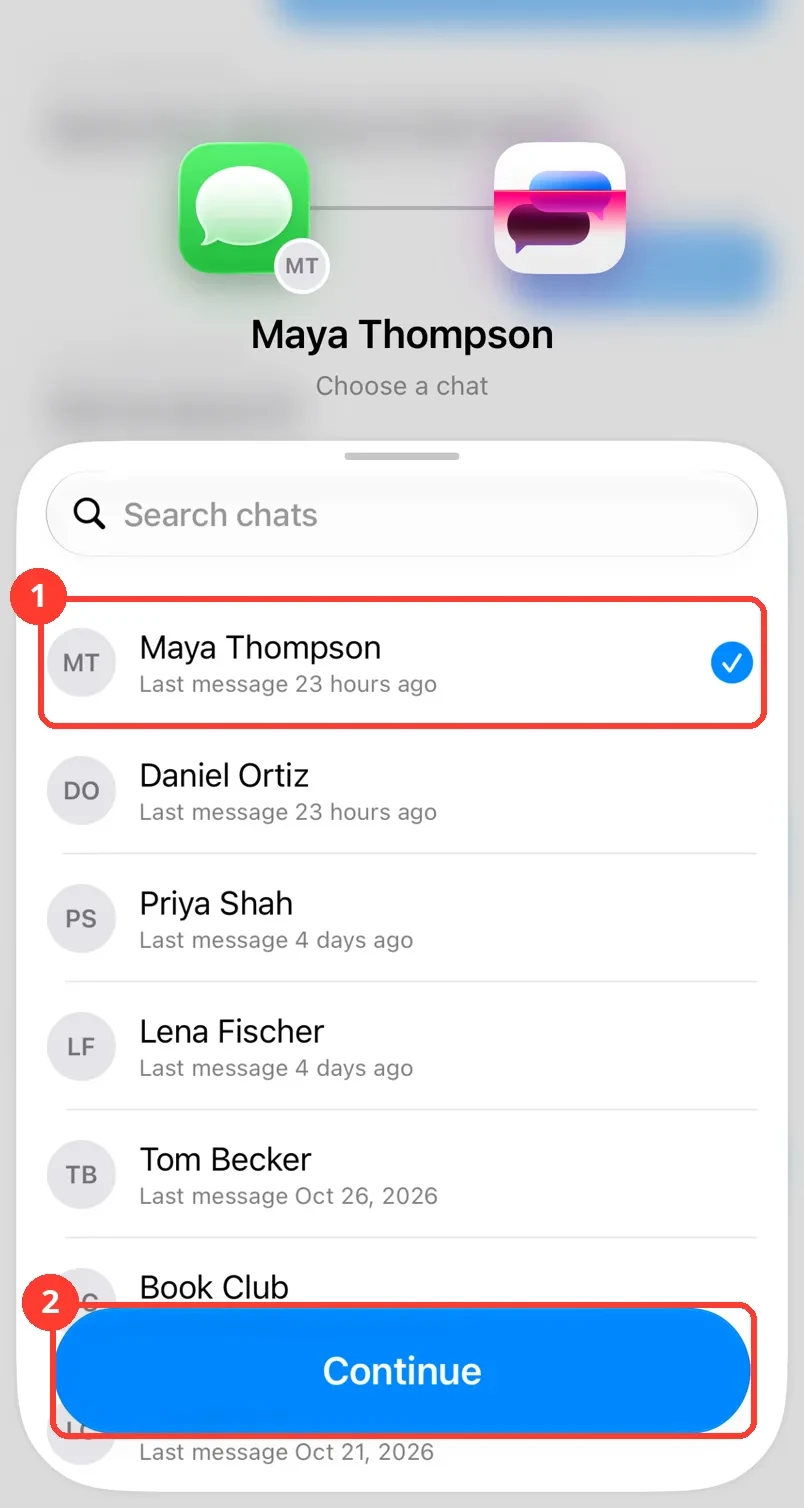
Tap the chat, then Continue
Tap the chat (1). You can search by name. Tap Continue (2). Which dates do you need? opens.
-
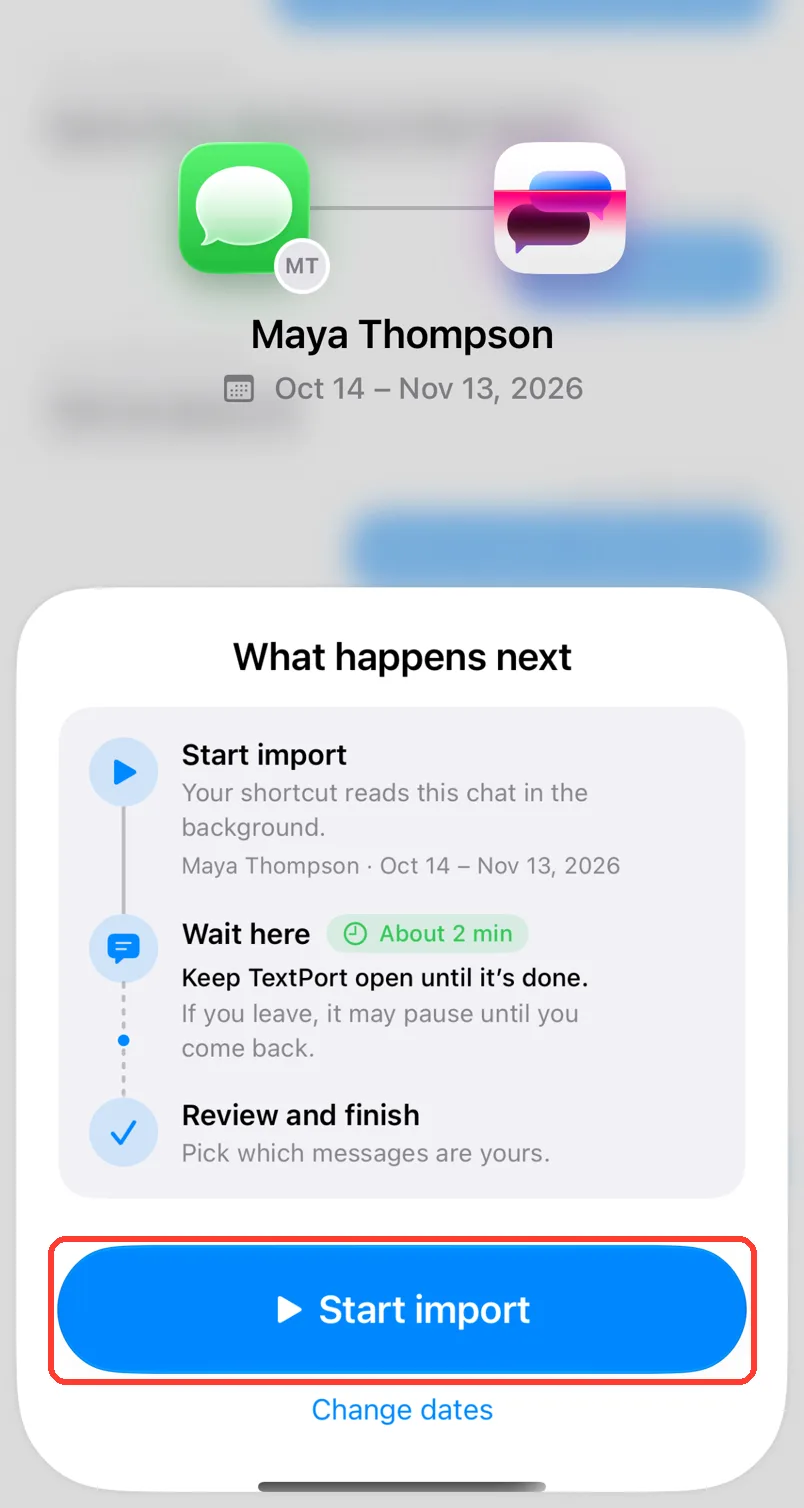
Tap Choose dates
Tap the date next to Start date. Pick a day before the first message you need. Then tap Continue.
-
Done
The new import has the messages that were missing.
Problems
The old messages do not show in Messages.
TextPort cannot import them yet. Do steps 2 to 7. If they never show, they are not on this iPhone.
Use on this iPhone is off.
Then this iPhone has only its own messages. Turning it on gets the messages that are in iCloud. Know this first: it uses iCloud storage, and a message you delete on one device is deleted on all of them.
The bottom of the Messages list says syncing with iCloud is paused.
Plug your iPhone in to power. Keep it on Wi-Fi. In Settings, tap your name, iCloud, See All, then Messages in iCloud. Tap Sync Now.
You got the messages back from Recently Deleted.
No messages found
Tap Change dates. Pick days that cover the messages. If the days are right, your iPhone is not done yet. Do steps 4 to 7.
The chat is not in the list.
Scroll to the end of the list. Tap Find more chats. See Choose a chat and dates.
You updated iOS, and the import is short.
After an iOS update, your iPhone has to index Messages again. An import can be short until that is done. Keep your iPhone on power and Wi-Fi for at least 30 minutes. Overnight is better. Then import the chat again.
The import is still short after one night.
Update iOS and TextPort. Keep your iPhone on power and Wi-Fi for one more night. Then import the chat again.
Only your messages came in. The other person's messages are missing.
Update iOS and TextPort. Then import the chat again.
The messages are there, but photos are missing.
The import stops part way.
Nothing works, or you cannot wait.
Import the chat with Scroll Capture. It records what Messages shows. Or use TextPort on a computer: see Continue on Mac or Windows.
None of these match.
Email [email protected]. Say which step you were on. Say what you saw. We usually reply within a day.
Questions
-
TextPort reads Messages through Apple's Shortcuts app. It gets only the messages that are on this iPhone and indexed. With Messages in iCloud, old messages can still be in iCloud. Apple says it can take some time for all your messages to show on a device. After an iOS update, your iPhone has to index Messages again. An import can be short until that is done.
-
It depends on how many messages you have. Leave your iPhone on power and Wi-Fi overnight. A long history can need more than one night.
-
It stays in Saved Chats. The new import is a second chat. You can delete the short one.
-
No. TextPort only reads Messages. It does not change or delete your messages.
Next guides
-
 How to fix recovered messages missing from a TextPort import
You will get messages you recovered from Recently Deleted to show in a TextPort import.
-
 How to choose a chat and dates for a Messages import with TextPort
You will have the right chat and the right dates picked, ready to start the import.
-
 How to fix a stuck or failed Shortcut import with TextPort
You will get a Messages import that finishes, or know exactly what to tell support.
-
 How to recover missing photos and attachments with TextPort
You will get the photos, videos, and files that were missing after a Messages import.
-
 How to import a chat with Scroll Capture in TextPort
You will get a chat from any app saved in TextPort, made from a screen recording of you scrolling.
-
 How to continue in TextPort on Mac or Windows
You will know how to get TextPort on your computer, from your iPhone.

Start exporting your messages
Available for iPhone, Mac, and Windows. No computer required.