

How to move iPhone messages to a Mac or PC
Quick answer
- On a Mac: turn on Messages in iCloud on your iPhone and your Mac. Then install TextPort for Mac.
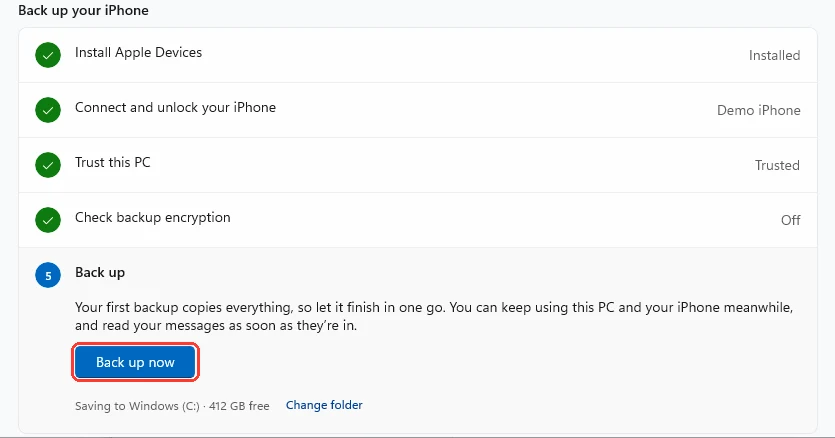
- On a PC: install TextPort for Windows. Plug in your iPhone. Click Back up now.
- One chat as a file: in TextPort on your iPhone, export the chat. Tap Share, then AirDrop or Mail.
- On Mac: How to install TextPort for Mac and give it Messages access
- On Windows: How to back up your iPhone to your PC with TextPort
What you need
- ✓Your iPhone
- ✓A Mac or a Windows PC
Steps
Mac
-
Turn on Messages in iCloud on your iPhone
Open the Settings app. Tap your name, then iCloud. Tap See All, then Messages in iCloud. Turn on Use on this iPhone.
-
Turn on Messages in iCloud on your Mac
Open Messages. Click Messages, then Settings, then iMessage. Check Enable Messages in iCloud.
Wait for the sync to finish. It can take a while for a big history.
-
-
Click the chat
It opens. To save it, see Export one chat to PDF, CSV, or TXT.

Windows PC
-
Install TextPort for Windows
Follow Install TextPort for Windows.
-
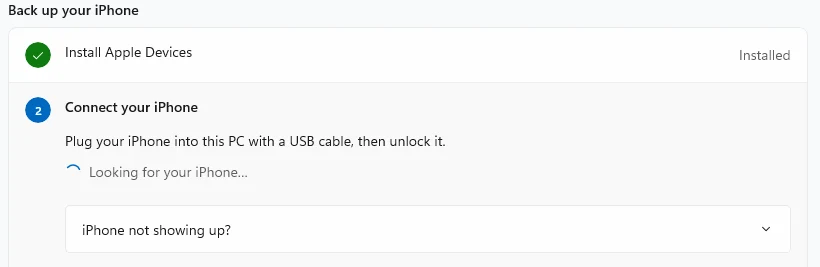
Plug in your iPhone
Use a USB cable. Unlock your iPhone. Tap Trust.
-
-
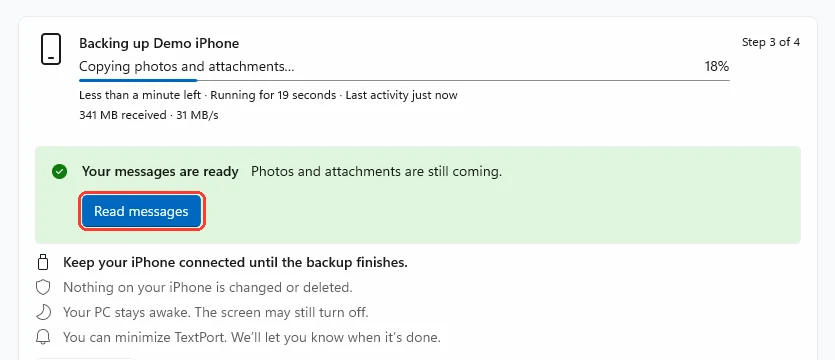
Click Read messages
Your conversations open. To save one, see Export a conversation to PDF, CSV, or TXT.
One chat as a file
-
Export the chat on your iPhone
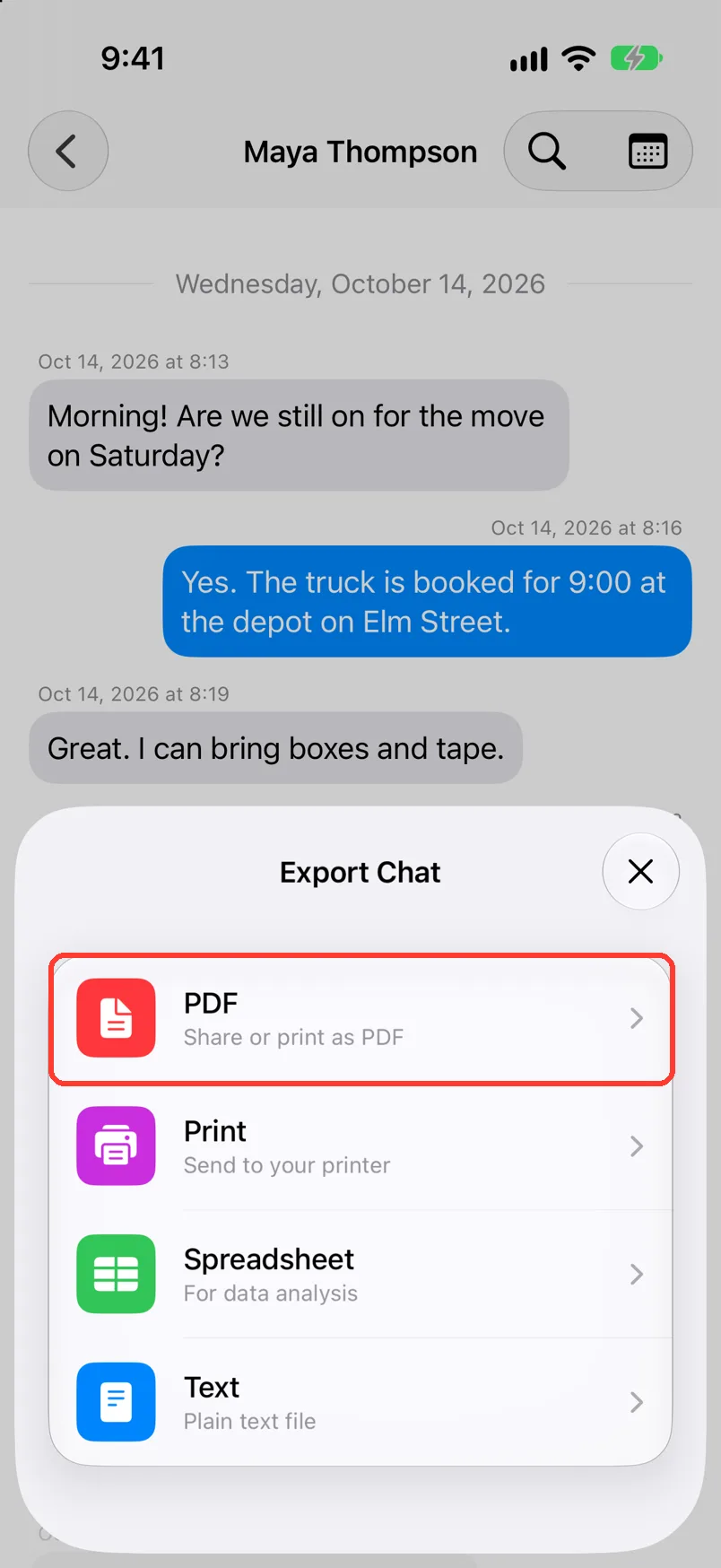
In TextPort, open the chat. Tap Export, then PDF. See Export a chat to PDF.
-
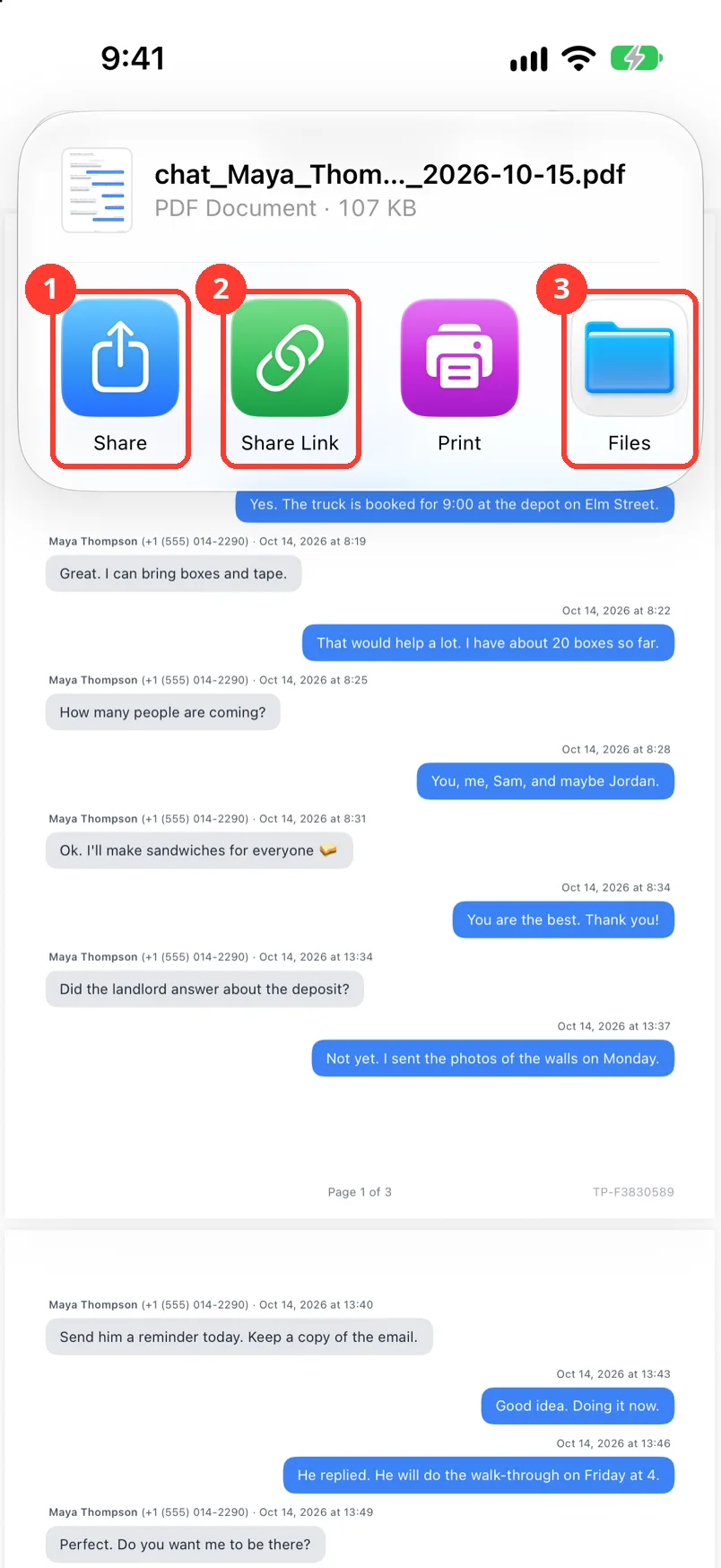
Tap the share button, then Share
The iPhone share sheet opens.
-
Send it to your computer
Tap AirDrop for a Mac. For a PC, tap Mail and email it to yourself. See Share an export by email, Gmail, or AirDrop.
Done
You can read your iPhone messages on your computer and export them there.
Problems
Your iPhone chats are not on the Mac.
Messages in iCloud may still be syncing. Wait, then reopen TextPort. See Fix TextPort can't read your Messages.
The PC does not see your iPhone.
The backup asks for a password.
None of these match.
Email [email protected]. Say which step you were on. Say what you saw. We usually reply within a day.
Questions
-
No. Windows has no Messages app for iPhone. You read them in TextPort for Windows.
-
No. TextPort for Mac reads Messages on the Mac. TextPort for Windows reads your iPhone backup. Each one has its own list.
-
Use the Mac or Windows path for many chats and their photos. Use the file path for one chat.
Next guides
-
 How to install TextPort for Mac and give it Messages access
You will have TextPort for Mac open, showing every chat saved in Messages on that Mac.
-
 How to back up your iPhone to your PC with TextPort
You will have a backup of your iPhone on your PC, and your messages open in TextPort.
-
 How to share an export by email, Gmail, or AirDrop
The person you pick will get your exported file or a link to it.
-
 How to continue on Mac or Windows
You will know how to get TextPort on your computer, from your iPhone.
-
 How to back up a chat before you delete it or switch phones
You will have a PDF copy of the chat saved in iCloud Drive or another safe place.

Start exporting your messages
Available for iPhone, Mac, and Windows. No computer required.
