
How to Save Text Messages from Someone Who Died
To save the text messages from someone who died, first stop your iPhone from deleting anything: set Keep Messages to Forever, and set audio messages to never expire. Then save a copy of the conversation outside the Messages app, as a PDF you can open, print or keep in iCloud Drive, and save their voice messages, voicemails and photos too. Do it before you switch phones, delete anything to free up space, or cancel their phone line.
There's no hurry beyond that. Once the settings are changed and one copy exists, the conversation is safe. You can read it, print it or turn it into a keepsake whenever you're ready, or ask someone you trust to do these steps for you.
This guide is about the messages on your own phone. If you need what's on their phone or in their iCloud account, see Can you get into their iPhone or iCloud?
What to do first
- Turn off auto-delete. Open Settings, tap Apps, then Messages (on iOS 17 or earlier, Settings > Messages). Tap Keep Messages and choose Forever. On the same screen, under Audio Messages, tap Expire and choose Never. Do the same on any iPad or Mac that shows your messages: on a Mac, it's Messages > Settings > General > Keep messages.
- Don't delete anything to make room. Not the conversation, not the photos in it, and don't turn off Messages in iCloud to save storage. Don't erase, sell or trade in the phone that holds the conversation until you've saved a copy and opened it to check.
- Save one copy outside Messages. A PDF of the whole conversation, plus their voice messages and photos. The table below shows the quickest way for what you have.
Which way should you save the conversation?
| What you have | Best way | What you get |
|---|---|---|
| An iPhone, and the texts you want cover months, or about a year | TextPort on your iPhone | A PDF, spreadsheet or text file of the dates you pick, with photos in place and voice messages written out |
| Years of texts and a Mac | TextPort for Mac, free | The whole conversation in one file, and every photo in a ZIP |
| Years of texts and a Windows PC | TextPort for Windows, free | The same, read from an iPhone backup |
| Their voice messages and voicemails | Save them as audio files | Recordings you can play on any device |
| A WhatsApp chat | WhatsApp's Export Chat | A ZIP of the chat and its photos |
| A few messages | Screenshots | Pictures of the messages, as they look on screen |
First, stop your iPhone from deleting them
Two settings delete messages on their own, and most people never check them.
Keep Messages. Apple's iPhone guide is blunt: "If you choose an option other than Forever, your conversations (including all attachments) are automatically removed after the specified time period elapses." That's anything older than 30 days or a year, photos included.
Audio messages. A voice message disappears from your iPhone 2 minutes after you listen to it unless you tap Keep, Apple says. Setting Expire to Never keeps the ones still in the conversation. One that has already expired is gone: Apple's Mac guide says audio messages that expire before being saved "aren't recoverable."
Don't delete things to free up space either. With Messages in iCloud on, Apple says "deleting a message or conversation on your iPhone deletes it from all your devices where Messages in iCloud is turned on," and from iCloud with them.
If something is already gone, tap the filter button at the top of your conversation list (Edit on iOS 18), then Recently Deleted. Apple says you can recover messages and conversations "that you deleted within the last 30 to 40 days."
A backup isn't a copy you can read. Your texts are either in your iCloud Backup or synced to iCloud, depending on whether Messages in iCloud is on, and either way all you can do with them is put them back on a phone. A PDF opens anywhere, prints, and outlasts the phone and the account.
What happens to the texts if you cancel their phone line?
Nothing happens to the copy on your phone. The conversation on your phone, both sides of it, is stored on your own devices, and in your own iCloud if Messages in iCloud is on, not with their phone company. For iMessages, Apple says it "doesn't store message content or attachments," which are end-to-end encrypted "so that no one but the sender and receiver can access them."
What changes is the number. Under FCC rules, a disconnected number sits unused for a while before the carrier can give it to someone else: for a residential line, "no less than 45 days and no more than 90 days." After that, a stranger can have it. Anything you text to the number reaches them, and if they text you, it shows up under your loved one's name, because that's the number saved in your contacts.
So before you cancel:
- Save what's on the phones first: the conversation, their voice messages and their voicemails, on your phone and, if you can unlock it, on theirs.
- Record their voicemail greeting if you want it. It's kept with their line, not on your phone. Call their number, let it go to voicemail, and record the greeting on speaker with a second phone or a recorder.
- You don't have to decide now. If you want more time, ask their carrier about moving the line to your name instead of cancelling it. Dana-Farber's grief guidance says it well: "try not to make major decisions right away, especially ones that cannot be undone."
How to save the conversation on your iPhone
TextPort turns a Messages conversation on your iPhone into a PDF, a spreadsheet or a text file, with no computer. It reads the real messages through an Apple Shortcut, word for word, with the sender, date and time on every one, for iMessage and green-bubble texts alike. The Shortcut import needs iOS 26.4 or later (your version is in Settings > General > About). On an older iPhone, use the free Mac or Windows app below, or record your screen while you scroll the conversation and TextPort reads the messages from the recording.
- Open TextPort, tap Add Chat, then Import from Messages. The first time, tap Add Shortcut and follow the steps.
- Tap Find chats, pick their conversation and tap Continue.
- Pick the dates you want to keep, or choose your own start and end dates, and tap Continue.
- Tap Start import. Keep Shortcuts open and your phone unlocked until it finishes. A month of messages takes a few minutes; a year takes longer, so plug the phone in.
- Open the chat, tap Export, then PDF. Tap the share button, then Files, and save it to iCloud Drive. Open the PDF in the Files app to check it.
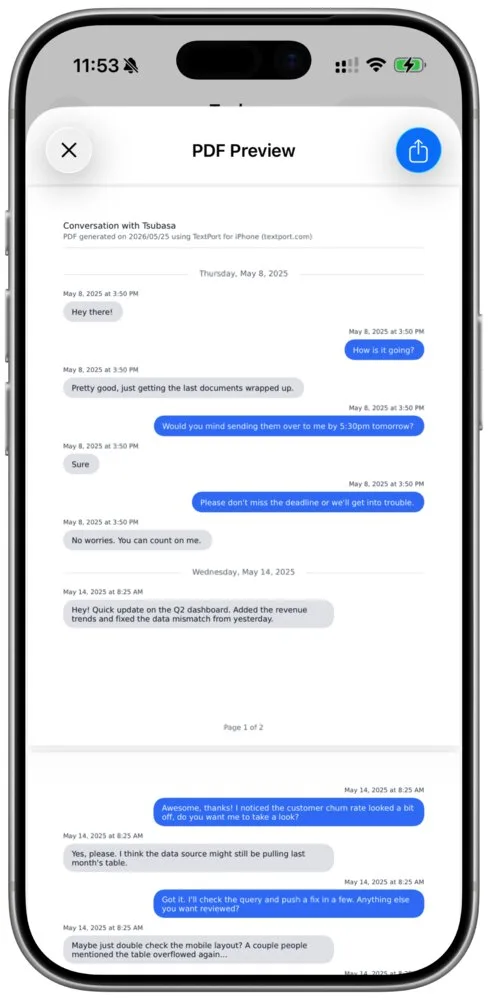
The PDF reads like the conversation: their name, the date and time over each message, and the photos you sent each other in place. On iOS 26 or later, TextPort also writes out their voice messages and prints the words under each one in the PDF. The PDF can't play the audio, so save the recordings too (see below). If photos show as gray boxes, they're still in iCloud: recover missing photos shows how to bring them in.
For more than a year of texts, the free Mac and Windows apps below are the better fit: they take the whole conversation in one go. The guide to saving an export to Files or iCloud Drive has a screenshot of every step.
How to save years of texts on a Mac or PC
On a Mac: TextPort for Mac is free from the Mac App Store, with no account and nothing to buy (macOS 14.6 or later). It reads the Messages already on your Mac and exports the whole conversation at once as a PDF, spreadsheet or text file, with every photo and video in a ZIP. If your texts aren't on the Mac yet, turn on Messages in iCloud: on your iPhone, go to Settings > [your name] > iCloud, tap See All, tap Messages in iCloud and turn on Use on this iPhone; on the Mac, open Messages, choose Messages > Settings > iMessage, and select Enable Messages in iCloud.
Messages on a Mac can also print one conversation to PDF for free (File > Print, then Save as PDF), but you have to scroll back to the start first so the older messages load, and the printout may leave out when each message was sent.
On a Windows PC: TextPort for Windows is free too. It backs up your iPhone over a USB cable through Apple's Apple Devices app or iTunes, or opens a backup already on the PC, then exports the conversation to PDF, CSV or TXT, with photos in a ZIP. Photos that are only in iCloud aren't in a backup, so first open the conversation in Messages on your iPhone, tap their name at the top, and tap Download Attachments in iCloud.
The guide to transferring texts from iPhone to a computer goes through both apps step by step.
How to save their voice messages and voicemails
Their voice is often what people most want to keep, and it's the easiest part to lose.
Voice messages in Messages. Open the conversation and find the voice message. Tap Keep under it if you see it, so it stays in the conversation. To save it as a file, touch and hold the voice message, then tap Save to Voice Memos (Apple's steps). From Voice Memos you can share it to Files, email it, or AirDrop it to a computer. If you've already imported the chat into TextPort, all its voice messages are in one place: tap … next to Export, then View Attachments, and look in Other (how to save them).
Voicemails. Open the Phone app, find the voicemail, tap it, then tap the share button and save it to Files or send it to yourself. Do it soon. Apple's voicemail guide says voicemails are kept "until you delete them (or until your carrier erases them, if they're not stored in iCloud)," and warns that "your voice messages may also be deleted if you change your SIM card." On iOS 18 or later, you can keep them in iCloud: go to Settings > [your name] > iCloud, tap See All next to Saved to iCloud, and turn on Phone & FaceTime.
How to save their photos and videos from the thread
On iOS 26 or later, open the conversation, tap their name at the top, then tap Photos to see every picture from the chat in one place. Touch and hold one and tap Save (Apple's steps). There's no "save all" button on the iPhone, so it goes a few at a time.
For all of them at once, use TextPort for Mac or Windows. They save every photo, video and file from the conversation into one ZIP, with a folder for each day and each file named by when it was sent and who sent it. How to save all photos from text messages walks through it.
WhatsApp and other apps
WhatsApp chats aren't in Messages, so save them on their own. Open the chat, tap their name at the top, tap Export chat, and choose With all media to keep the photos. WhatsApp makes a ZIP file. Save it to Files, or send it to TextPort, which turns it into the same kind of PDF as above (WhatsApp guide).
Don't count on their account. WhatsApp's help pages say inactive accounts are "generally deleted after 120 days (365 days for US)". Deleting an account doesn't affect "the information other users have relating to you. For example, their copy of the messages you sent them," so the chat stays on your phone. But WhatsApp also says it "can't restore or transfer chats, documents, media files, backups, or call history from deleted accounts." Your phone, and your own WhatsApp backup, are all that's left.
Messenger, Instagram, Signal, Telegram and most other apps have no export TextPort can open. For those, record your screen while you scroll the chat, or take screenshots, and TextPort reads the messages from the recording. It's read from the screen, so check it against your phone before you export.
Can you get their texts from the phone company?
No, not the words. A carrier's records are a log: Verizon's usage page shows the date and time, the number of messages and the phone numbers, not what was said, and Apple notes that text message records "may be released through the cellular provider to the account owner for that phone number." Carriers keep little or no message content to begin with: the last public chart, compiled by the Justice Department in 2010 and released through an ACLU records request, listed text content as "Not retained" at T-Mobile, AT&T and Sprint, and kept for 3 to 5 days at Verizon. iMessages don't go through the carrier as texts at all. The copy on your phone, and on theirs, is the copy. How to get a transcript of text messages has more on what carriers keep.
Can you get into their iPhone or iCloud? (Legacy Contact)
Their phone holds the other side of your conversation, and their conversations with everyone else. What you can reach depends on whether you can unlock it and whether they set you up as a Legacy Contact.
If you know their passcode, open their phone and save what you want from it the same ways as above, before anything else happens to it. Don't erase, reset, sell or trade it in until you're sure. Apple says that to reuse a loved one's iPhone, "you will need to erase and restore" it, and erasing deletes what's on it.
If you don't know it, Apple can't open it for you. Its page for families says "devices locked with a passcode are protected by passcode encryption, and Apple can't help remove the passcode lock without erasing the device."
If they made you a Legacy Contact, you can ask Apple for their iCloud data. You need the access key they created when they chose you (it may be in your own Settings > [your name] > Sign-In & Security > Legacy Contact, printed, or with their estate papers) and their death certificate. Apple's list of what a Legacy Contact can access includes Messages in iCloud, call history, Voice Memos, iCloud Photos and "anything included in an iCloud Backup." Passwords, payment details and purchased music, movies and books aren't included. After Apple approves the request, you get a special Legacy Contact account to sign in with on iCloud.com, or on an iPhone you restore from their iCloud Backup, and their own Apple Account "no longer works." The access is temporary: Apple says it lasts "three years from when Apple approves the first Legacy Contact account request," after which "the account is permanently deleted," so download what you want to keep.
If they didn't, in the U.S. you can ask with a court order that names you "as the rightful inheritor of your loved one's personal information," and only one person can request access. Even then, Apple warns that "some data might be end-to-end encrypted and Apple isn't able to decrypt it," and you may be asked for their device passcode.
If you'd like to make this easier for your own family, you can add a Legacy Contact for yourself in the same Sign-In & Security menu. Apple's setup guide shows how.
Turning the texts into a keepsake or book
Once you have the PDF, you can print it, keep it in a binder, or have it bound.
- Print it. At home, or take the PDF to a print shop by email or on a USB stick.
- Have it bound as a book. Some photo book printers take a PDF. PrestoPhoto, for example, prints a bound book from one, in full color or, for less, in black and white. Check the printer's rules for page size and margins before you order.
- Keep the parts that matter most. You don't have to print years of texts. TextPort can narrow the PDF to the dates you pick, and you can change the color of your own bubbles before you print.
- One message. A screenshot of a single text, printed and framed, can mean as much as the whole thread.
Many people find comfort in rereading the messages, and some aren't ready to for a long time. Either is fine. The copy will be there when you are.
For the printing itself, the guide to printing text messages from an iPhone covers printing at home, from your phone and at a print shop, and how to export iPhone messages to PDF compares the ways to make the file.
Frequently asked questions
-
No. The conversation is stored on your own phone, and in your own iCloud if Messages in iCloud is on, not with their phone company, so cancelling their line doesn't delete it. What you can lose is anything kept only with their line, like their voicemail greeting, and the number itself: after 45 to 90 days the carrier can give it to someone else. Save the conversation, their voice messages and voicemails first.
-
They should, if you set up the new iPhone from the old one, from a backup, or with Messages in iCloud turned on. Open the conversation on the new phone and scroll back before you erase, sell or trade in the old one. A copy saved as a PDF in iCloud Drive doesn't depend on any of that.
-
Maybe. Apple says you can recover messages and conversations you deleted within the last 30 to 40 days: in Messages, open Recently Deleted, pick the conversation and tap Recover. After that, the only way back is an iPhone backup made before you deleted them, and restoring one replaces what's on your phone now.
-
Many people do. Just know where the messages can go. Once the line is cancelled, the carrier can give the number to a new customer after 45 to 90 days, and from then on your texts reach a stranger, who may write back. If you want to keep writing to them privately, keep the line, or write in a note or a journal instead.

Start exporting your messages
Available for iPhone, Mac, and Windows. No computer required.