
Apps to Export Text Messages From iPhone (2026 Guide)
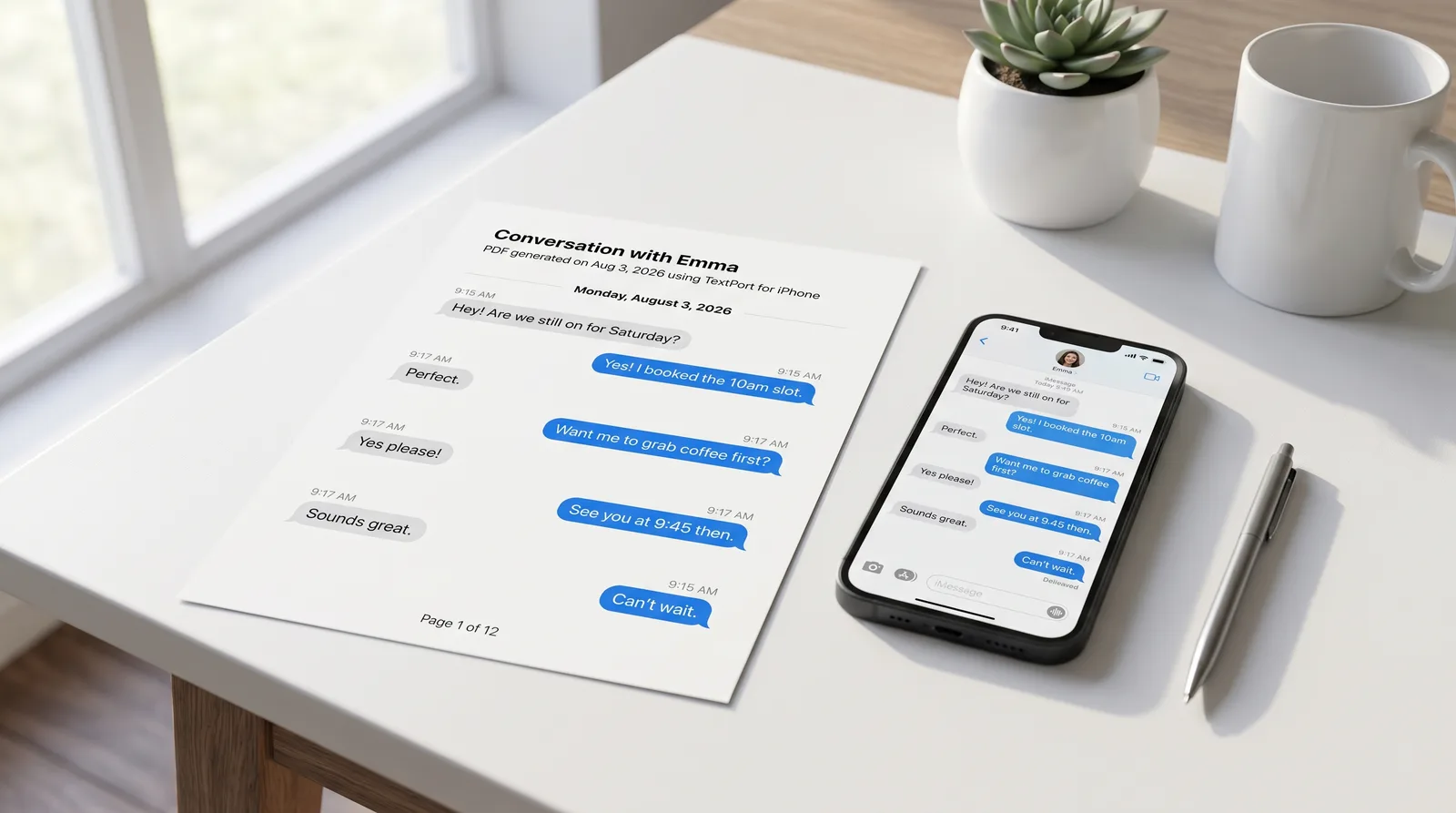
Yes, there are apps to export text messages from iPhone. The right one depends on whether you want to work entirely on your phone or connect to a Mac or PC.
On your iPhone, no computer: TextPort
TextPort works directly on your iPhone or iPad, no USB cable, no computer, no iTunes backup required. The workflow is straightforward: open TextPort, tap Import, and choose the iMessage conversation you want. The app pulls every message straight out of iMessage in order, preserves sender names and timestamps, and produces a clean export file.
It covers iMessage, SMS, WhatsApp, Facebook Messenger, Instagram DMs, Telegram, Signal, and more.
For WhatsApp specifically, there's an even faster path. Open the chat, tap the contact name, scroll down and tap "Export chat," then choose "Attach media" or "Without media." Use the iOS share sheet to send the file to TextPort, and you can immediately export to PDF, CSV, or plain-text TXT. The WhatsApp chat export guide walks through every step.
Output formats from TextPort:
- PDF, formatted for printing, sharing, or filing as a business or legal record
- CSV, Excel-compatible spreadsheet, useful for searching and sorting messages
- TXT, lightweight plain-text backup
See the full step-by-step export walkthrough for all supported apps.
When desktop tools make more sense
Desktop tools like iMazing, Decipher TextMessage, and TouchCopy read directly from an iPhone backup on your Mac or PC. According to iMazing's documentation (updated March 2026), they support export to PDF, Excel/CSV, and TXT. Decipher TextMessage also offers HTML output for web-style archival.
These tools are worth considering when you need bulk exports of very long iMessage or SMS histories, or when you prefer to work from a computer. One important note: many of them require a local (non-encrypted) backup. Apple's support page on encrypted backups (updated May 7, 2026) confirms you can enable or disable local backup encryption in Finder/Apple Devices/iTunes. Some apps, like SMS Export, additionally ask you to temporarily disable iCloud before creating the backup, a setup step that can catch users off guard.
TextPort has its own desktop apps for this job, limited to iMessage and SMS. TextPort for Mac skips the backup entirely: it reads the Messages already on your Mac, so with Messages in iCloud turned on it sees your iPhone's full history, with no cable. TextPort for Windows backs up your iPhone over USB through Apple's Apple Devices app or iTunes, or opens a backup already on the PC, and walks you through turning backup encryption off if it's on. Both export many conversations at once to PDF, CSV, or TXT, plus a ZIP of attachments, with no account and nothing uploaded.
Choose mobile when you want no-computer capture and export. Choose desktop when you can use a Mac or PC and need backup-based exports for bulk or very long histories.
For a detailed look at how iMazing handles the desktop workflow, see how to export iPhone messages with iMazing.
Export formats explained
| Format | Best for |
|---|---|
| Printing, filing, court submissions, sharing with attorneys | |
| CSV / Excel | Searching, sorting, and analyzing messages in a spreadsheet |
| TXT | Quick lightweight backup or plain-text archiving |
| HTML | Web-style archival; offered by some desktop tools like Decipher |
For PDF-specific workflows, the iPhone messages to PDF guide covers five methods in detail. If you need exports for legal use, the page on text messages in court admissibility explains what formatting courts typically expect.
Get started
Download TextPort from the App Store to export from any messaging app on your iPhone. If you'd rather work from a computer, TextPort for Mac and TextPort for Windows are free and export your iMessage and SMS conversations in bulk.
For a broader comparison of all available tools, see the best apps to export text messages from iPhone in 2026.

Start exporting your messages
Available for iPhone, Mac, and Windows. No computer required.
