
How to Print Messages from Messenger: 5 Easy Methods Explained
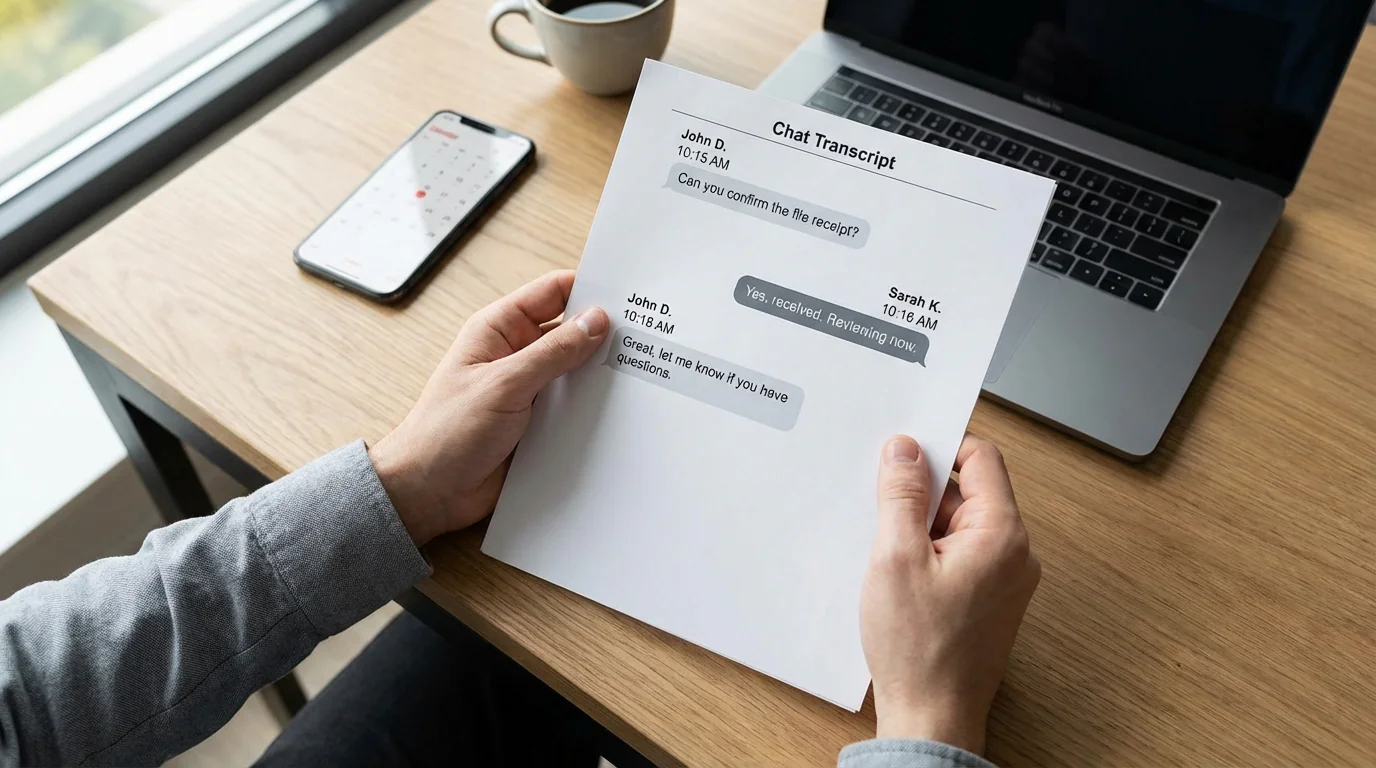
Why You Might Need to Print Messenger Conversations
We've all been there: you need a permanent copy of an important Facebook Messenger conversation, whether it's to document a business agreement, preserve evidence for a legal case, or simply archive a meaningful chat with a loved one. The problem? Messenger, like most messaging apps, doesn't exactly make it easy to export or print your conversations.
Maybe you're dealing with a customer dispute and need proof of what was promised. Perhaps you're facing a court hearing and want to present clear documentation of your communications. Or you might just want to print out a heartfelt exchange as a keepsake. Whatever your reason, knowing how to print messages from Messenger can save you hours of frustration and potentially serious expense.
The good news is there are several practical methods to get your Messenger conversations onto paper or into a printable PDF: screenshots, Facebook's own data download, printing from Messenger.com in a browser, or a formatted PDF export with TextPort. Some are completely free, though more time-consuming, while others do the heavy lifting for you.
Method 1: Taking Screenshots (Fastest for Short Chats)
If you only need to print a brief exchange, maybe a dozen messages or less, screenshots are your simplest path forward. This method works on any device and costs nothing.
On iPhone:
- Open the Facebook Messenger app and navigate to the conversation you want to print.
- Press the Side Button + Volume Up simultaneously to capture a screenshot, or Home + Lock on older models.
- Scroll up to load earlier messages, then repeat until you've captured the entire conversation.
- Open the Photos app, select all your screenshots, tap the Share icon, and choose Print or save them as a PDF first.
On Android:
- Open Messenger and the conversation you need.
- Press Power + Volume Down simultaneously to screenshot. The exact button combo varies by manufacturer.
- Scroll and capture until you have the full thread.
- Open your Gallery, select the screenshots, and print via your printer app or save as PDF.
This method is perfect when you need something fast and don't mind a bit of manual work. The downside is that long conversations turn into dozens of images that can be tedious to organize and print.
Method 2: Download Your Facebook Data (Most Complete Free Option)
Facebook offers a built-in export tool that lets you download all your data, including every Messenger conversation you've ever had. It's free, though it does take some patience.
Step-by-step instructions:
- Log in to Facebook.com on a desktop browser.
- Click your profile photo in the upper-right corner and select Settings & Privacy > Settings.
- Navigate to Accounts Center > Your information and permissions.
- Select Download your information.
- Click Request a download.
- Choose Specific types of information and check the box for Messages.
- Select HTML as your format. It's easier to read than JSON.
- Set the date range to All time or your preferred period.
- Choose your media quality and click Create file.
- Facebook will send you a notification when your download is ready, usually within a few hours to a day or two depending on how much data you have.
- Download the ZIP file, extract it on your computer, and open the HTML file in your browser.
- Use Ctrl+P on Windows or Cmd+P on Mac to print the conversation or save it as a PDF.
This approach gives you a complete, searchable archive of your messages. The trade-off is that the formatting won't look exactly like the Messenger app. It's more of a plain-text transcript, but it's ideal when you need everything documented and don't want to pay for third-party tools.
Method 3: Print Directly from Messenger Web (Quick and Dirty)
If you're in a hurry and just need a basic printout, you can use your browser's built-in print function directly from Messenger.com. This method won't give you a beautifully formatted document, but it's fast and free.
- Open Messenger.com in a desktop browser and log in.
- Open the conversation you want to print.
- Scroll up to load all the messages you need. Messenger loads messages dynamically, so you'll need to manually scroll to the oldest message first.
- Once all messages are visible, press Ctrl+P on Windows or Cmd+P on Mac.
- Choose Save as PDF or send directly to your printer.
Pro tip: Before printing, hide browser sidebars and toolbars using your browser's reader mode or by adjusting print settings for a cleaner output.
This method works best for recent, shorter conversations where you don't need professional formatting or timestamps prominently displayed.
Method 4: Export with TextPort (Works for Any Messaging App, Including Messenger)
This approach is particularly useful if you need to export conversations from multiple platforms, including WhatsApp, Instagram DMs, Telegram, and Signal, without juggling different tools or methods.
TextPort works by capturing your conversations through screen recording or screenshots, then reconstructing the full thread, including sender names, timestamps, and the original message order, into a professional PDF, CSV, or plain text file. It supports Facebook Messenger and other messaging apps on your iPhone or iPad.
How it works:
- Download the app on your iPhone.
- Open Messenger and navigate to the conversation you want to export.
- Follow the guided workflow to either screen record while scrolling through the chat, or import a series of screenshots.
- The app transcribes and reconstructs your conversation automatically.
- Export to PDF for printing, CSV for analysis, or TXT for quick reference.
This method is especially useful when:
- You need to export from multiple messaging apps and want a single, consistent workflow.
- You're working with time-sensitive situations like custody cases, harassment claims, or business disputes.
- You want a clean, formatted PDF that looks professional for legal or business use.
- You need unlimited exports without platform restrictions.
If you need to export messages regularly or from apps beyond Messenger, this kind of universal approach can save significant time compared to learning the quirks and export limits of each individual platform. You can learn more about exporting WhatsApp chats or explore other text message export methods for iPhone.
Which Method Should You Choose?
Here's a quick decision guide based on your needs:
- Short conversation under 20 messages: Use screenshots. It's fastest and completely free.
- Complete archive of all messages: Download your Facebook data and print the HTML export.
- Quick printout with basic formatting: Print directly from Messenger.com in your browser.
- Professional or legal documentation: Use a desktop export tool or screen-based solution like TextPort.
- Multiple messaging apps or regular exports: Use a universal export tool that supports all platforms.
The right method depends on how much time you have, how professional the output needs to be, and whether you need to do this once or regularly. For most people, the free Facebook data download is a solid middle ground, just be prepared to wait for Facebook to prepare the file.
Final Thoughts
Printing Messenger conversations doesn't have to be complicated. Whether you choose the quick screenshot method, Facebook's official data download, browser printing, or a dedicated export tool, you now have multiple paths to get your important conversations onto paper or into a PDF.
The key is matching the method to your specific situation. Need it fast? Screenshots. Need it free and complete? Facebook data download. Need it professional? Use an export tool. If you're managing messages across multiple apps or need regular exports, a universal solution will save you significant time.
Whatever method you choose, keep a digital backup before printing, and if you're using messages for legal purposes, consult your attorney about formatting and authentication requirements.

Start exporting your messages
Available for iPhone, Mac, and Windows. No computer required.
