
How to Print Messages from Signal: 4 Practical Methods That Work
Why Printing Signal Messages Can Be Tricky
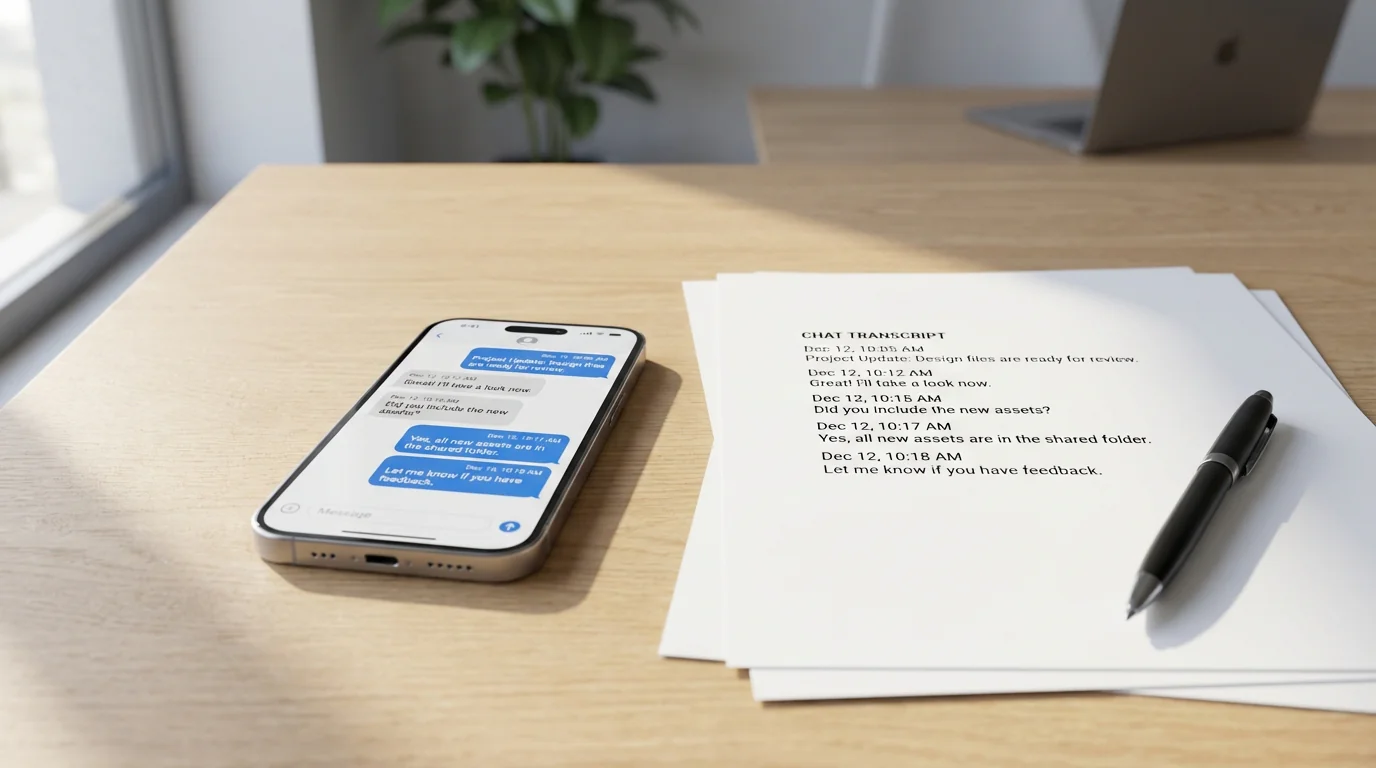
Signal has earned its reputation as one of the most secure messaging apps available, but that same commitment to privacy makes exporting and printing conversations surprisingly difficult. Unlike standard messaging apps, Signal encrypts everything end-to-end and stores messages locally on your device instead of in the cloud. That protects your conversations, but it also means there is no built-in export-to-PDF option.
Whether you need a printed record for legal documentation, want to preserve important conversations, or simply need a backup of critical communications, Signal does not make it easy. The good news is that there are several practical workarounds that work across iPhone, Android, and desktop platforms.
Method 1: Screenshot and Print (Quickest for Short Conversations)
For brief exchanges or specific messages, screenshots remain the simplest solution. This method works on both iPhone and Android and requires no additional software.
On iPhone:
- Open the Signal conversation you want to capture.
- Press Side Button + Volume Up simultaneously, or Home + Power on older devices.
- Scroll down and repeat for each screen of messages.
- Open the Photos app and locate your screenshots.
- Select the screenshots and tap Share.
- Choose Print or save them as a PDF through Files.
On Android:
- Open your Signal conversation.
- Press Power + Volume Down simultaneously.
- Continue scrolling and capturing screens.
- Open Gallery or Photos and select your screenshots.
- Tap the menu and choose Print, or use a PDF converter app.
Important notes: Make sure Screen Security is disabled in Signal settings under Settings > Privacy > Screen Security, or your screenshots may appear blacked out. Screenshots also do not preserve metadata like timestamps and sender information in a structured way, so they are best for informal records rather than formal documentation.
Method 2: Use Signal Desktop with Print-to-PDF
Signal Desktop offers the most straightforward path to printable documents when you need longer conversation histories with better formatting.
Step-by-step process:
- Link Signal Desktop to your phone:
- Download Signal Desktop from signal.org for Windows, Mac, or Linux.
- Open Signal on your iPhone or Android device.
- Go to Settings > Linked Devices > Link New Device.
- Scan the QR code displayed on your computer.
- Choose whether to transfer existing history or start fresh.
- Export the conversation:
- Open the conversation you want to print in Signal Desktop.
- Scroll up to load the full message history you need.
- Select the messages by clicking and dragging, or use Ctrl+A on Windows or Cmd+A on Mac.
- Copy the content and paste it into a word processor.
- Print to PDF:
- Press Ctrl+P on Windows or Cmd+P on Mac.
- Select Save as PDF or your PDF printer.
- Choose a destination and save.
Limitations: Signal Desktop only includes messages synced from the point when the device was linked, unless you transfer history during setup. If you need older messages and did not transfer them, you may need one of the mobile-based methods.
Method 3: Screen Recording for Long Conversations
For long message threads that would require many screenshots, screen recording is often more efficient.
On iPhone:
- Go to Settings > Control Center and add Screen Recording if needed.
- Open your Signal conversation and scroll to the beginning.
- Open Control Center.
- Tap Record and wait for the countdown.
- Slowly scroll through the conversation.
- Stop the recording when you are done.
- The video will be saved to the Photos app.
On Android:
- Open Quick Settings.
- Tap Screen Recorder.
- Open Signal and scroll to the top of the conversation.
- Start recording and scroll slowly through the messages.
- Stop recording when complete. The video will save to your Gallery.
Converting to printable format: A screen recording is not directly printable, but you can convert it into a structured PDF or text document with a service like TextPort. That lets you preserve timestamps and sender information in a print-ready format.
Method 4: Export via TextPort (Most Comprehensive Solution)
If you need professional, print-ready exports with full metadata, timestamps, and consistent formatting, TextPort is the strongest option. It works with Signal and other messaging apps on iPhone or iPad.
How it works:
- Download TextPort from the App Store.
- Capture your Signal conversation with screenshots or a screen recording.
- Import the screenshots or video into TextPort.
- Let the app reconstruct the conversation, including senders, timestamps, and message order.
- Export as PDF, CSV, or TXT.
- Print directly from your phone or transfer the export to a computer.
Why this method stands out: Unlike manual screenshot workflows or copy-paste workarounds, TextPort preserves the conversation structure and metadata that legal, business, or compliance workflows often require. It is also useful if you need to export WhatsApp chats or messages from other platforms without learning a different workflow for each one.
Tips for Better Results
Before you start exporting:
- Disable disappearing messages temporarily if they are enabled.
- Check Settings > Privacy > Screen Security so screenshots are not blocked.
- Save important media separately because many export methods do not include attachments cleanly.
- Export promptly if timing matters for legal or compliance reasons.
For print quality:
- Use landscape orientation if the layout is too wide.
- Adjust margins and font size before printing.
- Include a cover page if you need to document participants, date of export, or context.
- If this is for a legal submission, confirm admissibility requirements with counsel.
Platform-Specific Limitations to Know
iPhone/iOS: Signal for iPhone has no native export function. Your main options are screenshots, screen recordings, or Signal Desktop.
Android: Android offers JSON export, but it is not especially useful for direct printing without additional conversion.
Signal Desktop: The desktop workflow is the best manual option, but it only includes synced history from the point of linking unless you transfer older data during setup.
When You Need More Than Printed Conversations
If you need to export messages from multiple platforms, including iPhone's Messages app, Signal, WhatsApp, and Instagram, it can be more efficient to use a unified workflow. For broader archiving and cleaner formatting across apps, see the best way to print text messages from iPhone.
Final Thoughts
Printing Signal messages requires a workaround because of the app's privacy-focused design, but it is still manageable. Screenshots work for short conversations, Signal Desktop is the best manual option when available, and TextPort is the most complete path when you need structured, print-ready output.
Whatever method you use, handle exported conversations carefully and be mindful of privacy and consent when sharing or printing them.

Start exporting your messages
Available for iPhone, Mac, and Windows. No computer required.
