
Best Apps to Backup and Export iMessage Conversations (2026)
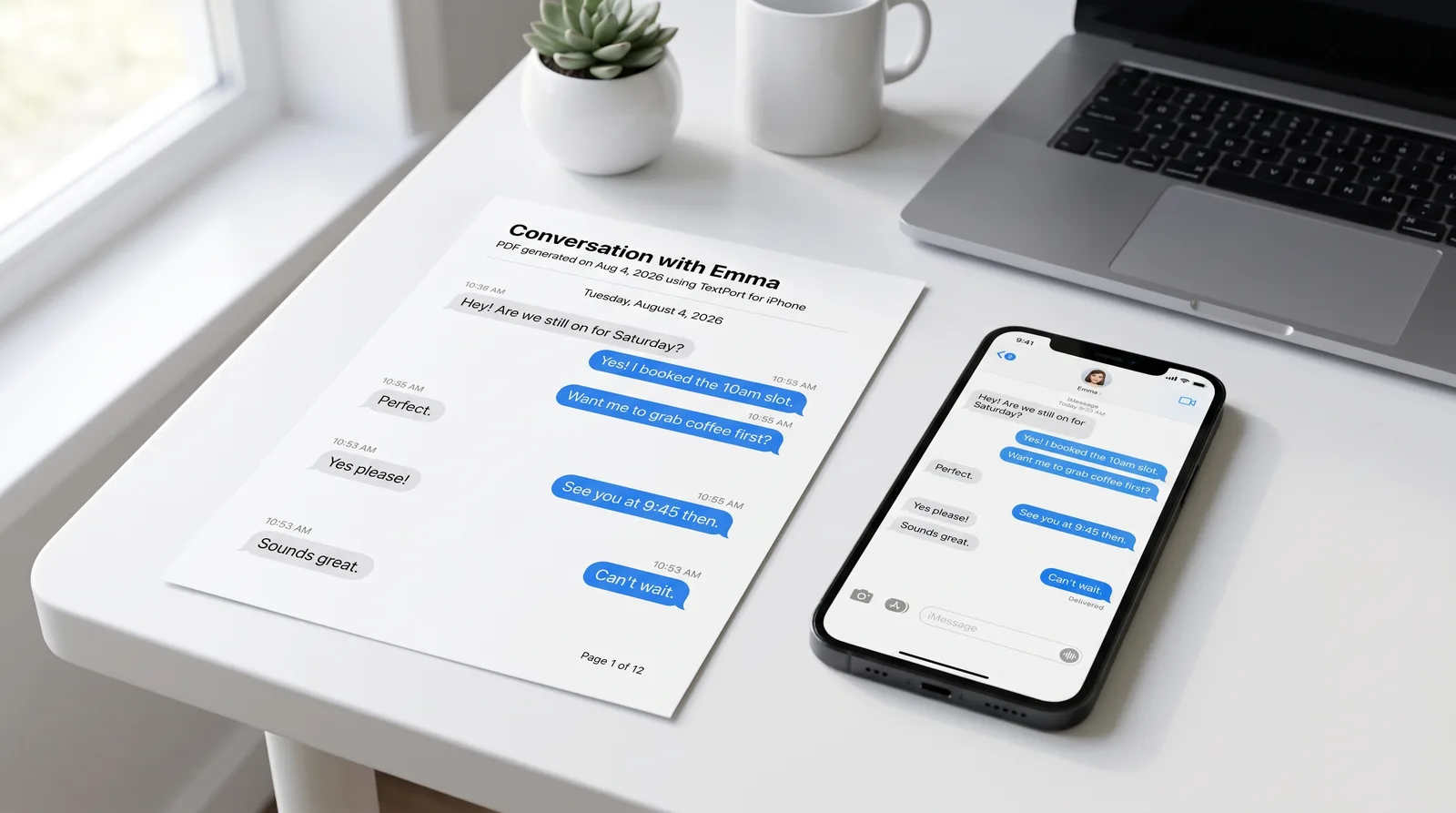
Apple's Messages app stores iMessage and SMS conversations on your iPhone, but it offers no built-in way to export them as a file you can save, print, or submit. That gap matters when you need to document a conversation for a legal dispute, preserve a long thread before switching phones, or organize records for a business.
Three tools dominate this space in 2026: TextPort, iMazing, and Decipher TextMessage. Each handles iMessage export differently, and the right choice depends entirely on your constraints: whether you have a computer nearby, what output format you need, and how the result will be used.
One-line verdicts for common scenarios
| Scenario | Best tool | Why |
|---|---|---|
| I only have my iPhone | TextPort | Imports directly from iMessage, no computer or cable needed |
| I need a court-ready PDF with timestamps | TextPort or iMazing | TextPort works phone-only; iMazing works from a Mac/Windows backup |
| I need to export a full conversation history quickly | TextPort for Mac or Windows, or iMazing | Desktop bulk export of the entire history in one pass |
| I need spreadsheet-friendly CSV for analysis | iMazing or Decipher TextMessage | Both produce CSV from a desktop connection |
| I want the lowest-cost desktop option | Decipher TextMessage | Straightforward desktop export; supports PDF, CSV, HTML, and TXT |
Tool recommendations by scenario
Scenario 1: No computer available (iPhone only)
TextPort is the only tool in this group designed to run entirely on your iPhone or iPad. The workflow is short: open TextPort, tap Import, choose the iMessage conversation, and pick the date range you need. TextPort imports every message with sender and timestamp in chronological order. The result can be exported as PDF, CSV, or TXT.
This workflow is particularly useful when time is a factor, such as needing to document messages before a court date or filing a complaint. There are no cables, no iTunes backups, and no technical setup steps.
Scenario 2: Legal evidence and professional presentation
For court filings and formal documentation, PDF is the most appropriate format. It preserves the visual layout, timestamps, and sender labels in a paginated document that reads like a professional record.
If you're working phone-only, TextPort produces PDFs suitable for legal filings, HR reports, or submission to attorneys. If you have access to a Mac or Windows machine, iMazing connects via USB or Wi-Fi, reads from your iPhone backup, and exports conversations with per-message timestamps and metadata intact. According to iMazing's export guidance (updated March 10, 2026), supported output formats include PDF, Excel/CSV-compatible files, and RSMF (a specialized message format for legal review).
For either tool, choose PDF when the recipient needs to read the conversation directly. Use CSV when an attorney or investigator needs to sort, filter, or search across message data.
Scenario 3: Full conversation history export
For very long threads spanning months or years, iMazing's desktop workflow has an advantage. It reads directly from the iPhone's local backup, which means it can access the complete archived history without the user needing to scroll through it manually. Message order and metadata are preserved across the full export.
TextPort's desktop apps do the same for iMessage and SMS. TextPort for Mac reads the Messages already on your Mac, so with Messages in iCloud turned on it sees your iPhone's full history without a cable or a backup. TextPort for Windows backs up your iPhone over USB through Apple's Apple Devices app or iTunes and reads the messages from that backup; you can start reading in about 10 minutes while the backup runs. Both can export every conversation at once, or a date range, to PDF, CSV, or TXT, with attachments in a ZIP.
On the phone, TextPort handles long conversations with no message limit. The iMessage chat history export workflow in TextPort supports unlimited exports, so even extensive threads are manageable on the device itself.
Scenario 4: CSV or spreadsheet analysis
If the goal is to load messages into Excel or another analysis tool, iMazing and Decipher TextMessage both export CSV from a desktop connection. Decipher TextMessage, per its published export guidance, supports PDF, CSV, HTML, and TXT, with a workflow that involves connecting the iPhone to a computer, creating a backup, selecting a contact thread, and exporting in the chosen format.
TextPort also exports to CSV, which is useful when the phone-first workflow is required but spreadsheet-compatible output is still needed.
Scenario 5: Budget desktop option
For users who have a computer and want a focused iMessage export tool without committing to a full device management suite, Decipher TextMessage is a reasonable choice. It exports to multiple formats and provides clear step-by-step guidance for connecting the iPhone, loading the backup, and exporting selected threads.
Which tool fits your constraints?
| Constraint | TextPort | iMazing | Decipher TextMessage |
|---|---|---|---|
| No computer available | Yes | No | No |
| PDF export | Yes | Yes | Yes |
| CSV export | Yes | Yes | Yes |
| TXT export | Yes | Yes | Yes |
| HTML export | No | No | Yes |
| Third-party app export (WhatsApp, etc.) | Yes | Partial | No |
| No USB cable needed | Yes | Wi-Fi optional | No |
| Works on iPhone/iPad natively | Yes | No | No |
Pros and cons of each tool
TextPort
TextPort's primary advantage is the phone-first workflow. It runs on iPhone and iPad, pulls conversations straight out of iMessage (and also handles SMS, WhatsApp, Instagram DMs, Telegram, Signal, and others), and produces PDF, CSV, or TXT without requiring a computer. Step-by-step guidance is built into the app, making it accessible for users without technical backgrounds. For documenting messages for harassment or custody cases, the ability to import and export without a desktop is often the deciding factor.
The main trade-off: for very large exports where a desktop bulk workflow is preferred, TextPort for Mac or Windows (below) or iMazing may be faster.
TextPort for Mac and TextPort for Windows
TextPort's desktop apps export every iMessage and SMS conversation on your Mac or PC, need no account, and upload nothing. TextPort for Mac (macOS 14.6 or later) reads the Messages on your Mac with no cable or backup. TextPort for Windows (Windows 10 and 11) reads an unencrypted iPhone backup made through Apple Devices or iTunes, including one that's already on the PC. Both export iMessage and SMS, including group chats and attachments, to PDF, CSV, or TXT, and can export many conversations at once.
The trade-off: they cover iMessage and SMS only, not WhatsApp or other third-party apps, and they need a computer.
iMazing
iMazing is a full iPhone device manager for Mac and Windows that also handles message export. It reads directly from the iPhone backup, exports conversations to PDF, CSV, Excel-compatible formats, and RSMF, and supports both iMessage and SMS. The output is well-structured and credible for professional use.
The trade-off is setup complexity. iMazing requires a computer, a USB or Wi-Fi connection, and a local iPhone backup before export is possible. It also doesn't export messages from most third-party apps.
Decipher TextMessage
Decipher TextMessage is a desktop export tool for Mac and Windows. It supports PDF, CSV, HTML, and TXT exports from iMessage and SMS. The workflow is straightforward once the iPhone backup is loaded. It's a practical option for users who prefer a desktop-only tool at a lower price point.
Like iMazing, it requires a computer and does not extend to third-party messaging apps.
Pre-export checklist
Before finalizing any iMessage backup or export, confirm the following:
- Conversation completeness. Scroll to the top of the thread to verify no messages are missing. Gaps in evidence can undermine credibility.
- Timestamps and participant names visible. Any format you export should display per-message timestamps and sender identification, not just dates at the top of a section.
- Format matches the use case. Use PDF for human-readable evidence and formal submissions. Use CSV when the data needs to be reviewed in a spreadsheet. Use TXT for a lightweight plain-text backup.
- Attachments handled appropriately. Decide in advance whether media files (photos, documents) need to be included. Some workflows export text only.
- Source reference retained. Keep a note of how and when the export was generated. For legal purposes, a record of the export method (app name, date, format) supports the defensibility of the file.
- Chronological order confirmed. Review the first and last messages in the exported file to ensure the order matches the original thread.
For users who need to print text messages for court or submit them as formal evidence, these checks are worth completing before sharing or filing the export. A clean, complete, chronologically ordered PDF or CSV is considerably more persuasive than a scattered collection of screenshots.
All three tools covered here can produce a defensible export when used correctly. The right choice comes down to whether you have a computer, what format you need, and whether the messages you're capturing live in iMessage only or across multiple apps.

Start exporting your messages
Available for iPhone, Mac, and Windows. No computer required.
